PROJECT OVERVIEW
This project simulates the deployment, configuration, and administration of a multi site enterprise Active Directory environment that I hosted in Microsoft Azure. Designed to mirror a realistic branch office infrastructure, this lab demonstrates end-to-end systems administration. It covers initial cloud provisioning, domain controller promotion, location-based Organizational Unit (OU) architecture, and Role-Based Access Control (RBAC). Demonstrating competency in ADUC and Group Policy. Furthermore, the lab extends beyond basic setup to simulate advanced Level 1 and Level 2 IT support scenarios, including automated asset inventory tracking via PowerShell, offline data recovery, and proactive network security isolation.
Step 1: Cloud Infrastructure & Virtual Machine Provisioning
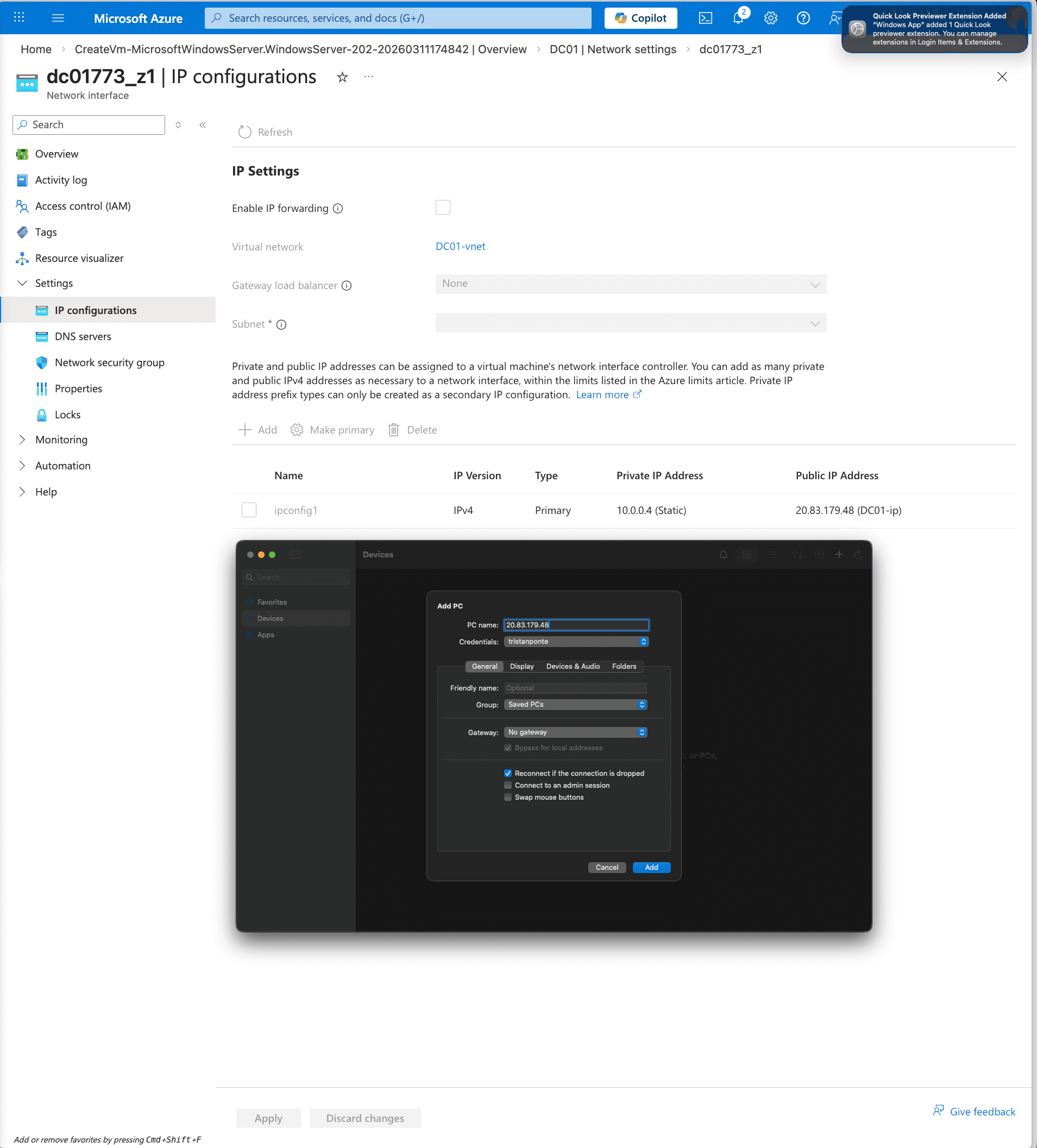
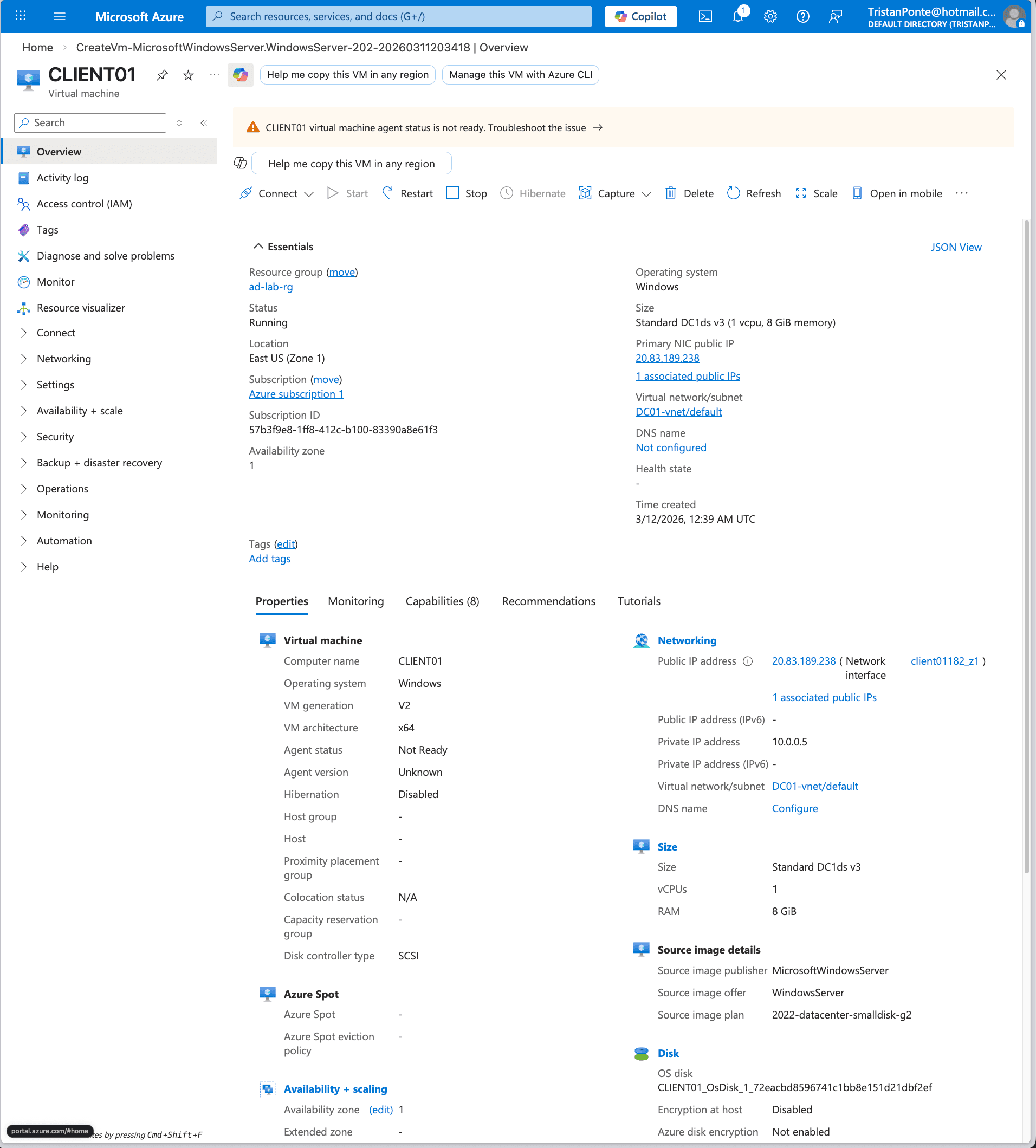
To establish the environment, I provisioned two virtual machines in Microsoft Azure: a Windows Server 2022 Datacenter instance (DC01) to act as the primary Domain Controller, and a Windows 10/11 client instance (CLIENT01) to simulate an end-user workstation. I configured a custom Virtual Network (VNet) to ensure both machines could communicate securely. A critical step in this phase was assigning a Static Private IP to the domain controller to prevent DNS resolution failures and ensure authentication stability across the network.
Step 2: Active Directory Domain Services (AD DS) Installation
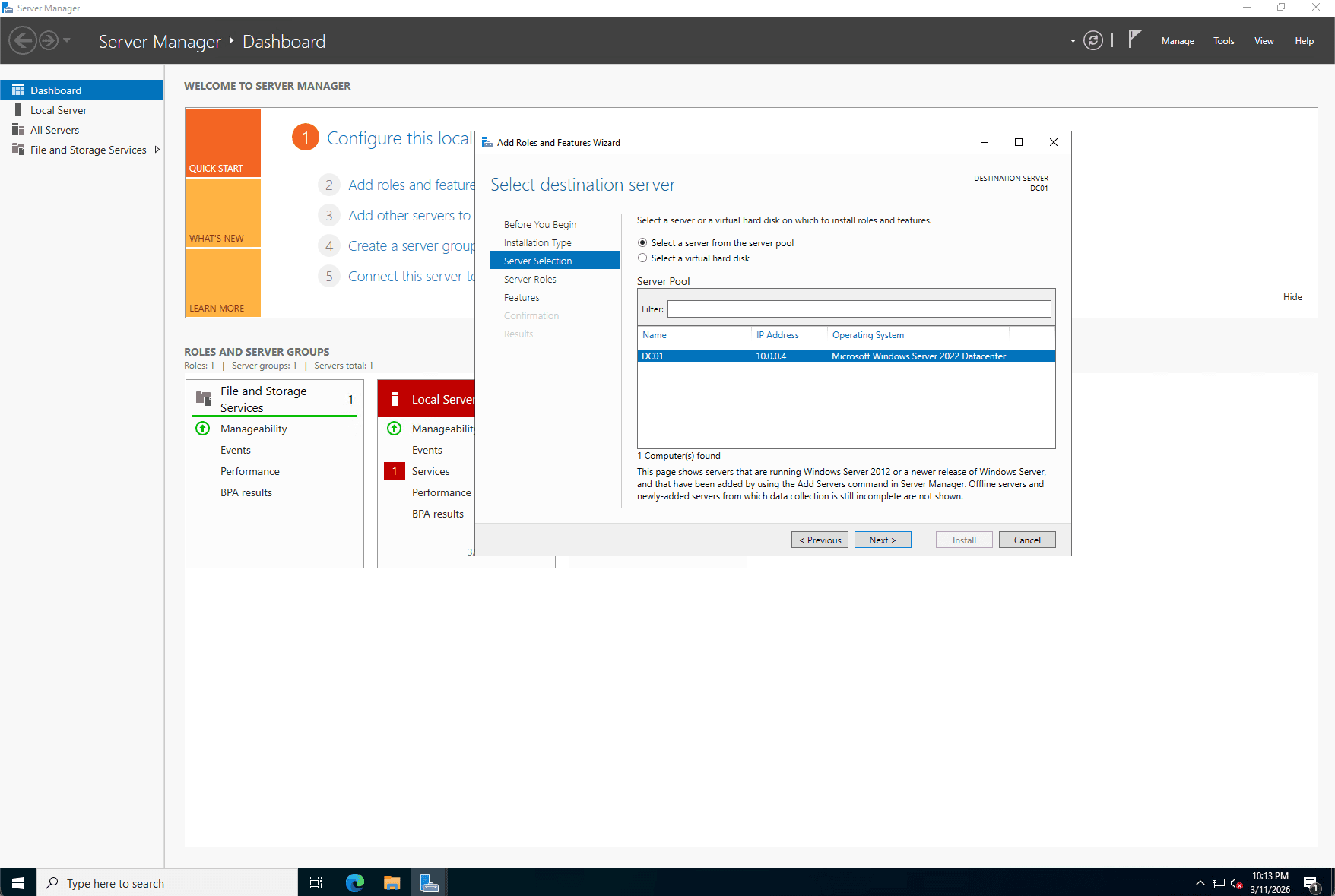
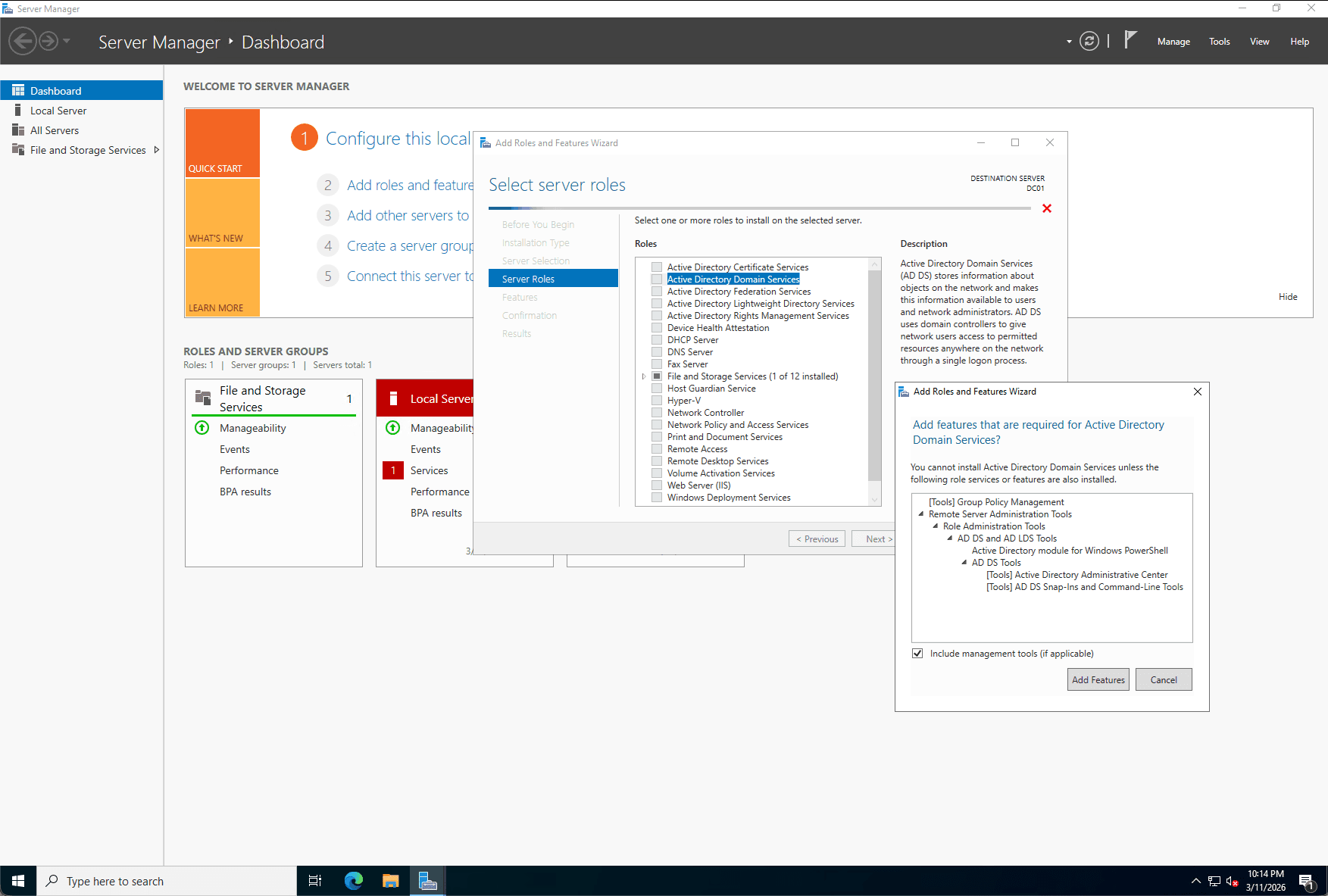
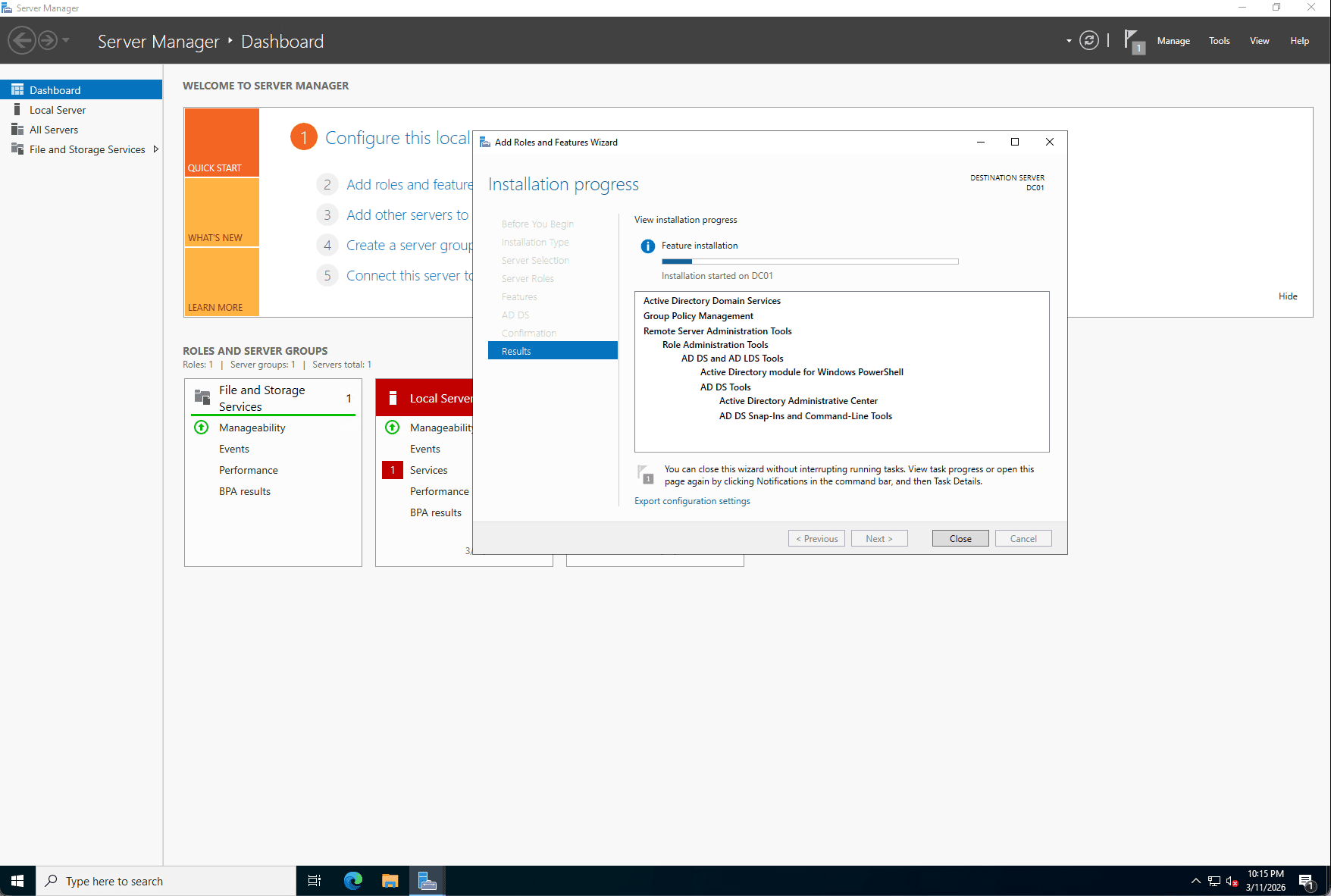
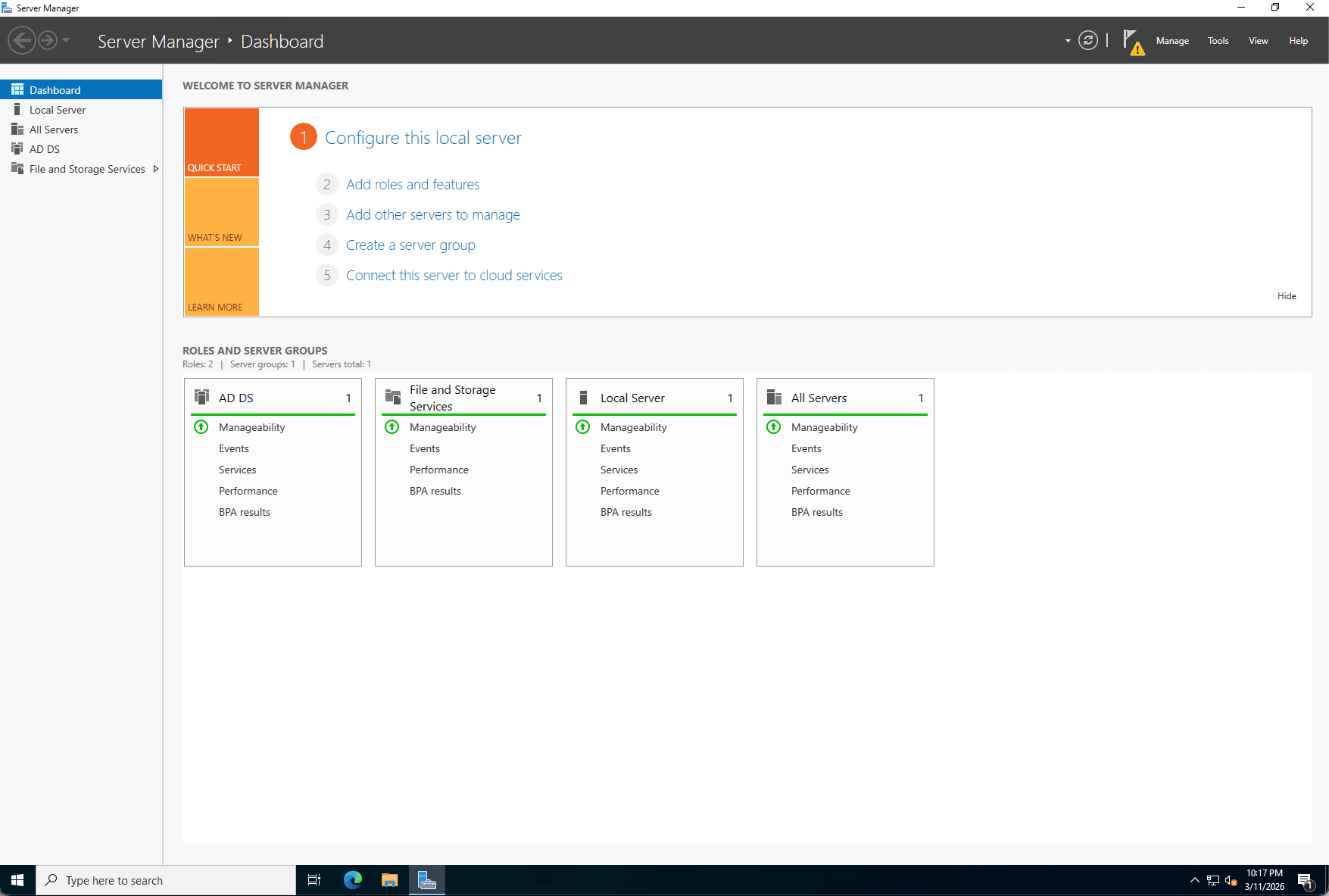
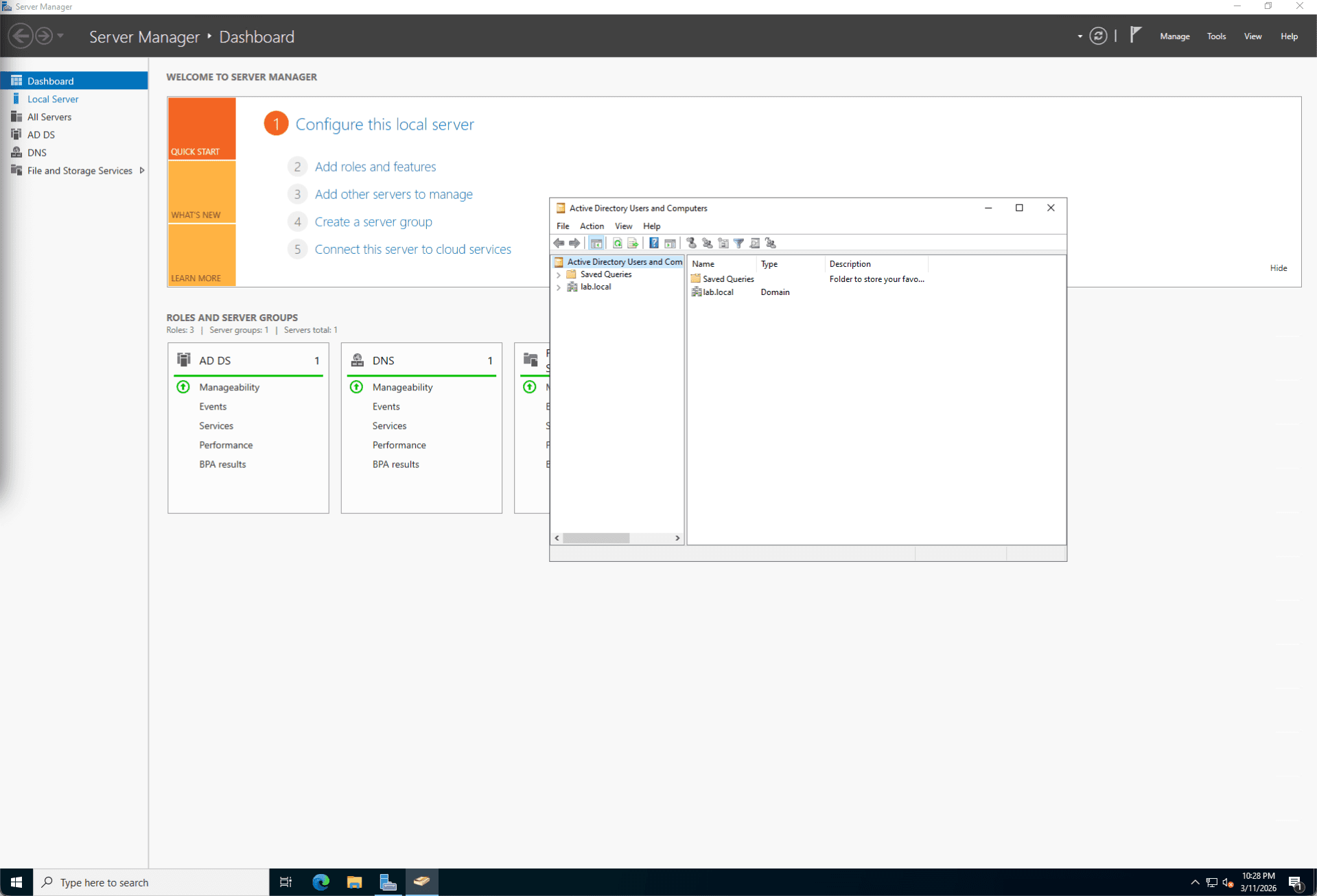
With the infrastructure active, I accessed DC01 via RDP to begin the identity management setup. Using Server Manager, I installed the Active Directory Domain Services role and the accompanying Remote Server Administration Tools (RSAT). This step lays the binary foundation required to turn a standard Windows Server into an identity provider for an enterprise environment.
Step 3: Forest Promotion and DNS Integration
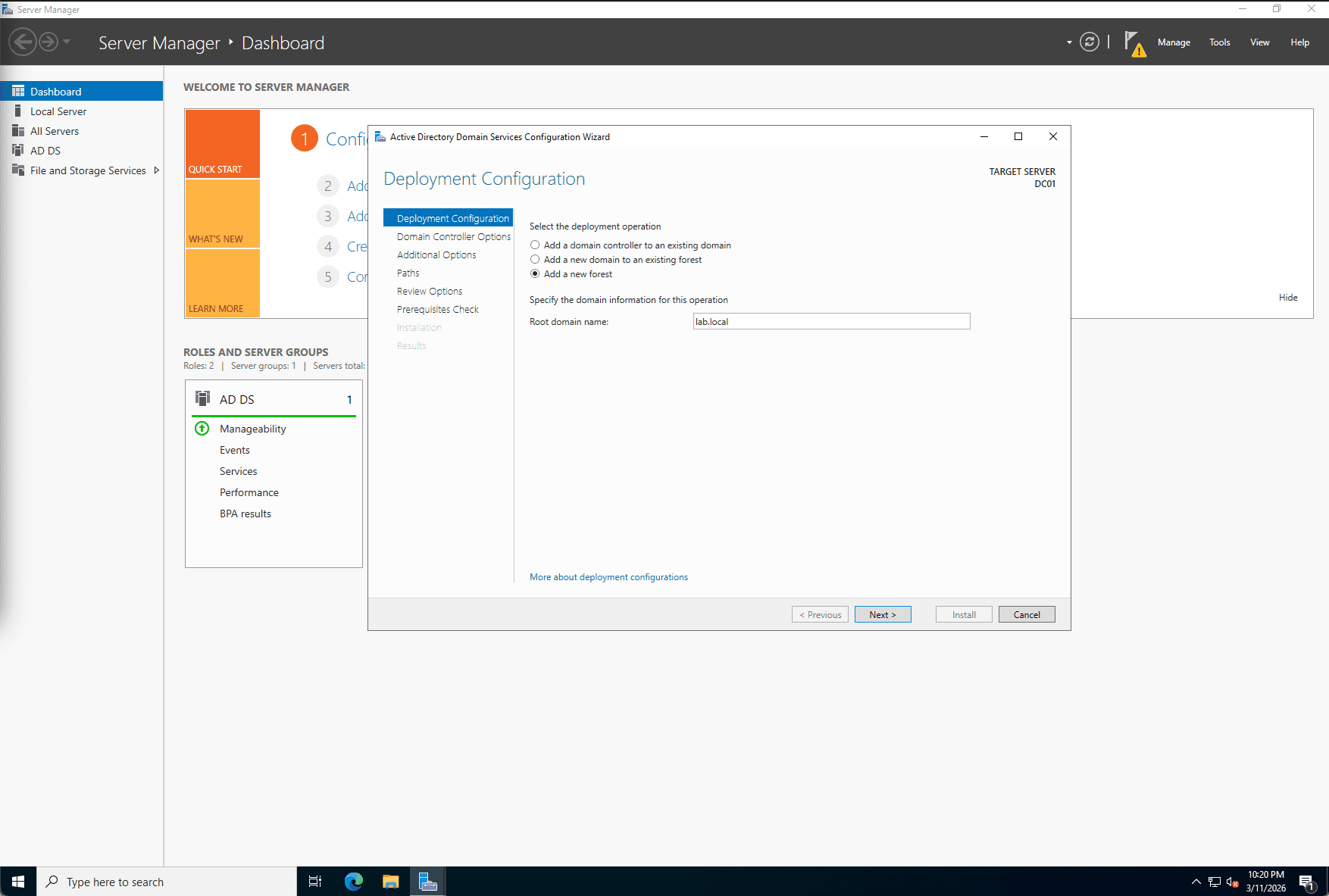
Once the AD DS binaries were installed, I promoted the server to a Domain Controller, establishing a new forest root named lab.local. During this process, I integrated the DNS Server role and configured the server as a Global Catalog (GC). I also established a Directory Services Restore Mode (DSRM) password, ensuring disaster recovery protocols were in place should the Active Directory database (NTDS.dit) ever become corrupted.
Step 4: Logical OU Architecture Design (Branch Setup)
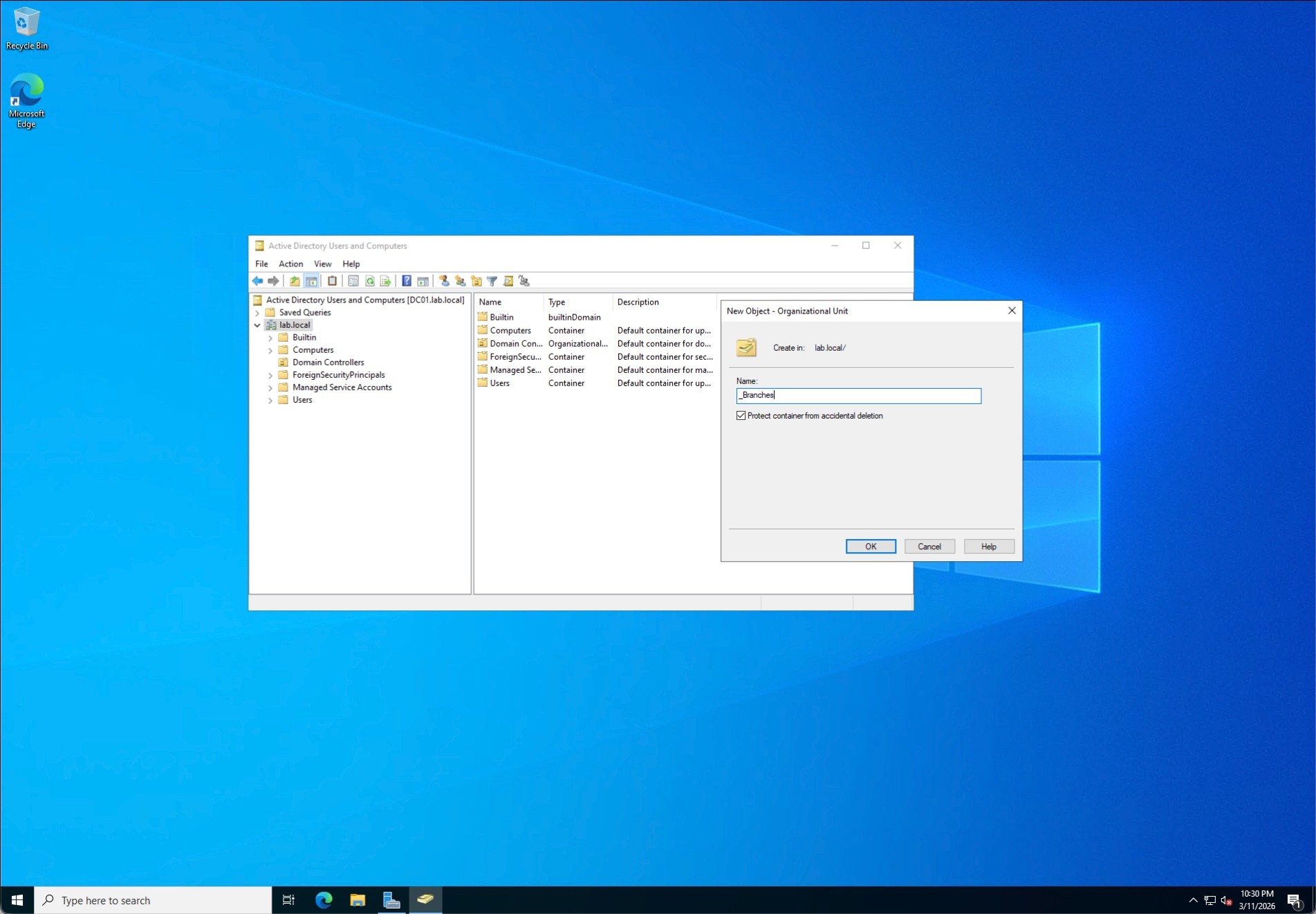
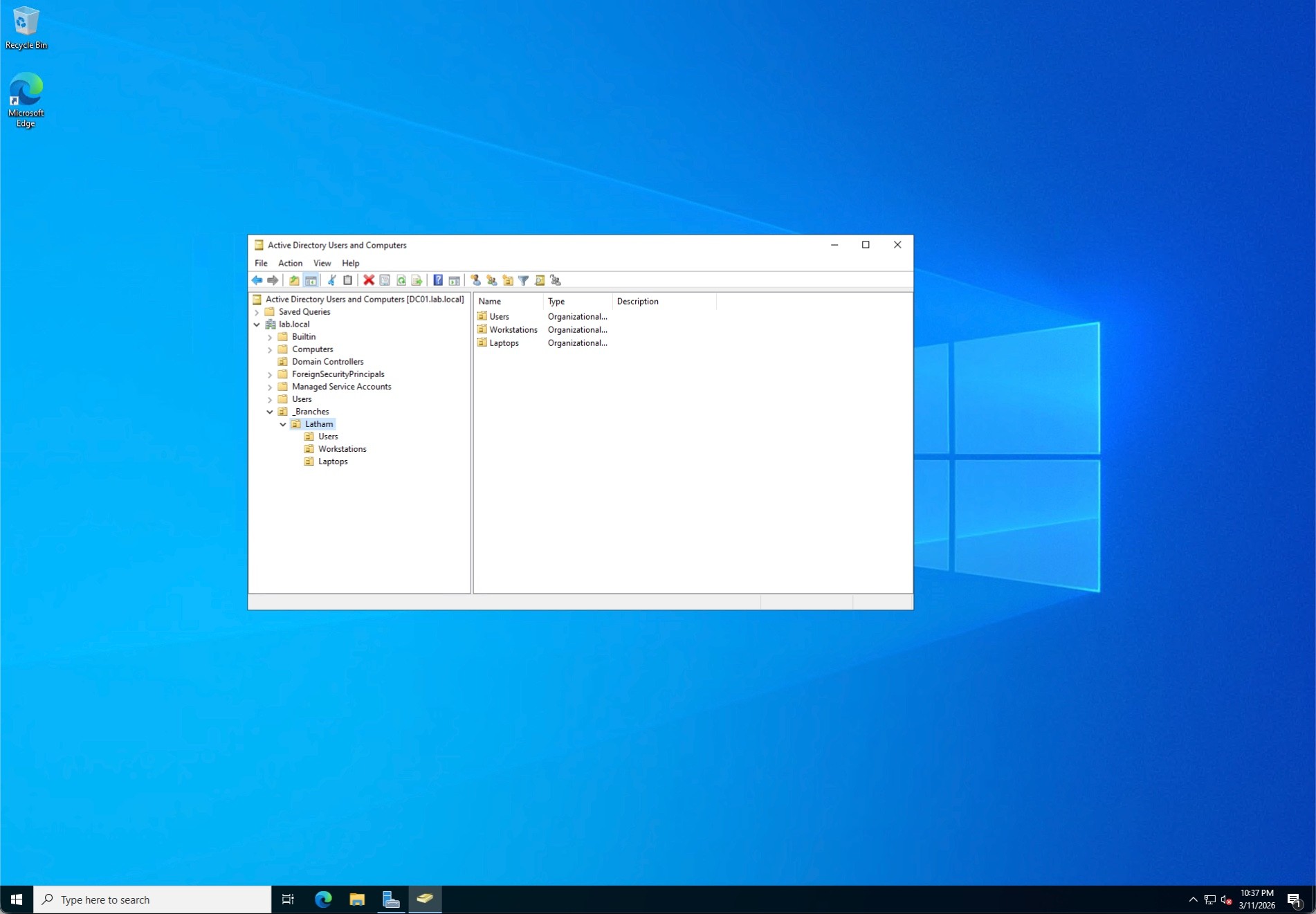
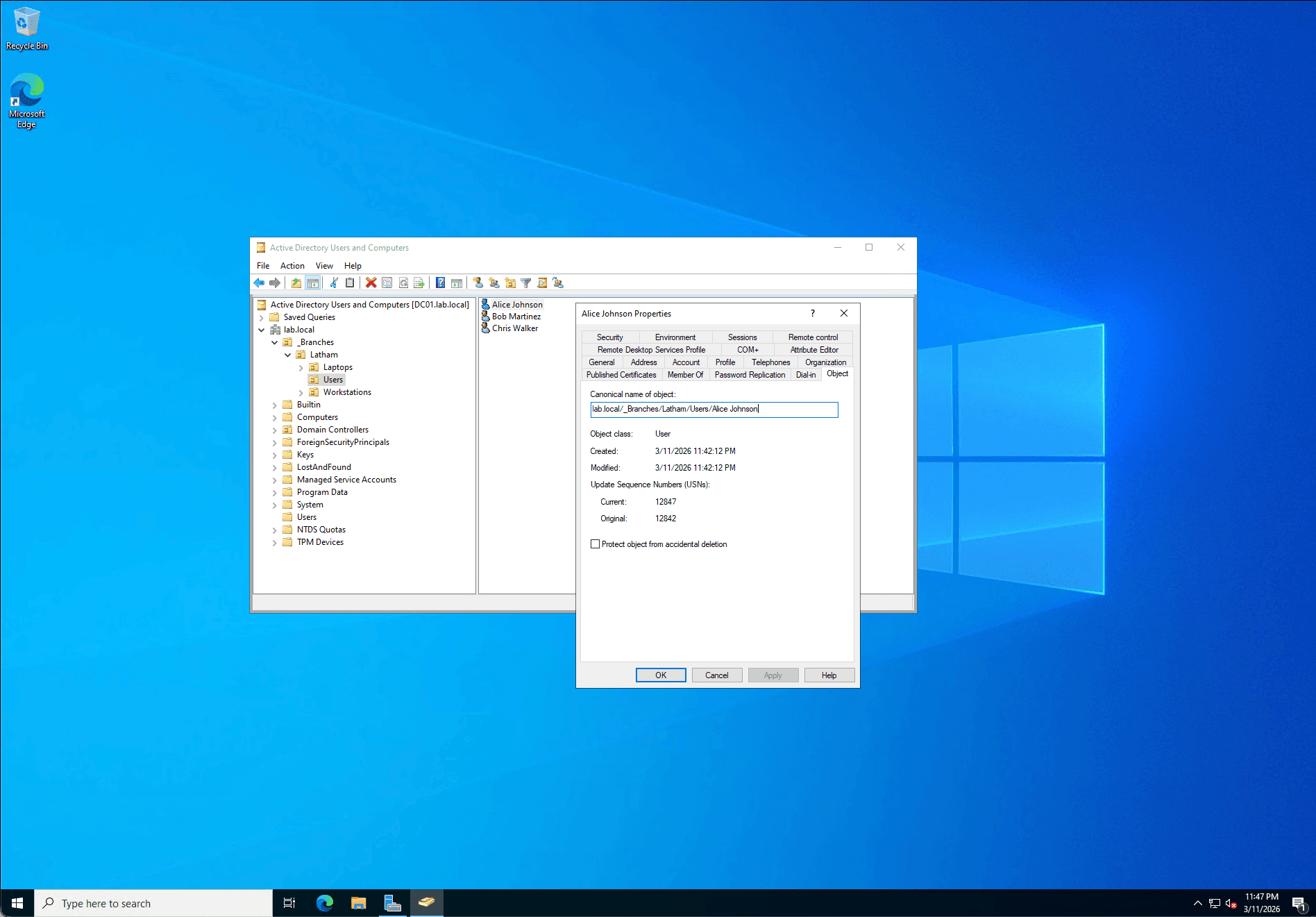
Rather than using the default, flat Active Directory containers, I designed a scalable, location-based Organizational Unit (OU) hierarchy. I created a top-level _Branches OU, and within it, established a Latham branch OU containing sub-folders for Users, Workstations, and Laptops. This structure mirrors real-world enterprise environments, allowing for targeted Group Policy Object (GPO) application and secure Delegation of Control for regional IT staff. I also ensured "Protect container from accidental deletion" was enabled across the board.
Step 5: Identity & Access Management (User Provisioning)
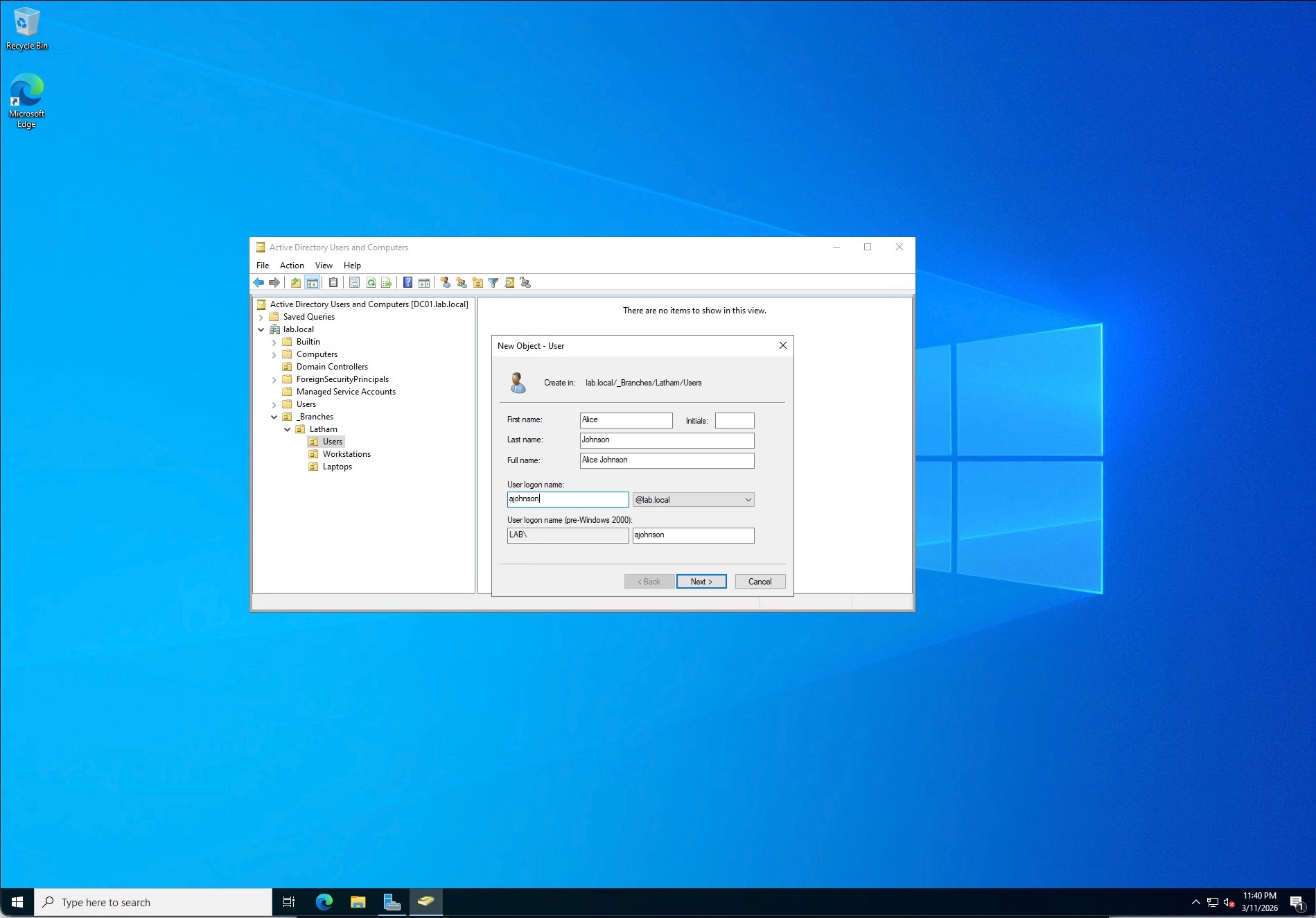
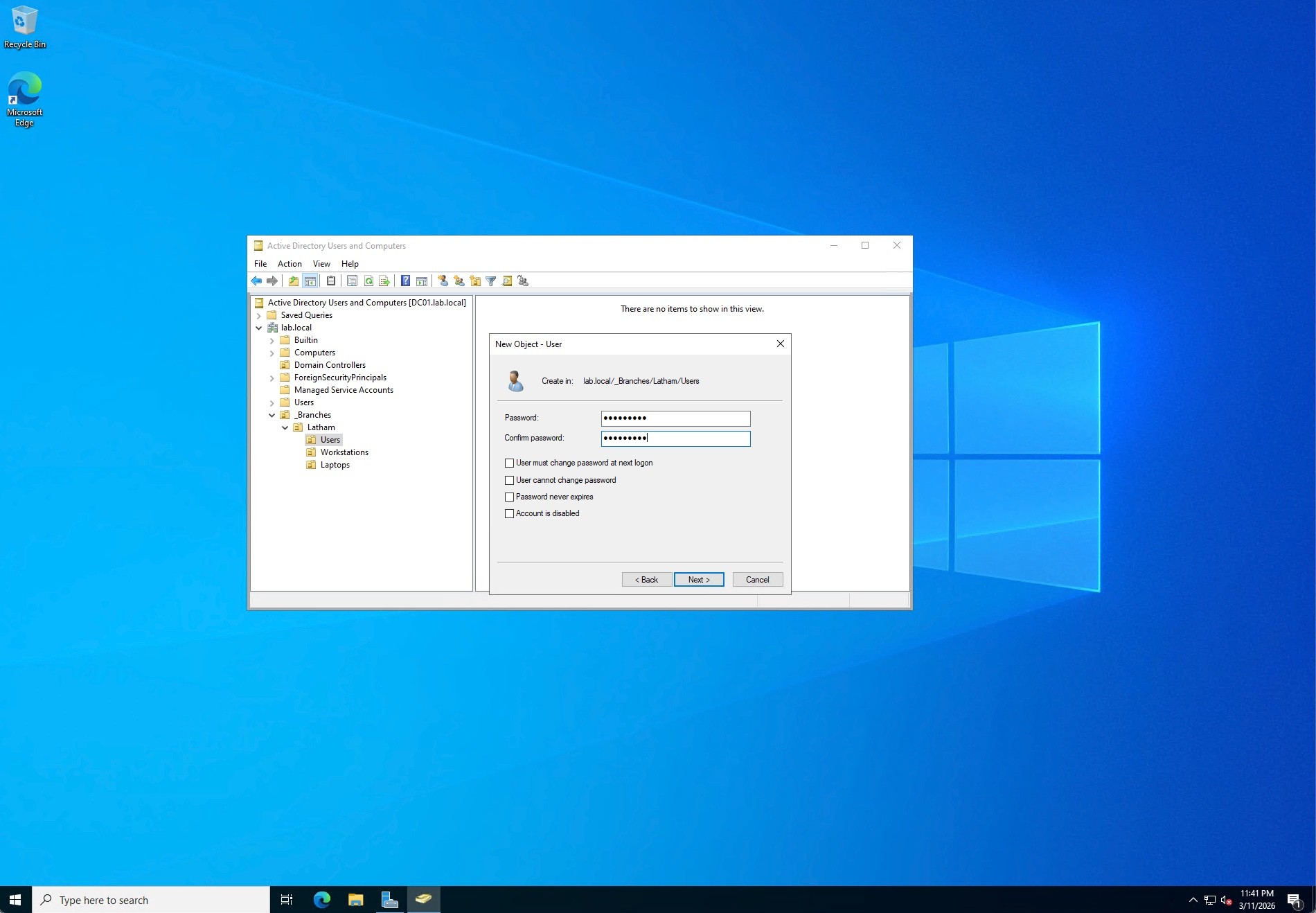
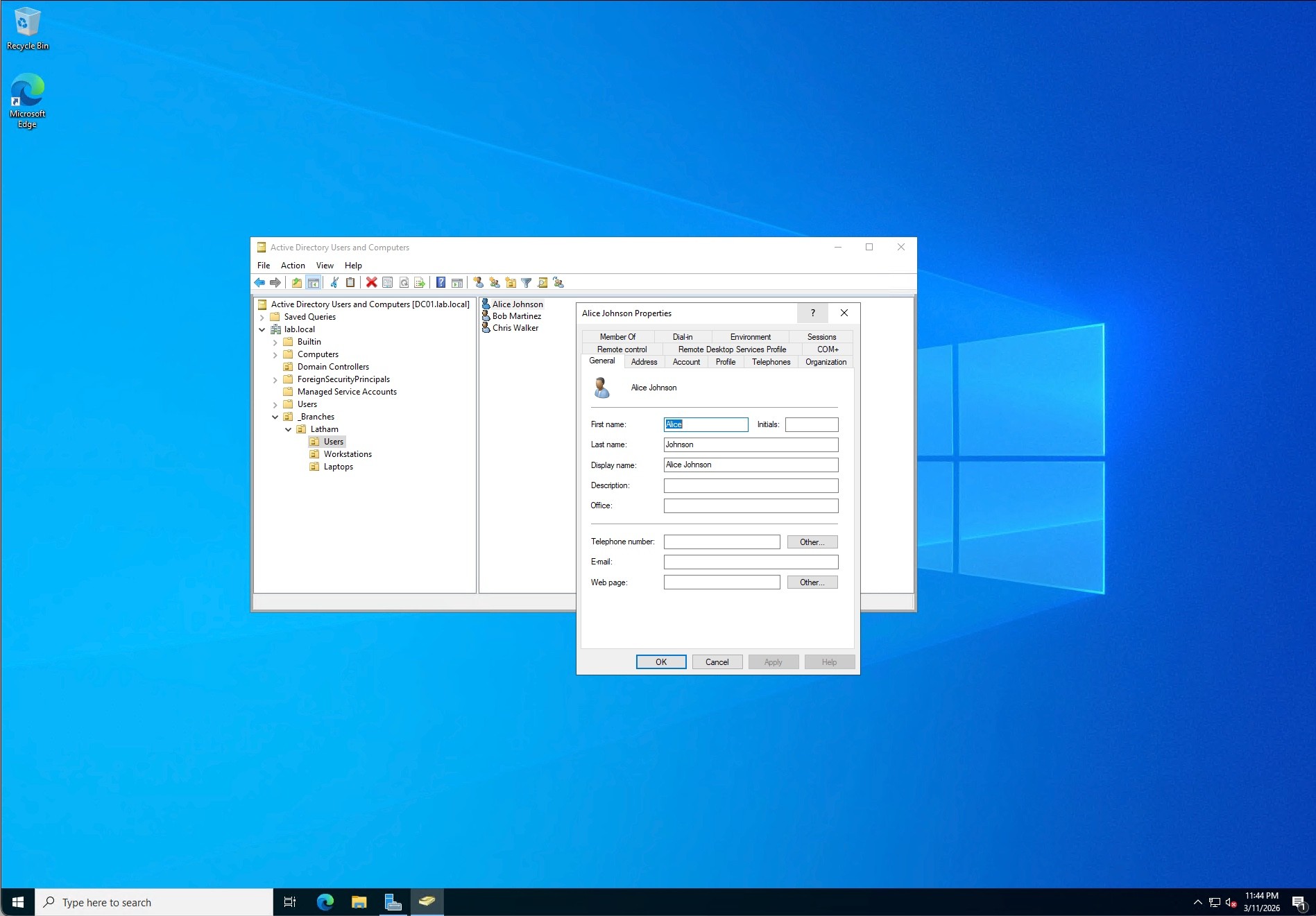
I provisioned several test identities into the Latham\Users OU, standardizing the naming conventions (e.g., Alice Johnson as ajohnson). To streamline this process and demonstrate automation capabilities, I utilized PowerShell cmdlets (New-ADUser) to generate the accounts.
Step 6: Implementing Role-Based Access Control (RBAC)
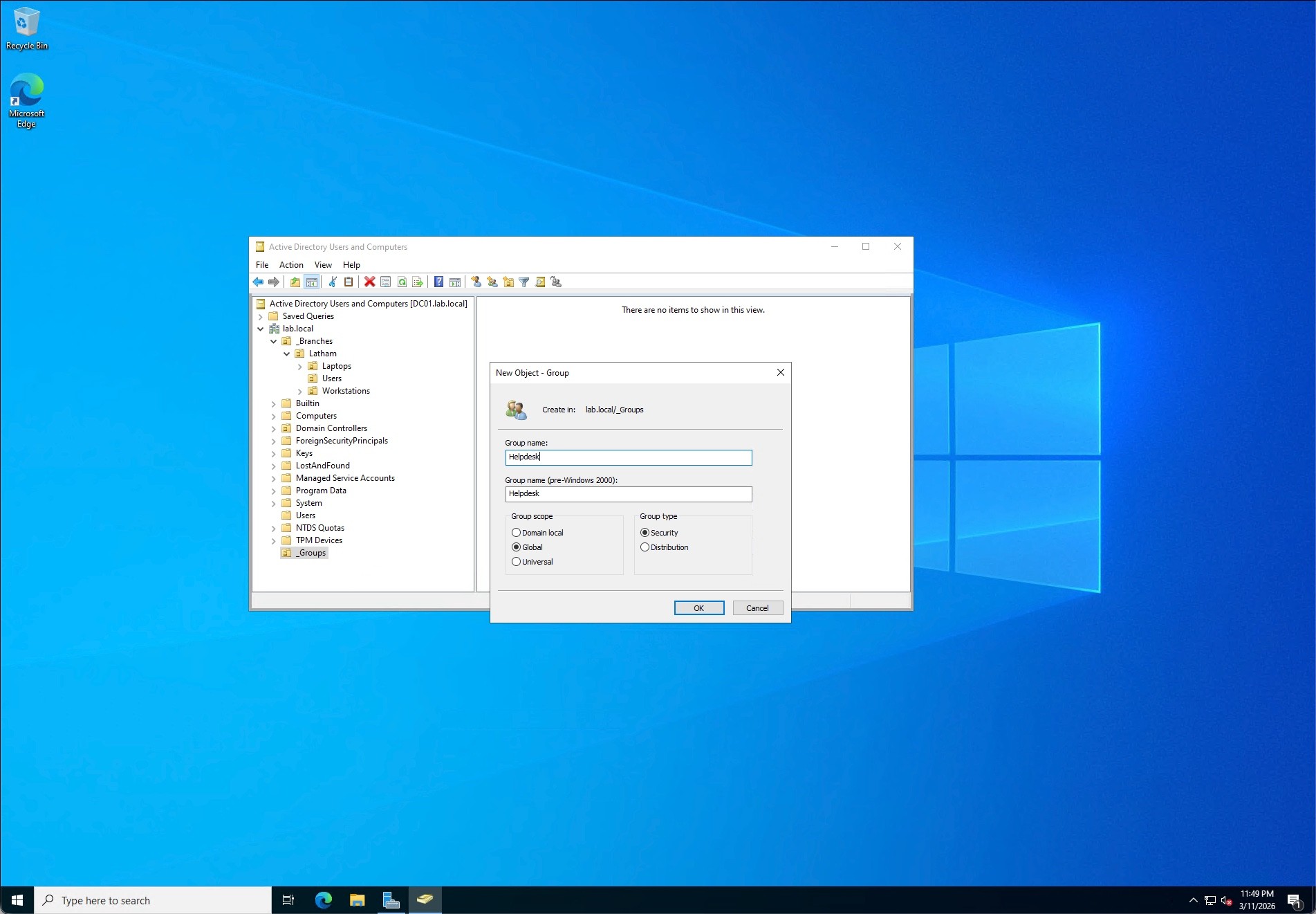
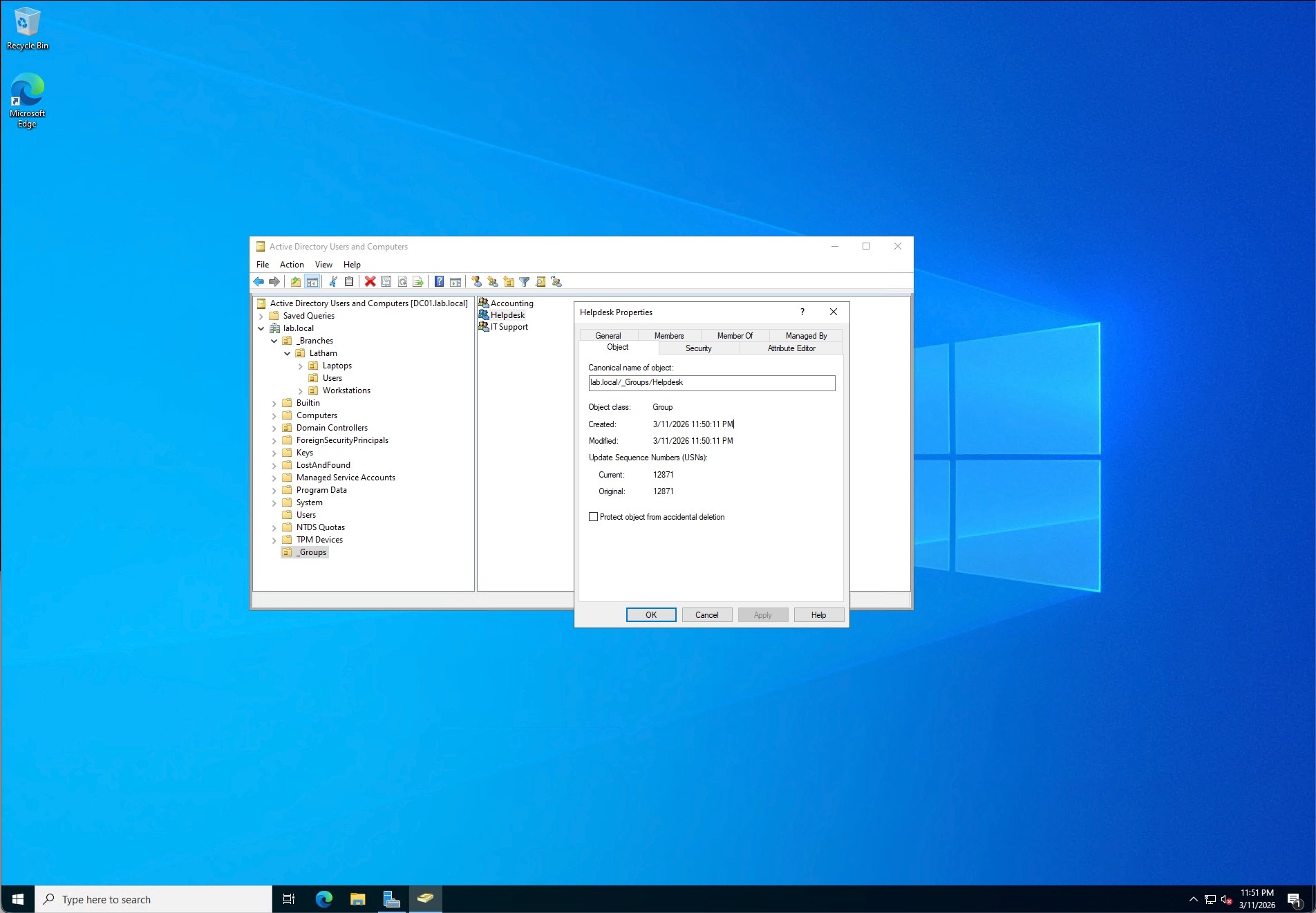
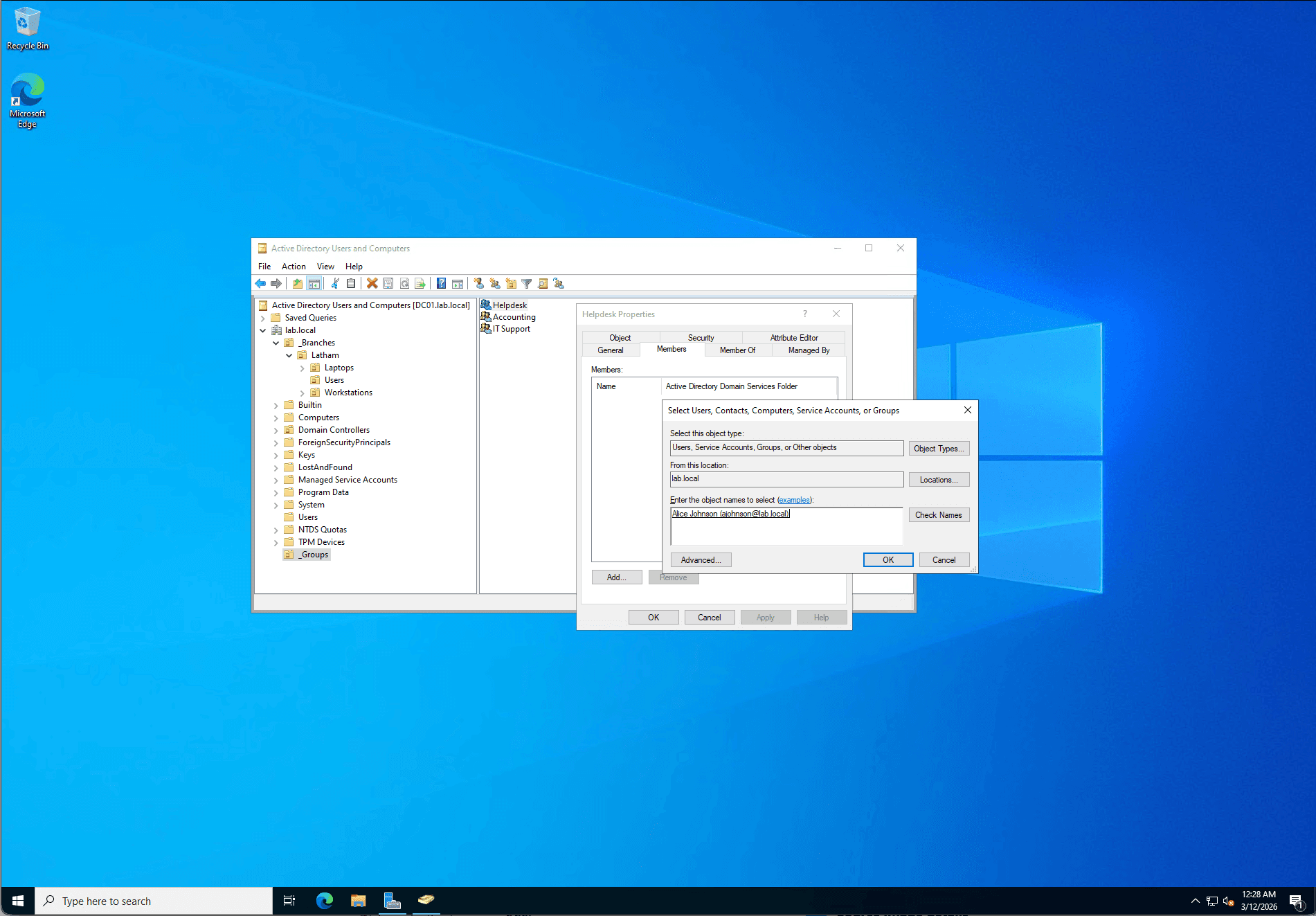
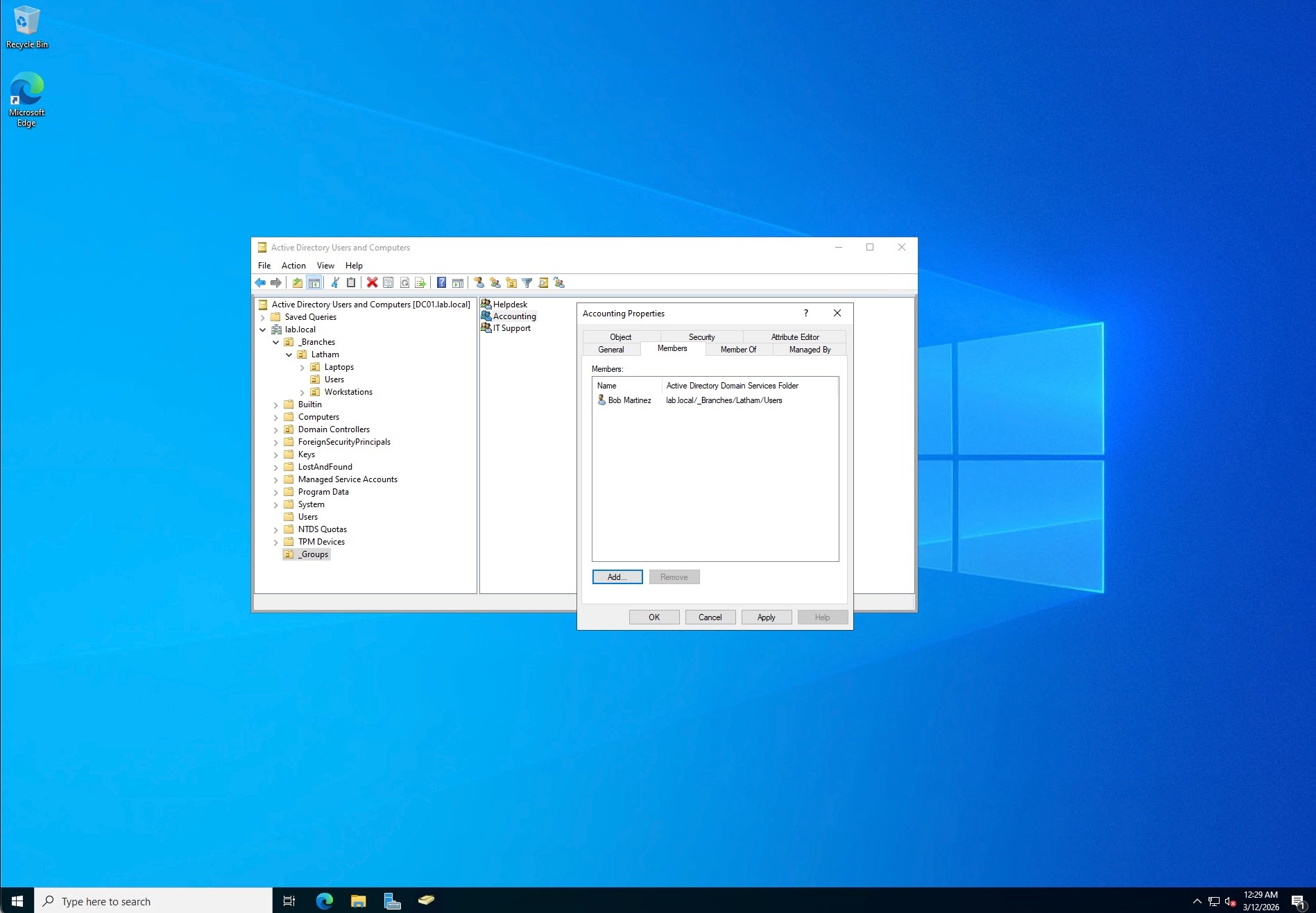
To manage permissions securely, I created a centralized _Groups OU at the domain root. Inside, I established Global Security Groups including Helpdesk, Accounting, and ITSupport. I then assigned the newly created users to their respective groups. This setup ensures that access to network resources is granted via group membership rather than individual user assignment, adhering to the Principle of Least Privilege.
Step 7: Client Domain Join & DNS Configuration
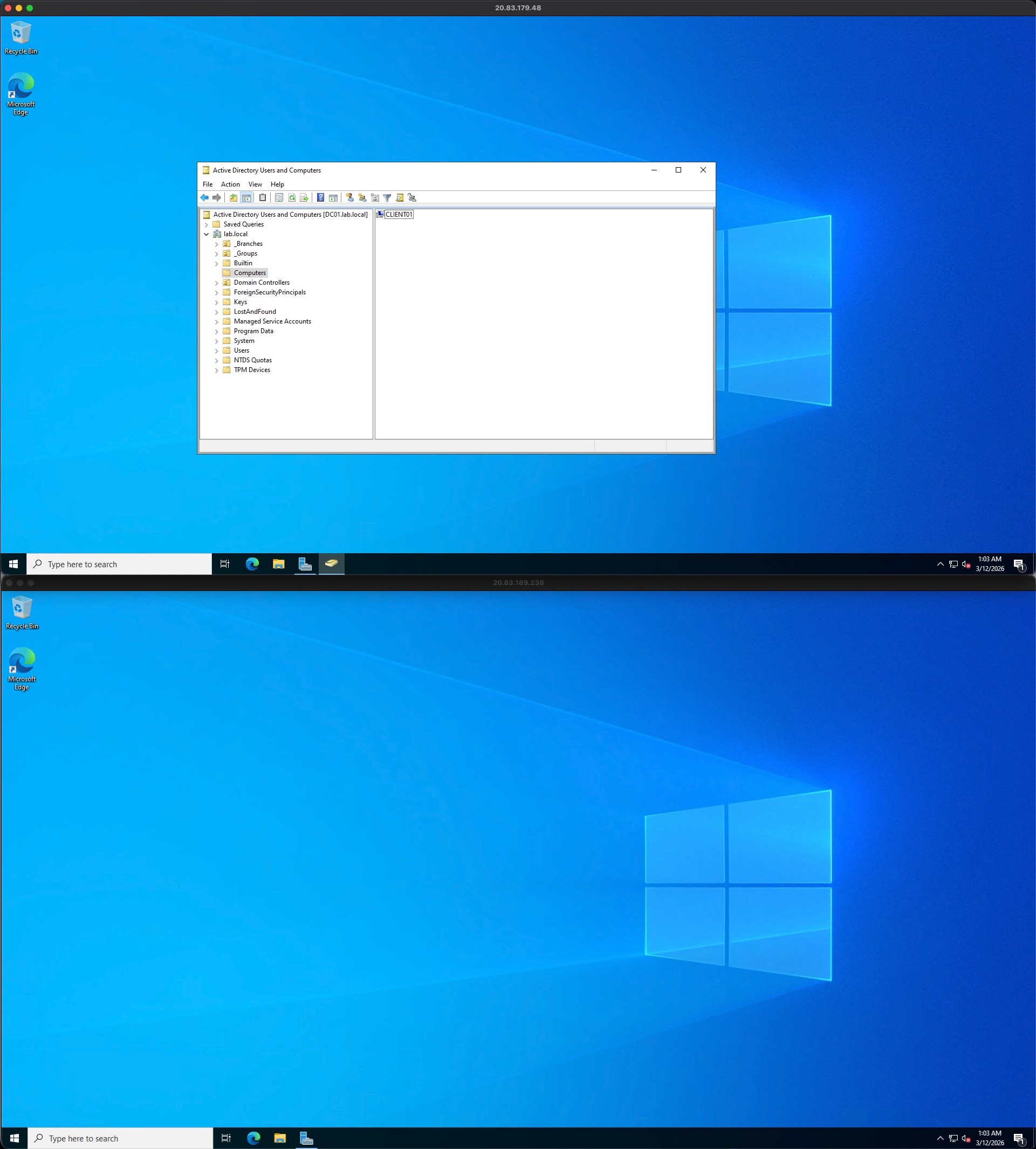
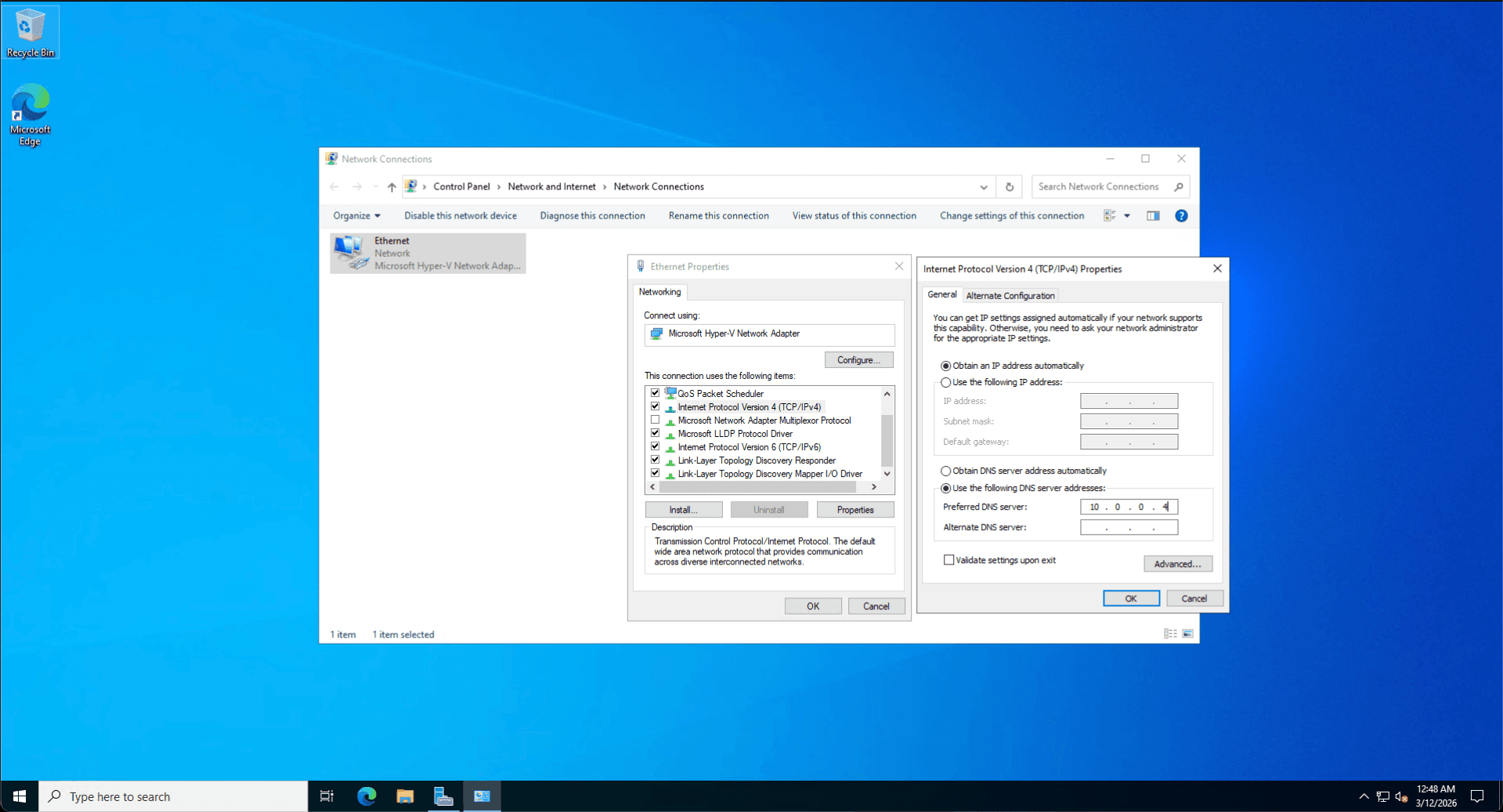
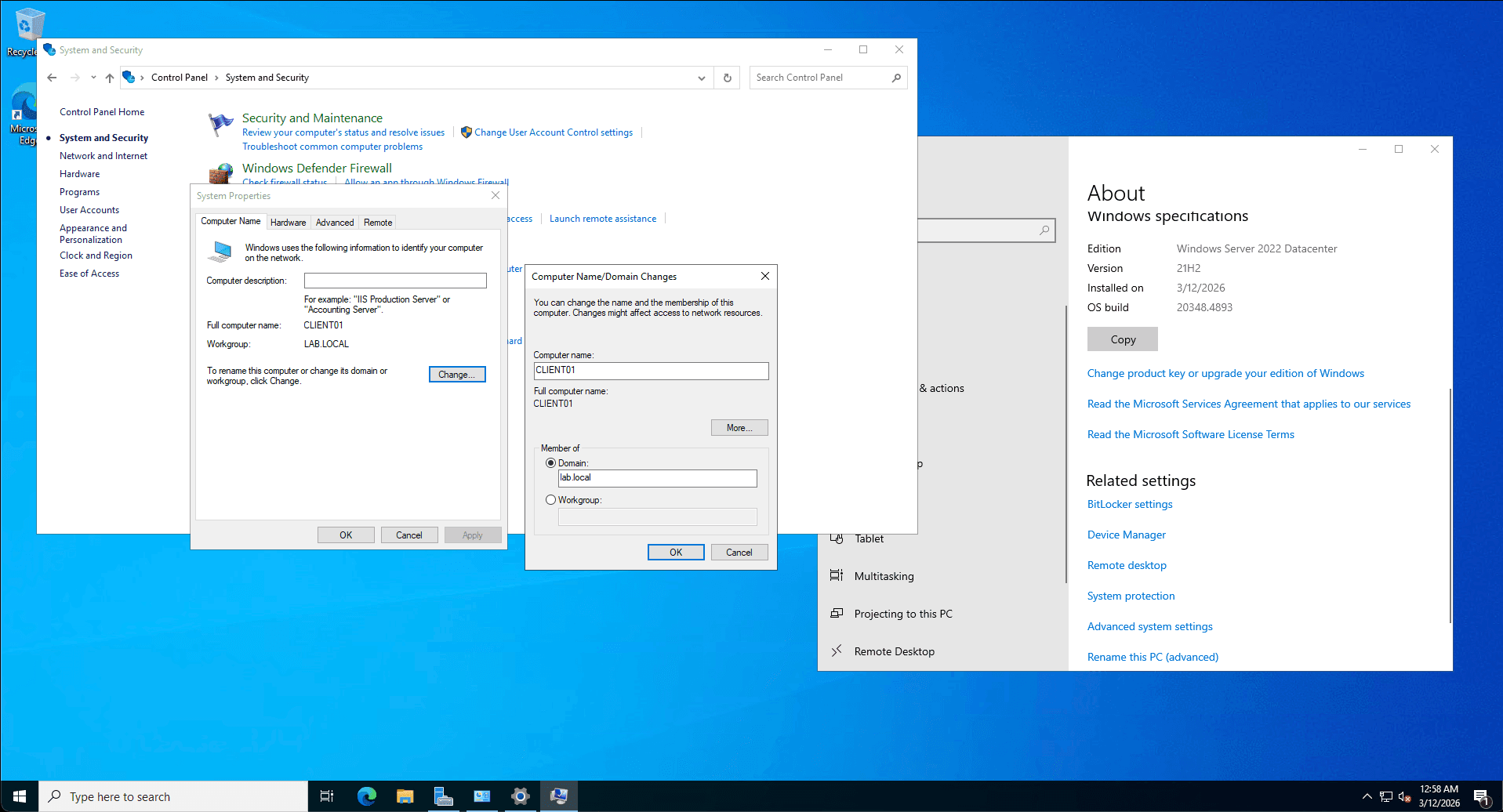
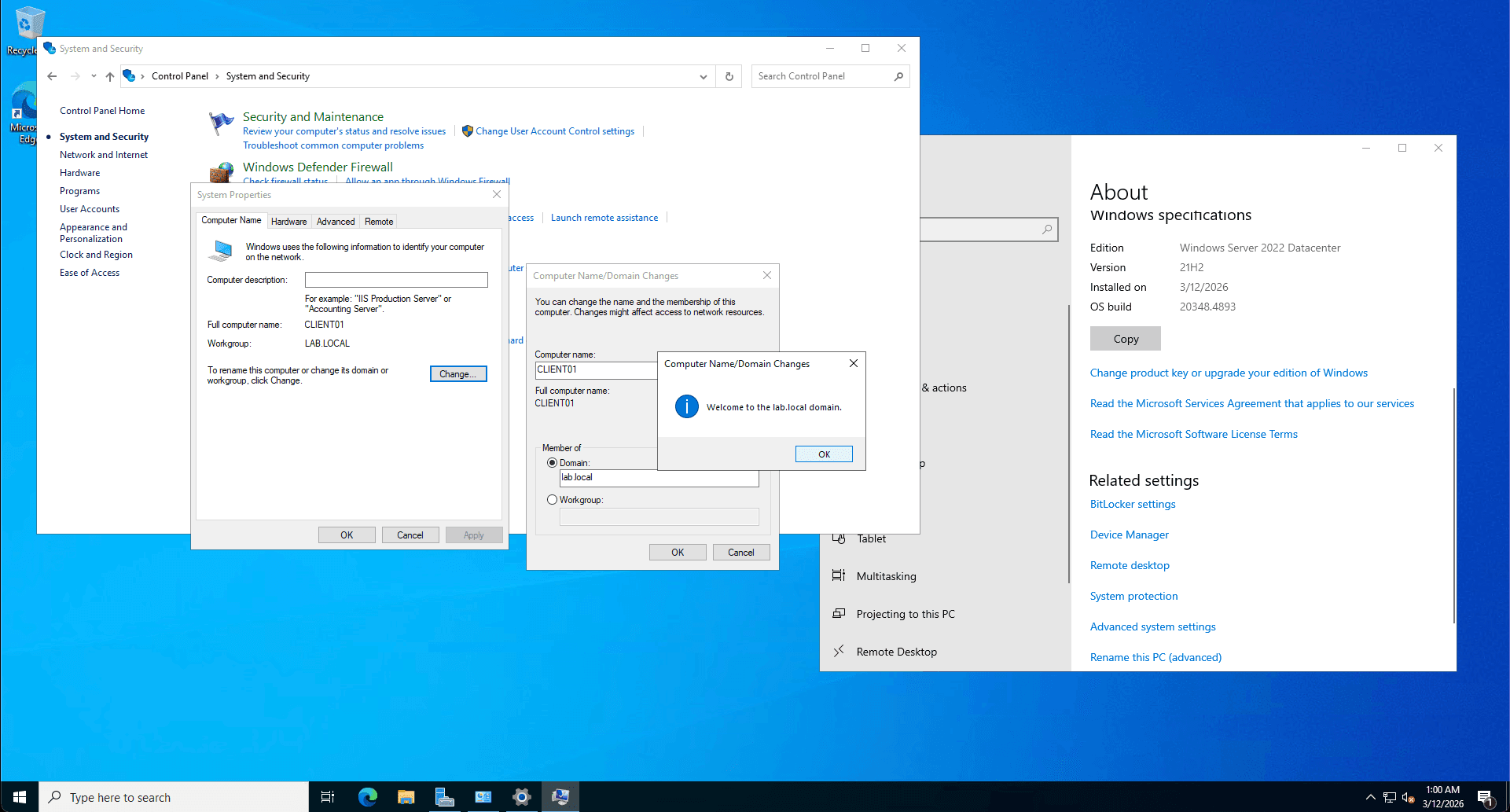
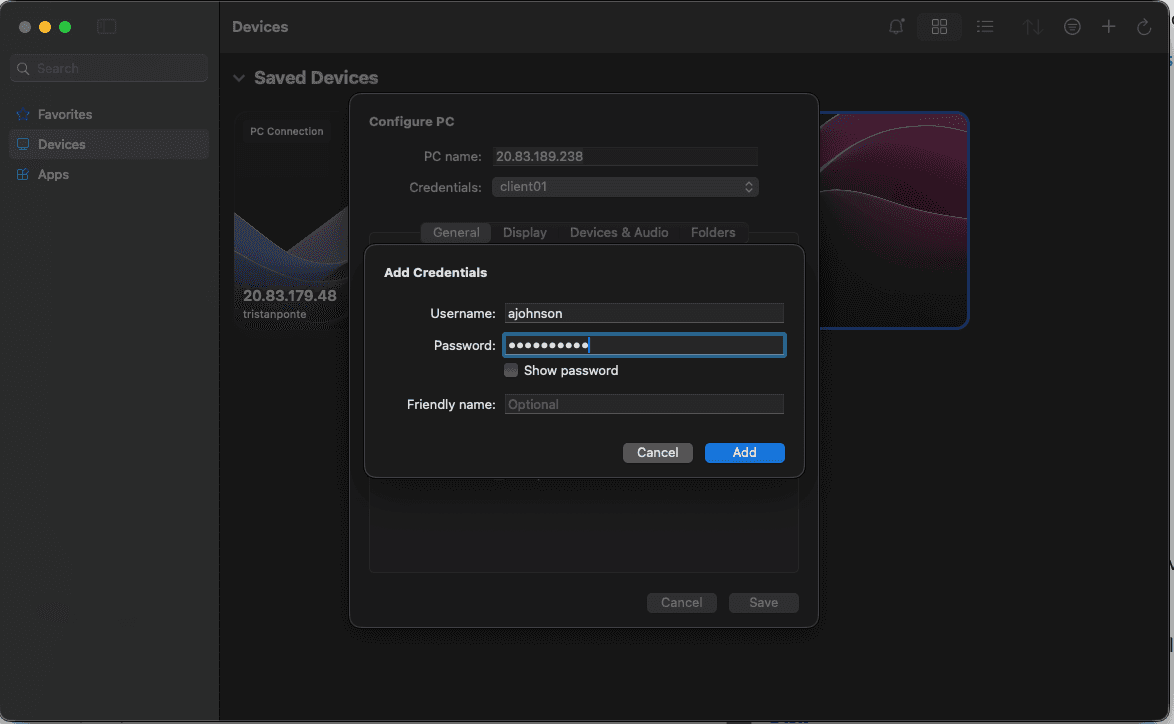
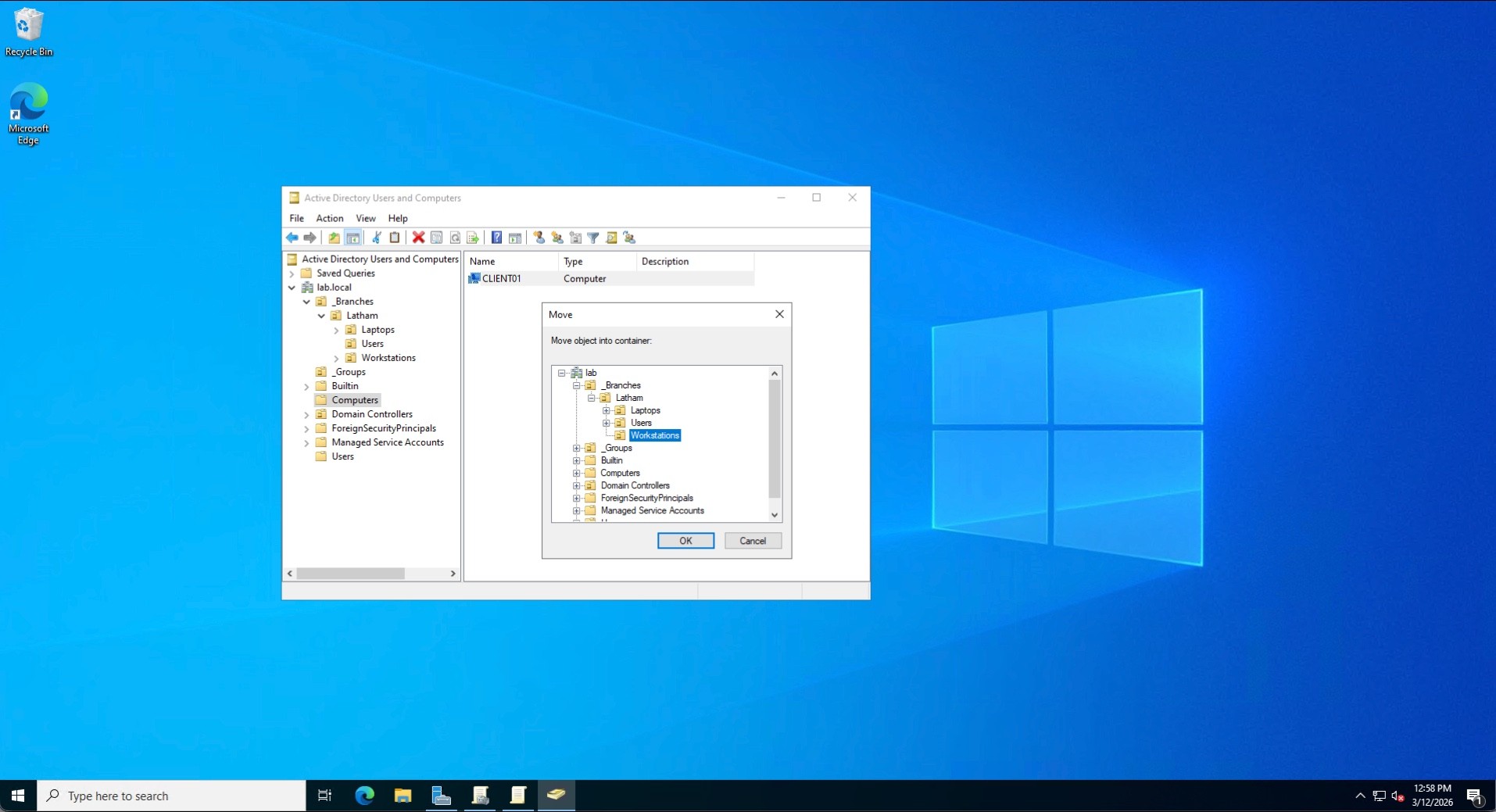
I transitioned to CLIENT01 to simulate an endpoint deployment. The most critical step was modifying the client's IPv4 network adapter settings to point to DC01's static IP as its primary DNS server. Once DNS resolution was confirmed, I successfully joined the workstation to the lab.local domain, establishing a secure trust relationship and generating a computer object within Active Directory.
Step 8: Authentication Validation & Token Auditing
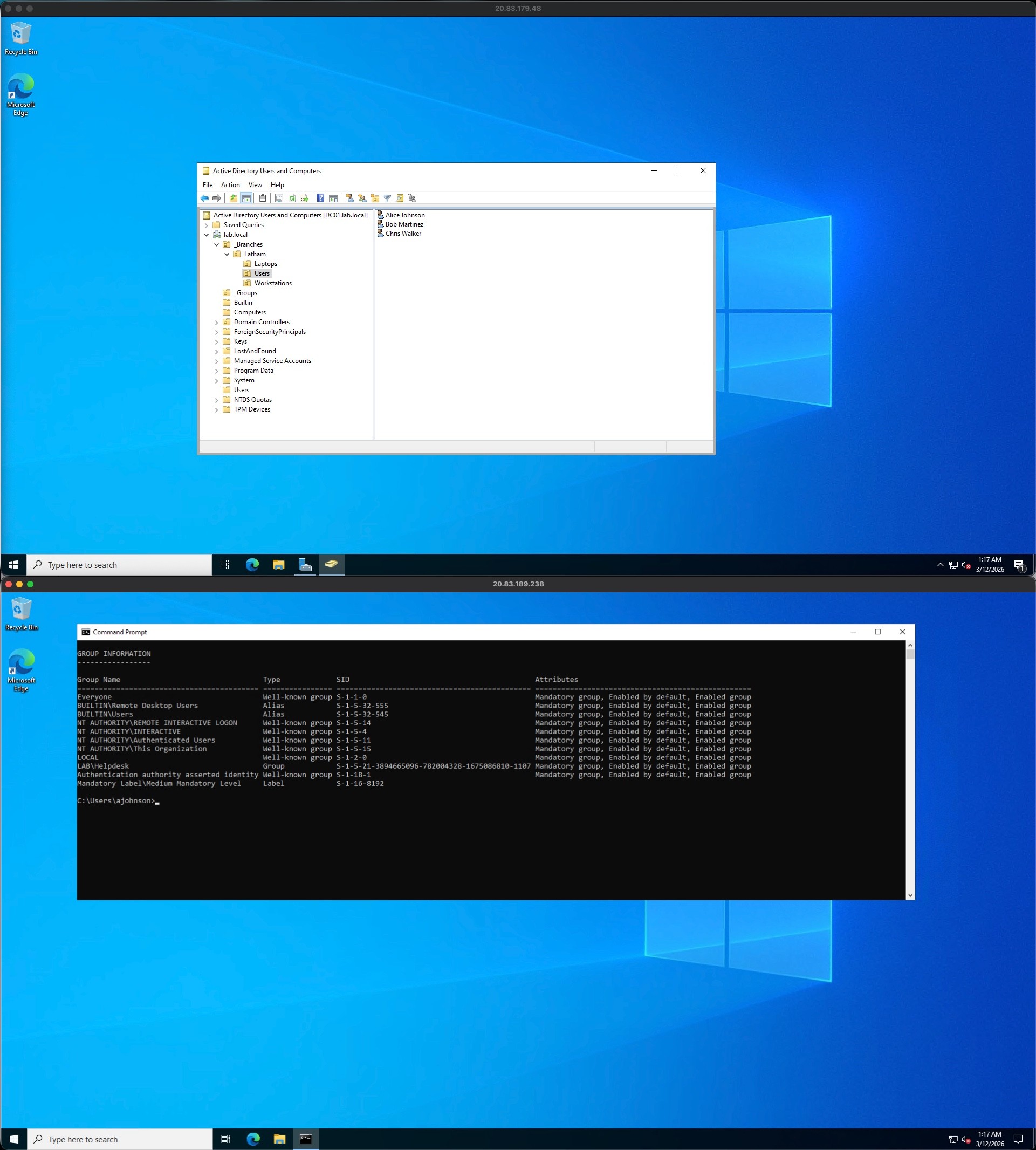
To verify the entire authentication chain, I logged into CLIENT01 using the domain credentials of the Helpdesk user (ajohnson). To prove the Kerberos ticket and group policies were applied correctly, I executed the whoami /groups command in the terminal. The output confirmed that the user was successfully receiving the security identifiers (SIDs) for their assigned roles.
Step 9: Troubleshooting Scenarios
This section highlights hands-on incident response, software troubleshooting, and asset management.
Scenario A: Delegation of Control & Password Resets
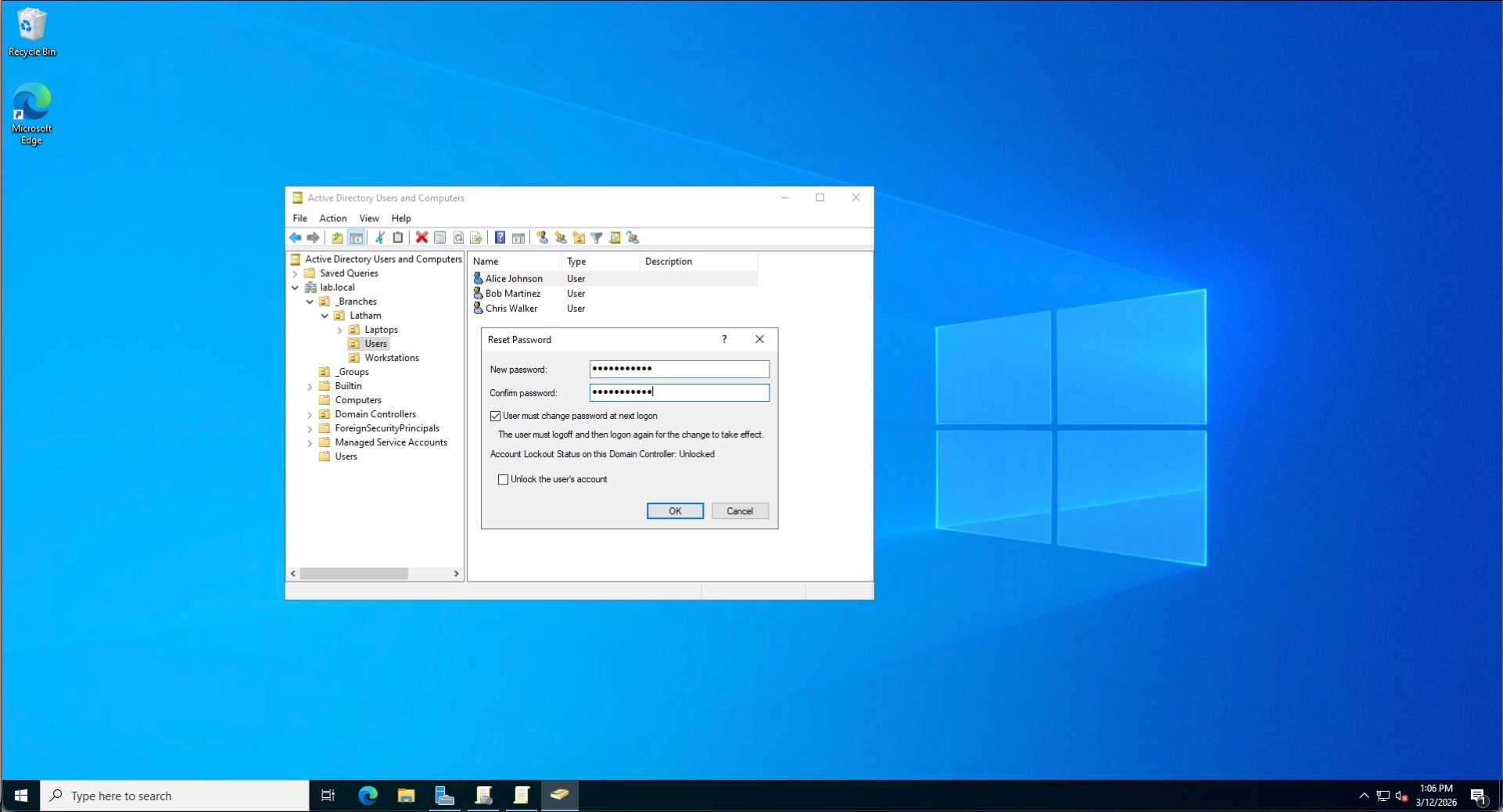
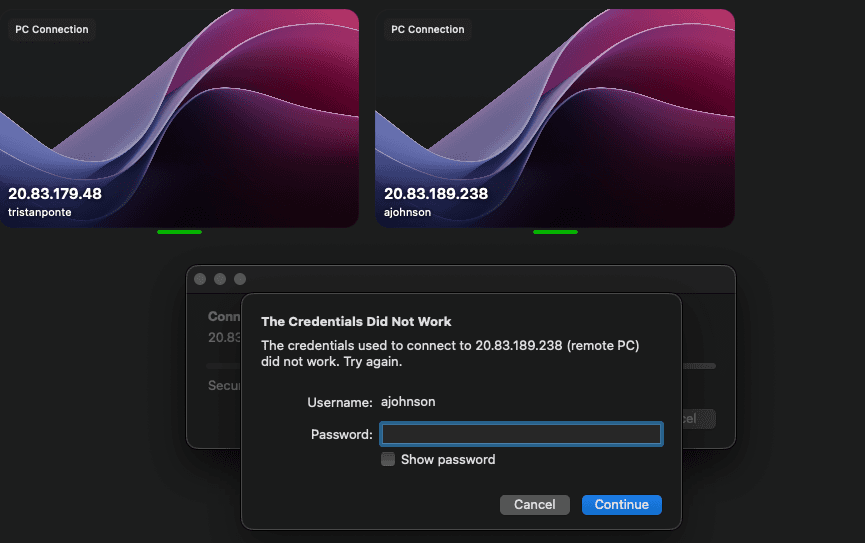
The Issue: A simulated user at the Latham branch was locked out of their account.
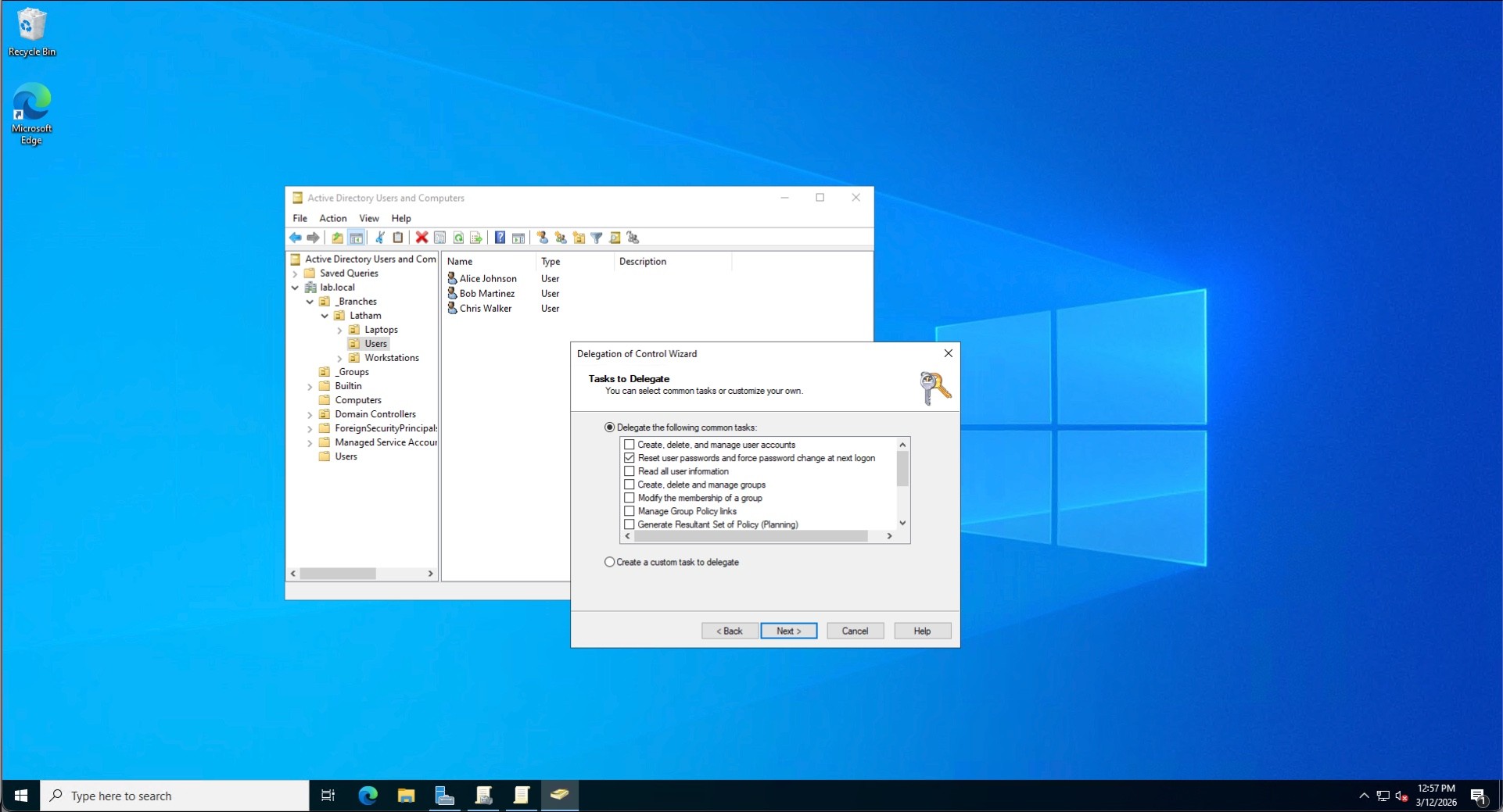
The Fix: Instead of escalating to a Domain Admin, I utilized the Delegation of Control Wizard to grant the Helpdesk security group the specific right to "Reset user passwords" for the Latham OU. I then successfully reset the user's password, forcing a change at the next logon to maintain security compliance.
Scenario B: 3rd Party Software Support (Word Data Recovery)
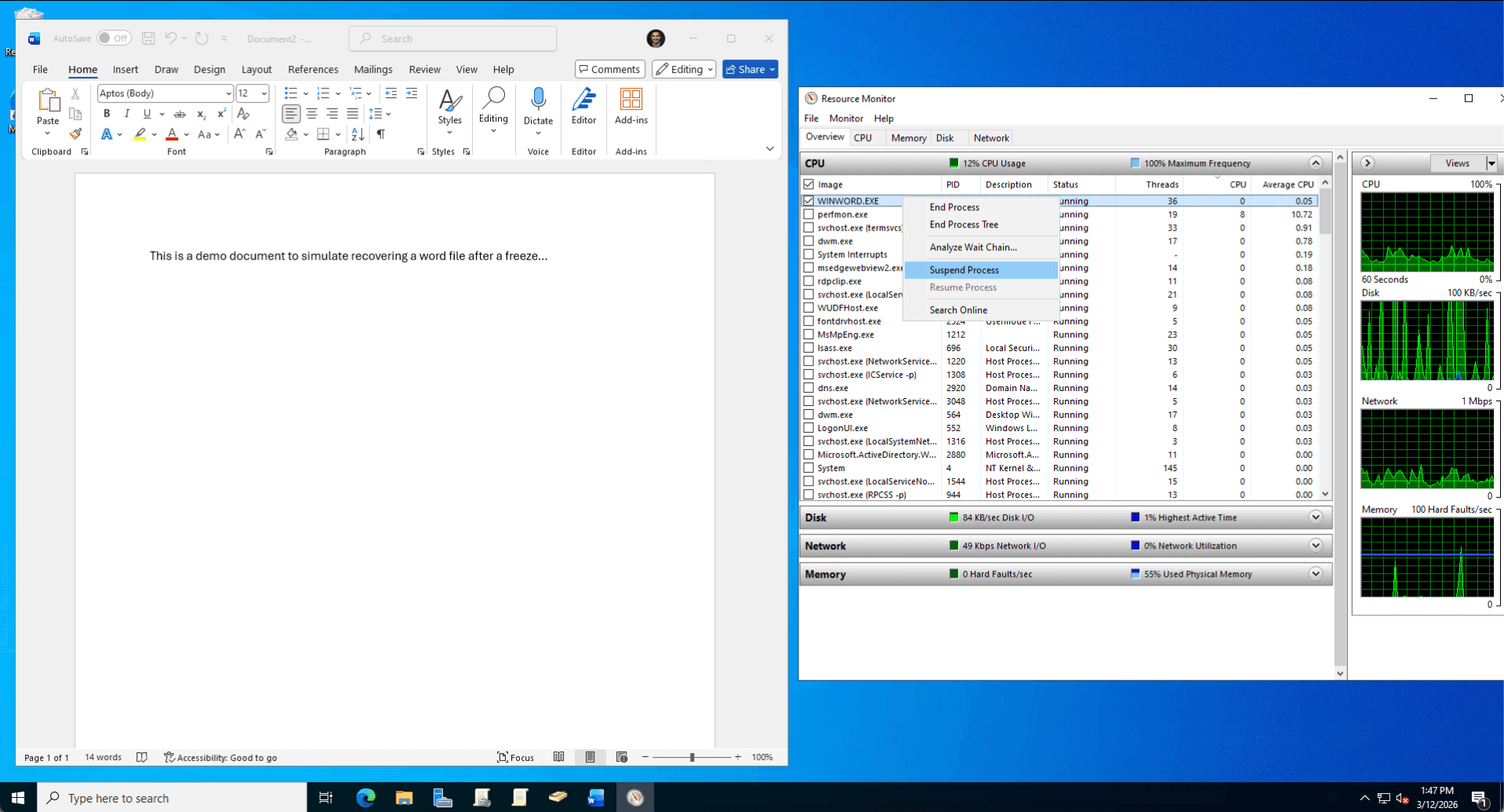
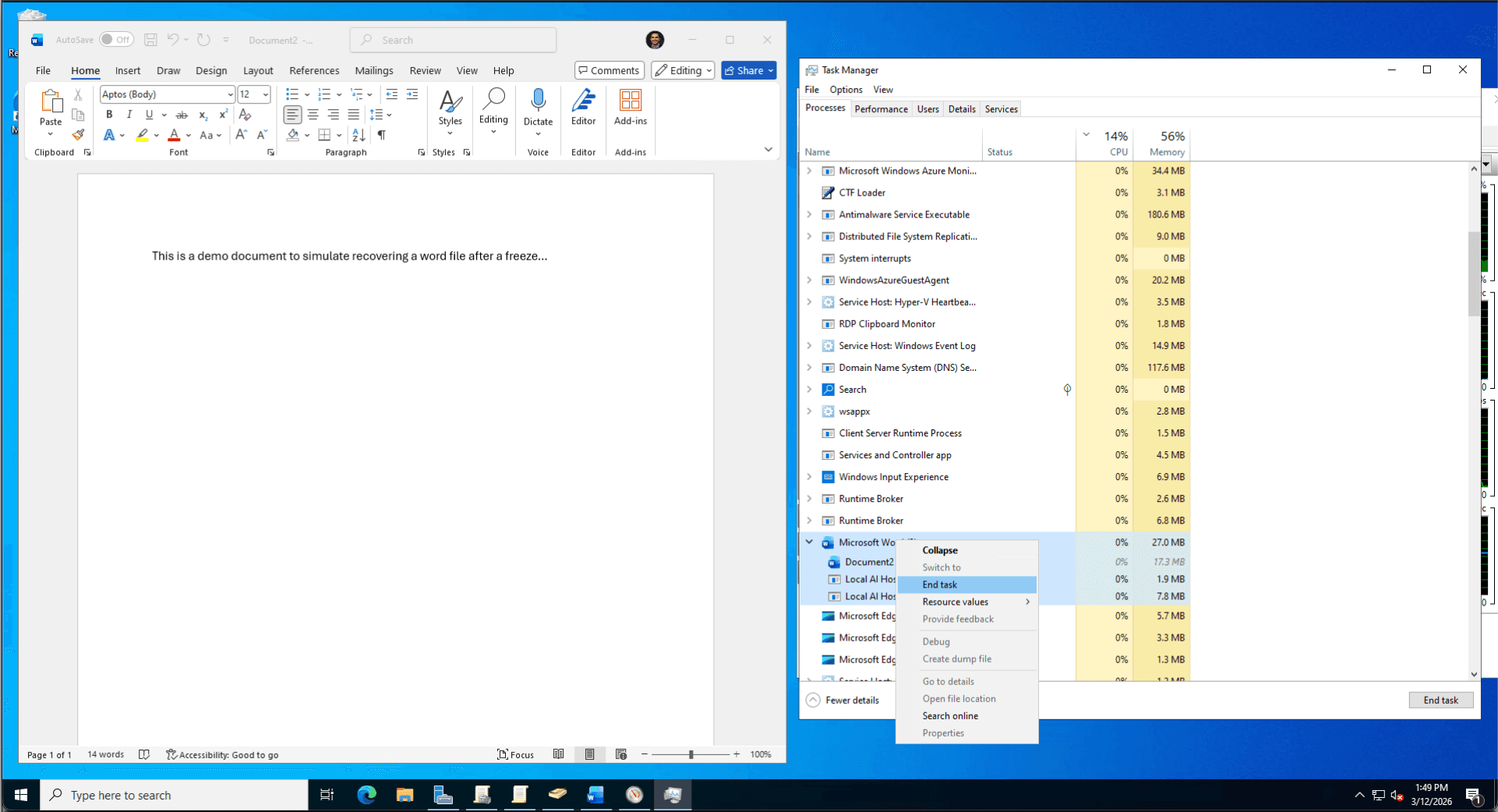
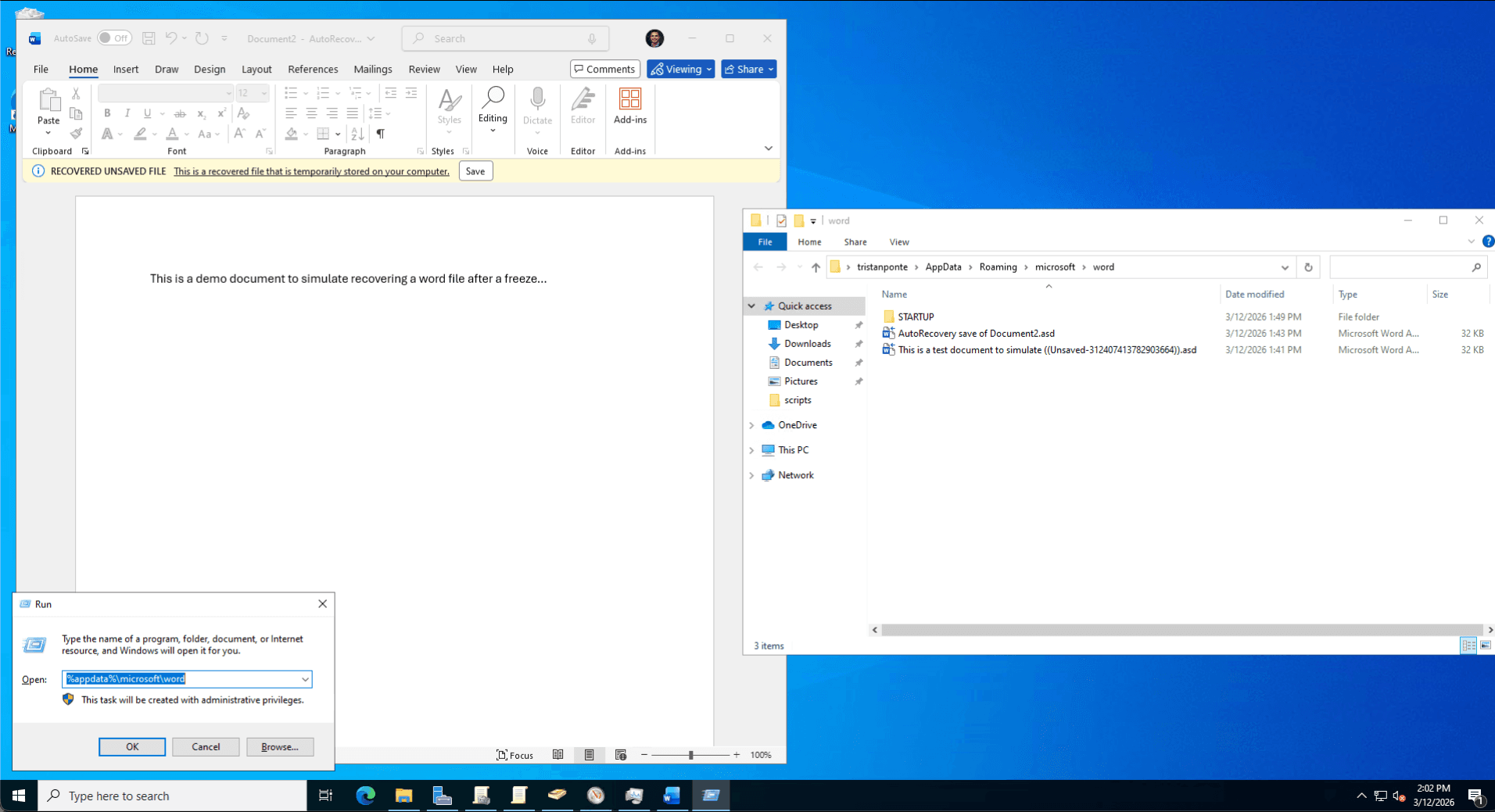
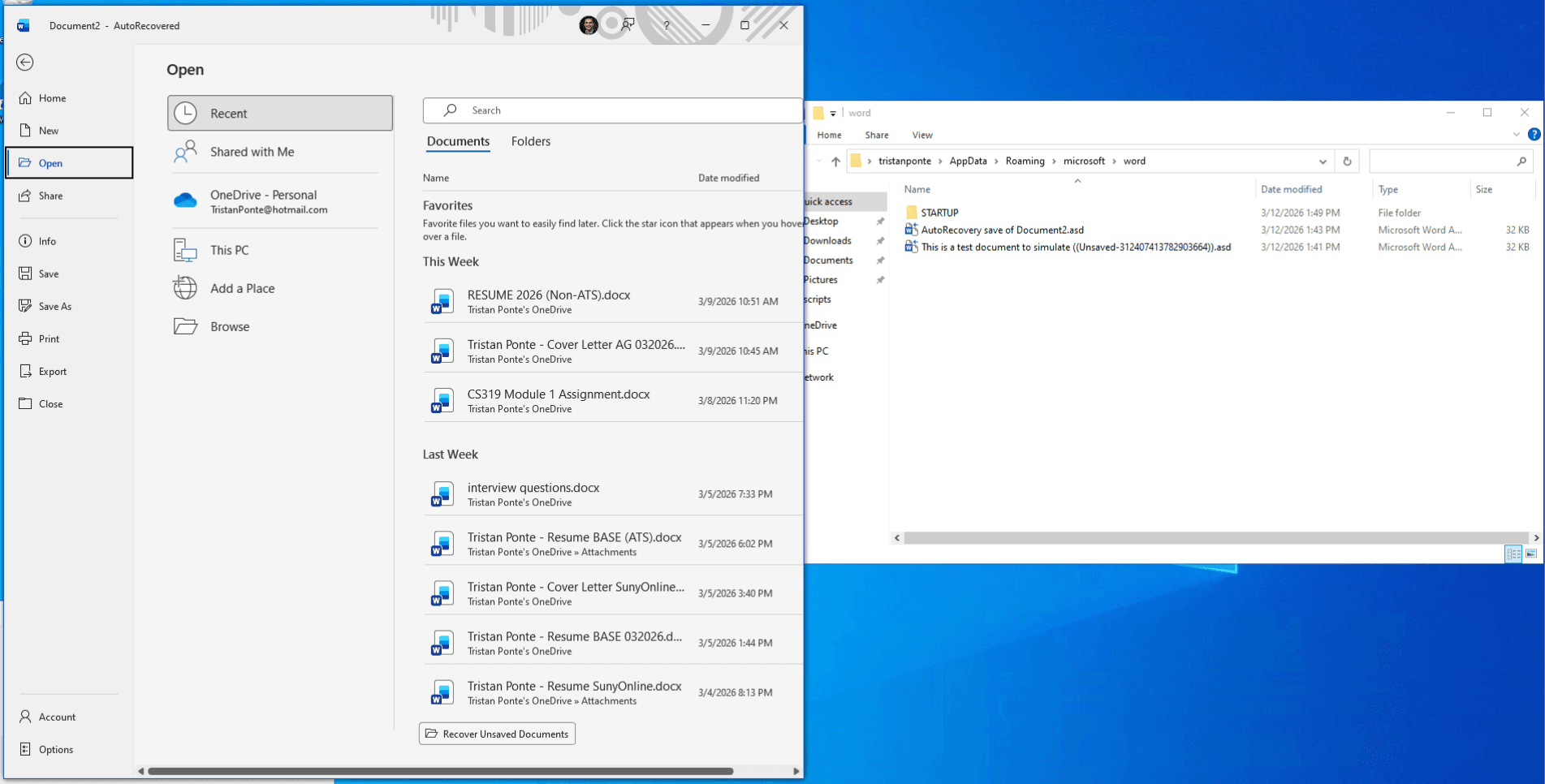
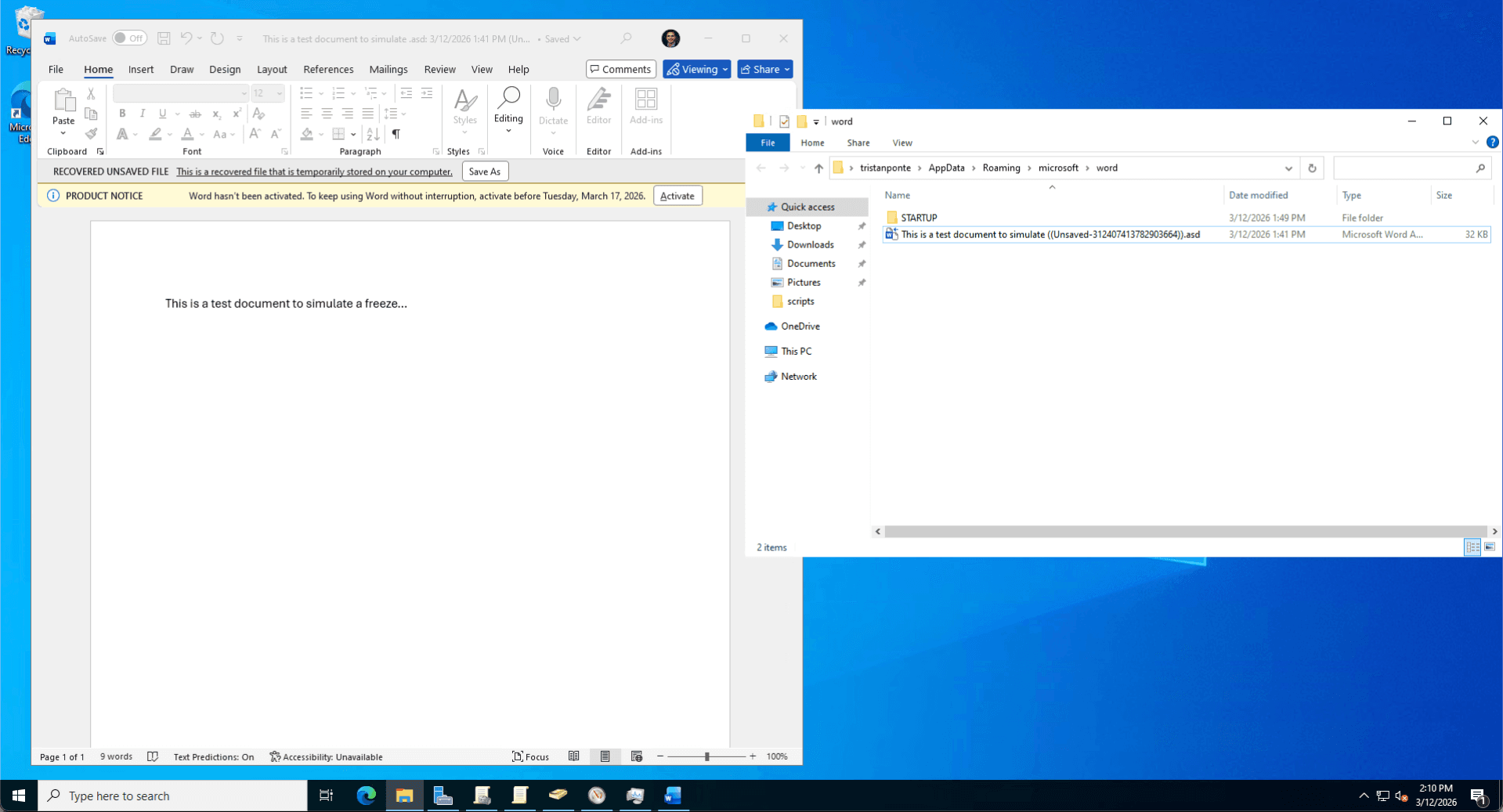
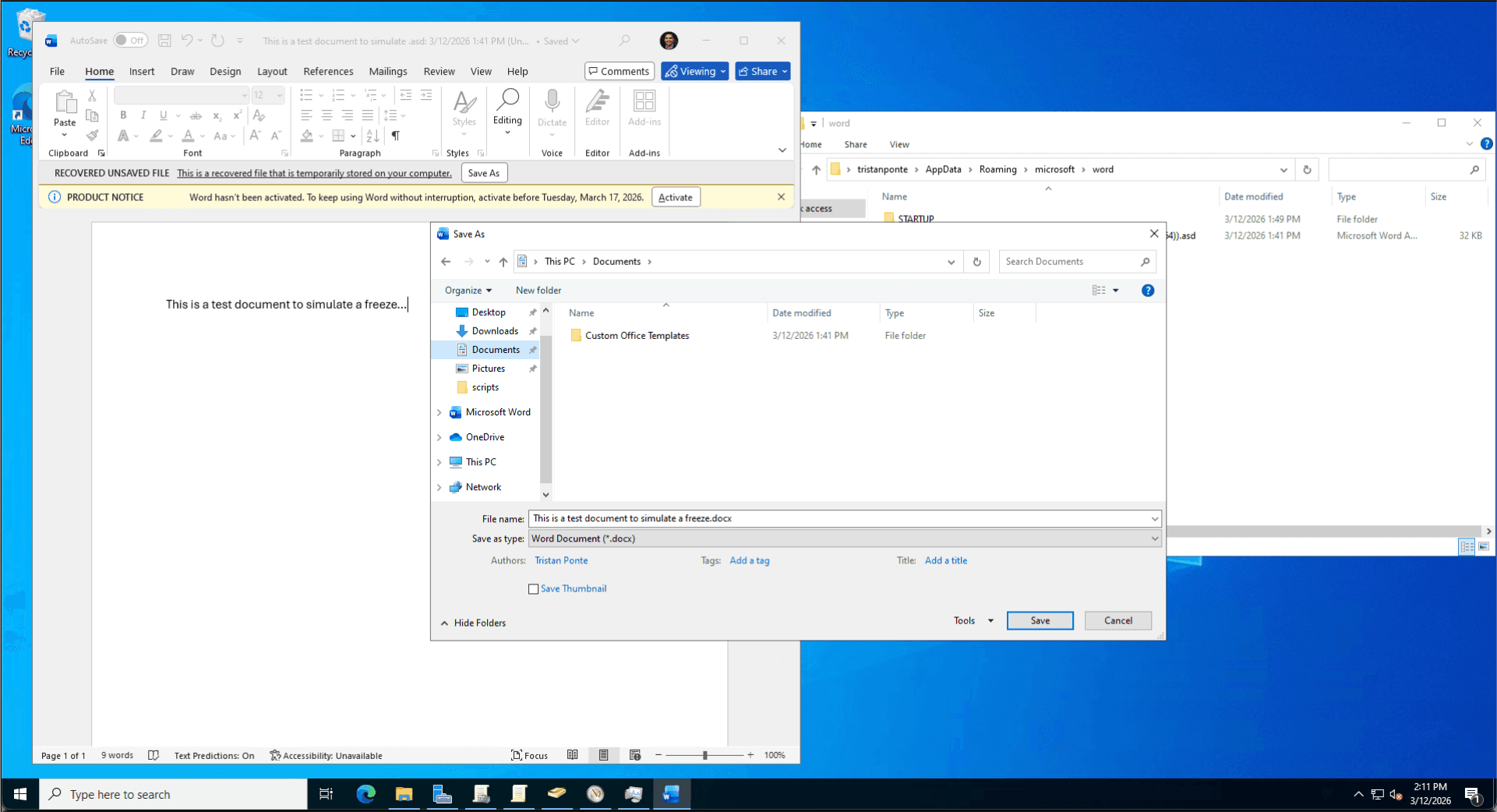
The Issue: A user experienced an unexpected Microsoft Word crash, and the standard Document Recovery pane failed to launch.
The Fix: I performed manual file system forensics, navigating to the hidden %AppData%\Microsoft\Word directory to locate the binary .asd snapshot file. Utilizing Word's internal "Recover Text from Any File" converter, I successfully extracted the user's unsaved draft, preventing total data loss.
Scenario C: Security Incident Response (Malware Isolation)
The Issue: A user reported a highly suspicious system popup, indicating potential malware.
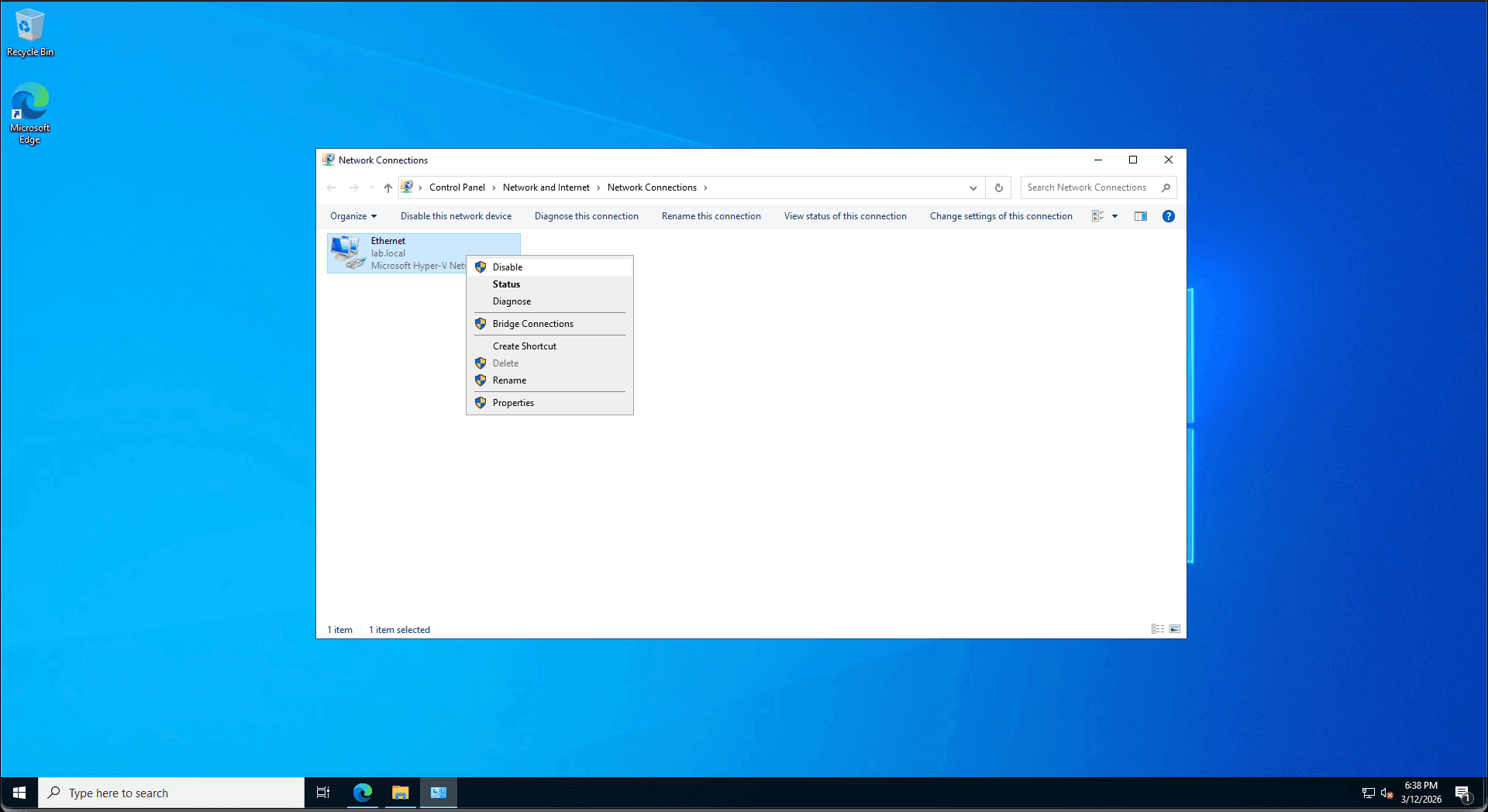
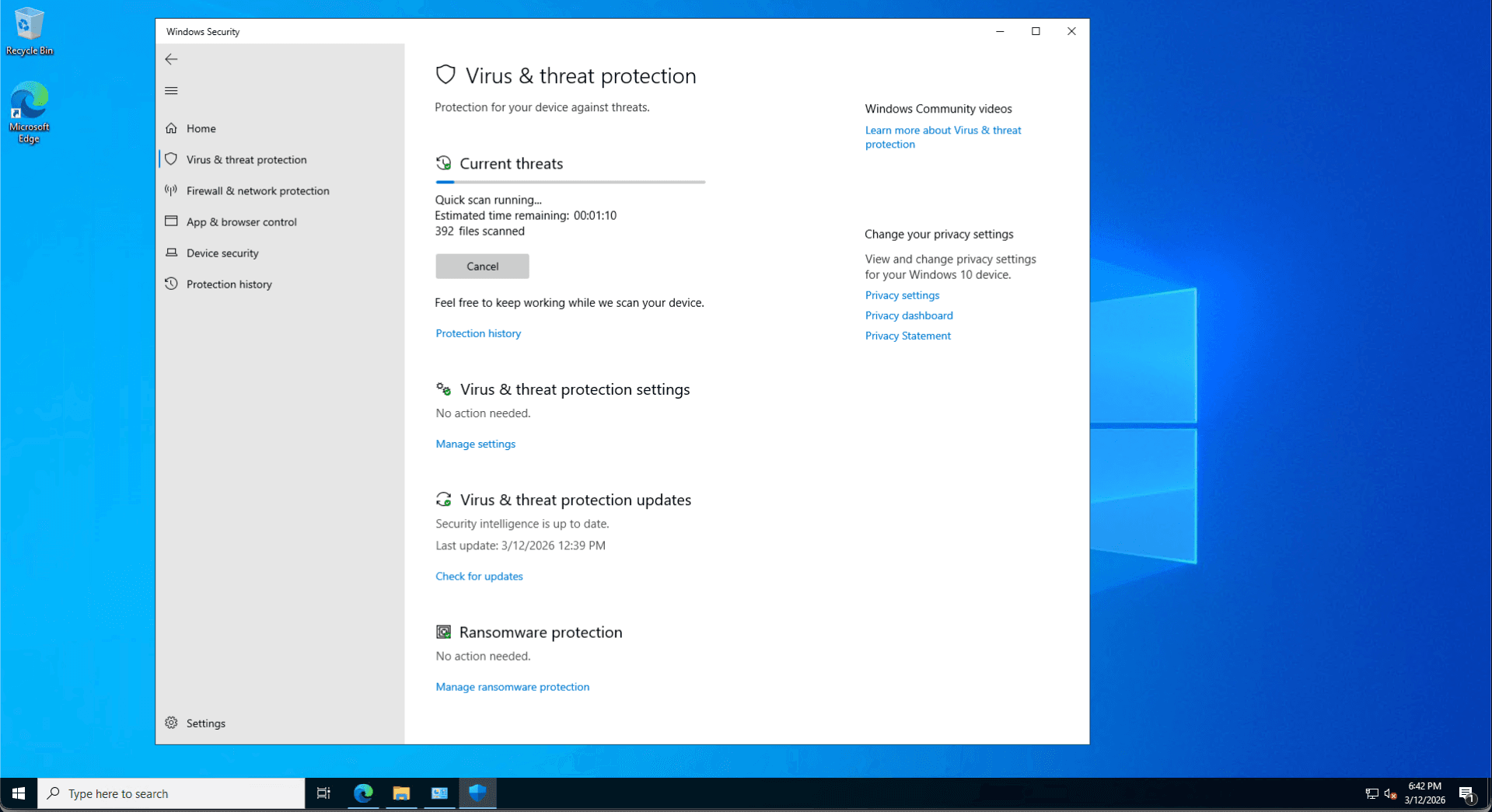
The Fix: Prioritizing network security, I immediately isolated the workstation by disabling the Ethernet adapter via ncpa.cpl, preventing potential lateral spread to the Domain Controller. I then executed a Windows Defender Quick Scan and audited the Protection History logs to verify system integrity before safely reconnecting the asset to the domain.
Scenario D: Asset Tracking & BitLocker Escrow via PowerShell
The Issue: A workstation's 48-digit BitLocker recovery key failed to appear in the ADUC GUI.
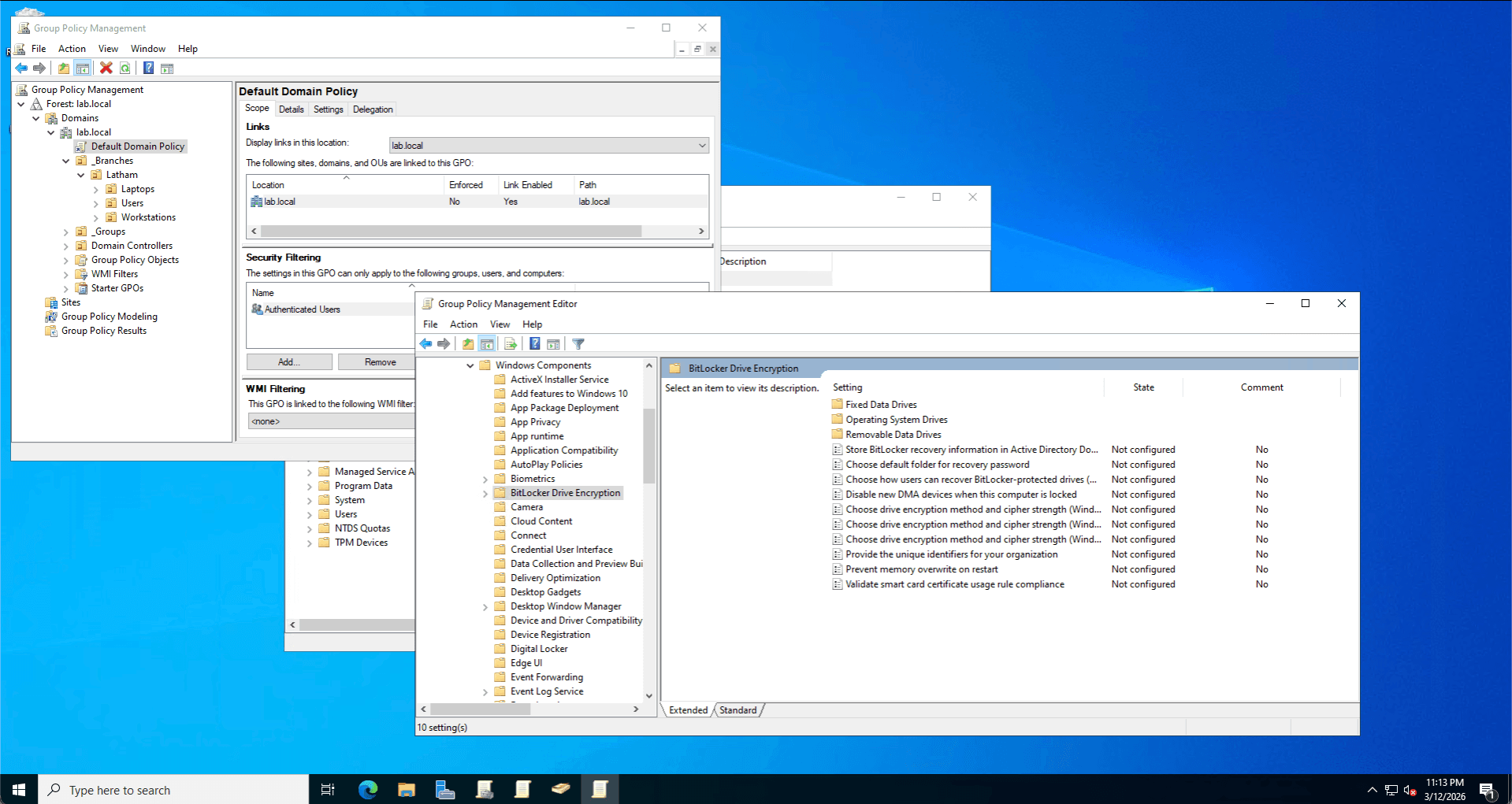
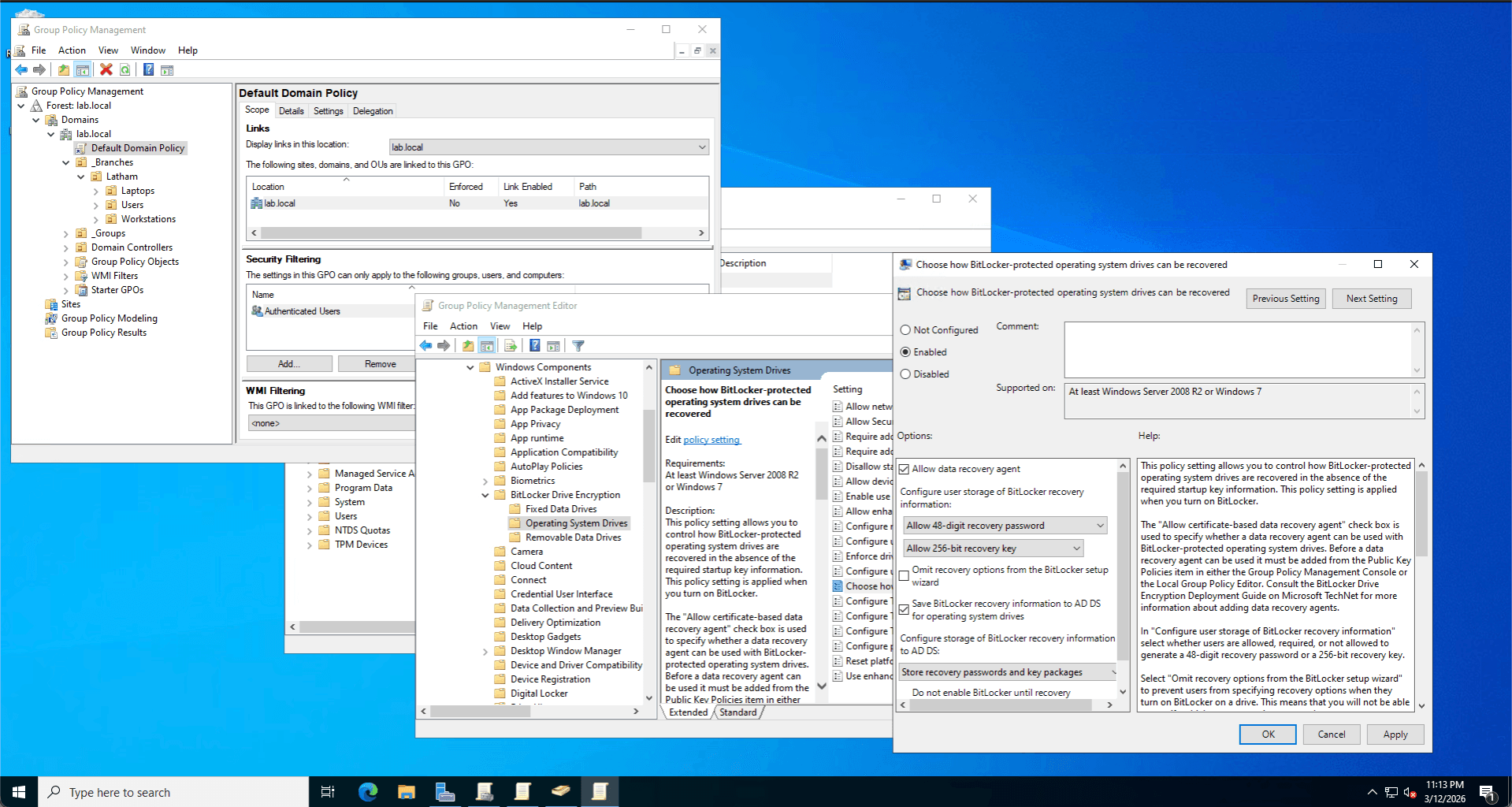
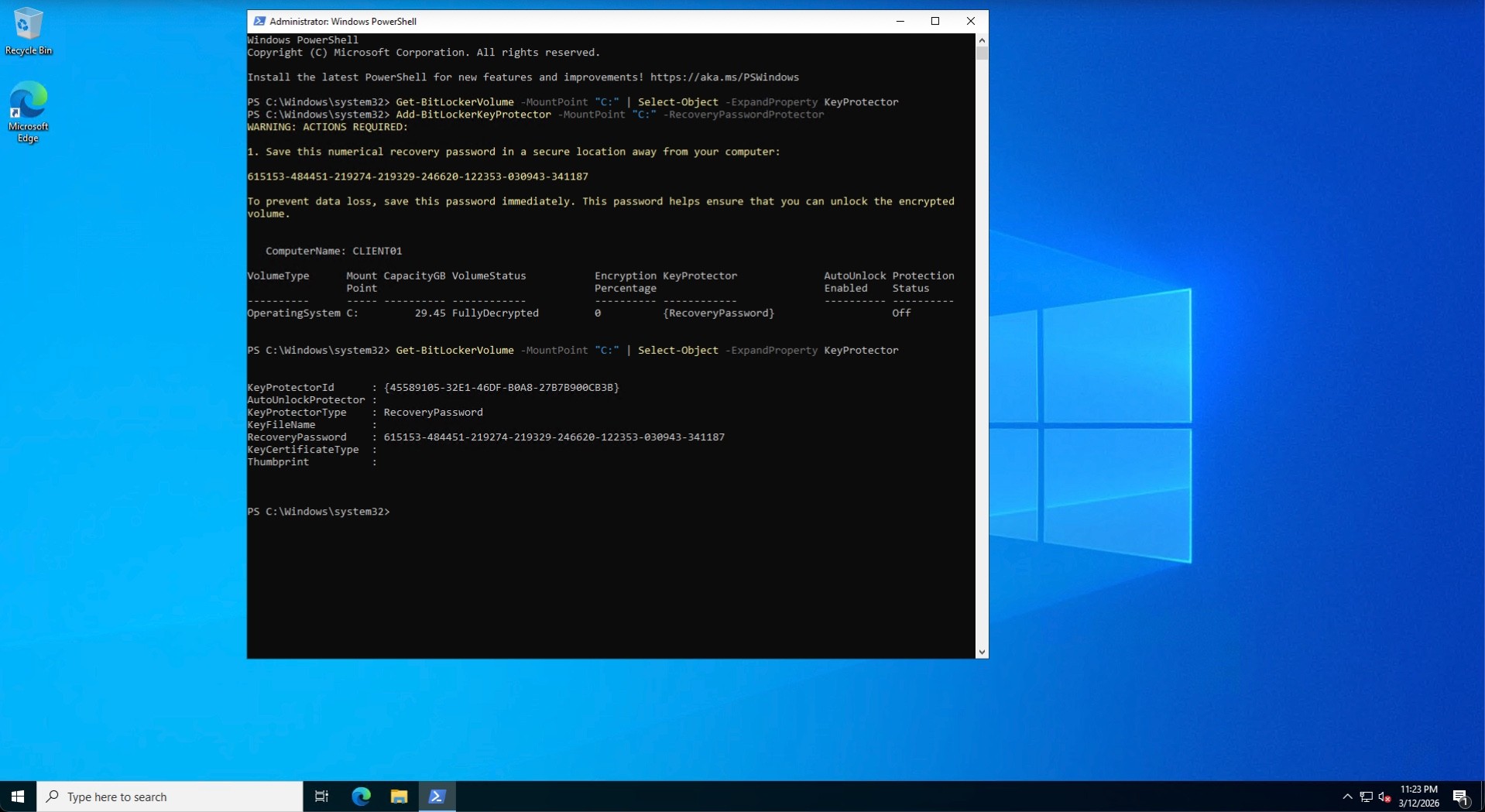
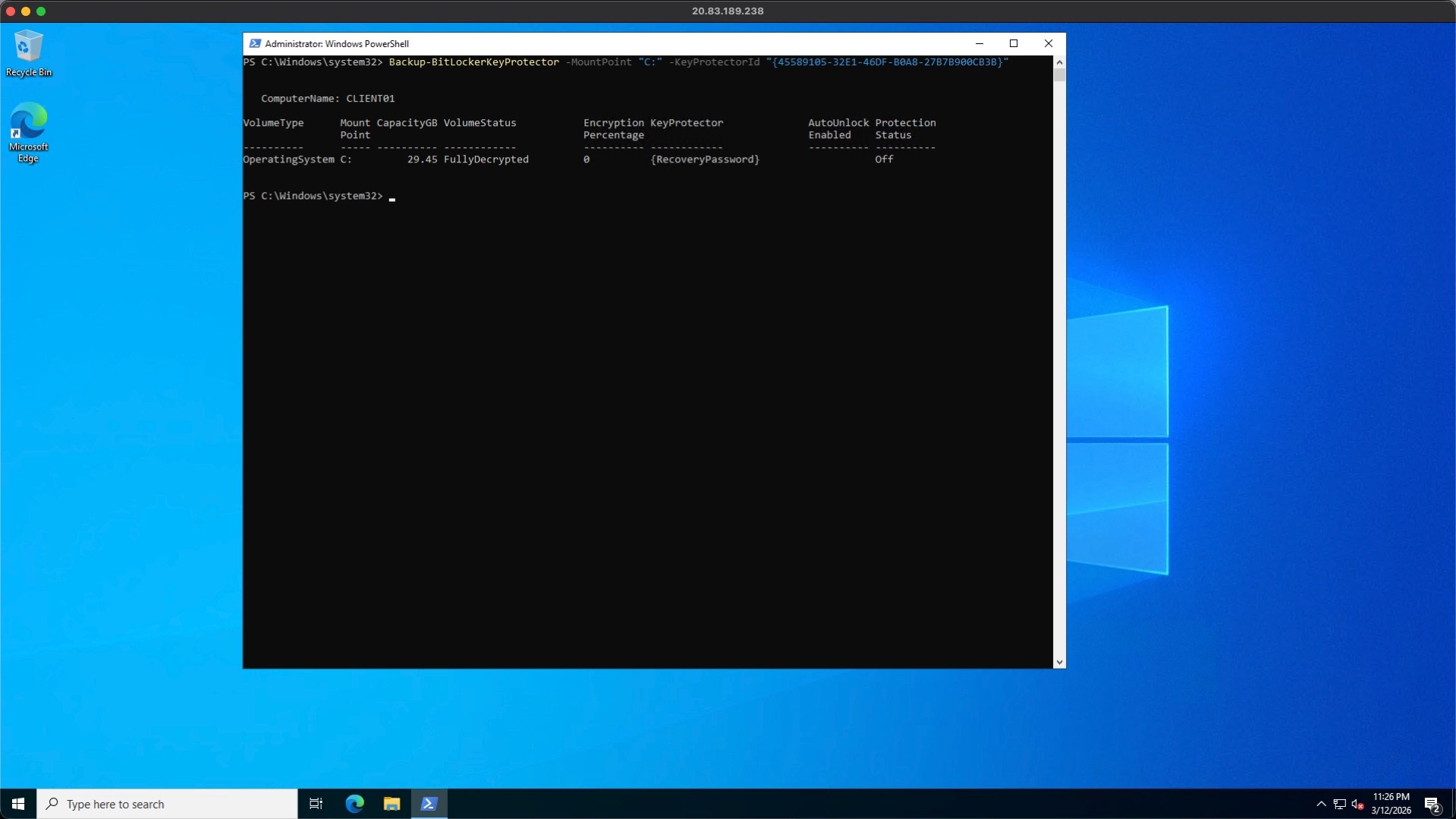
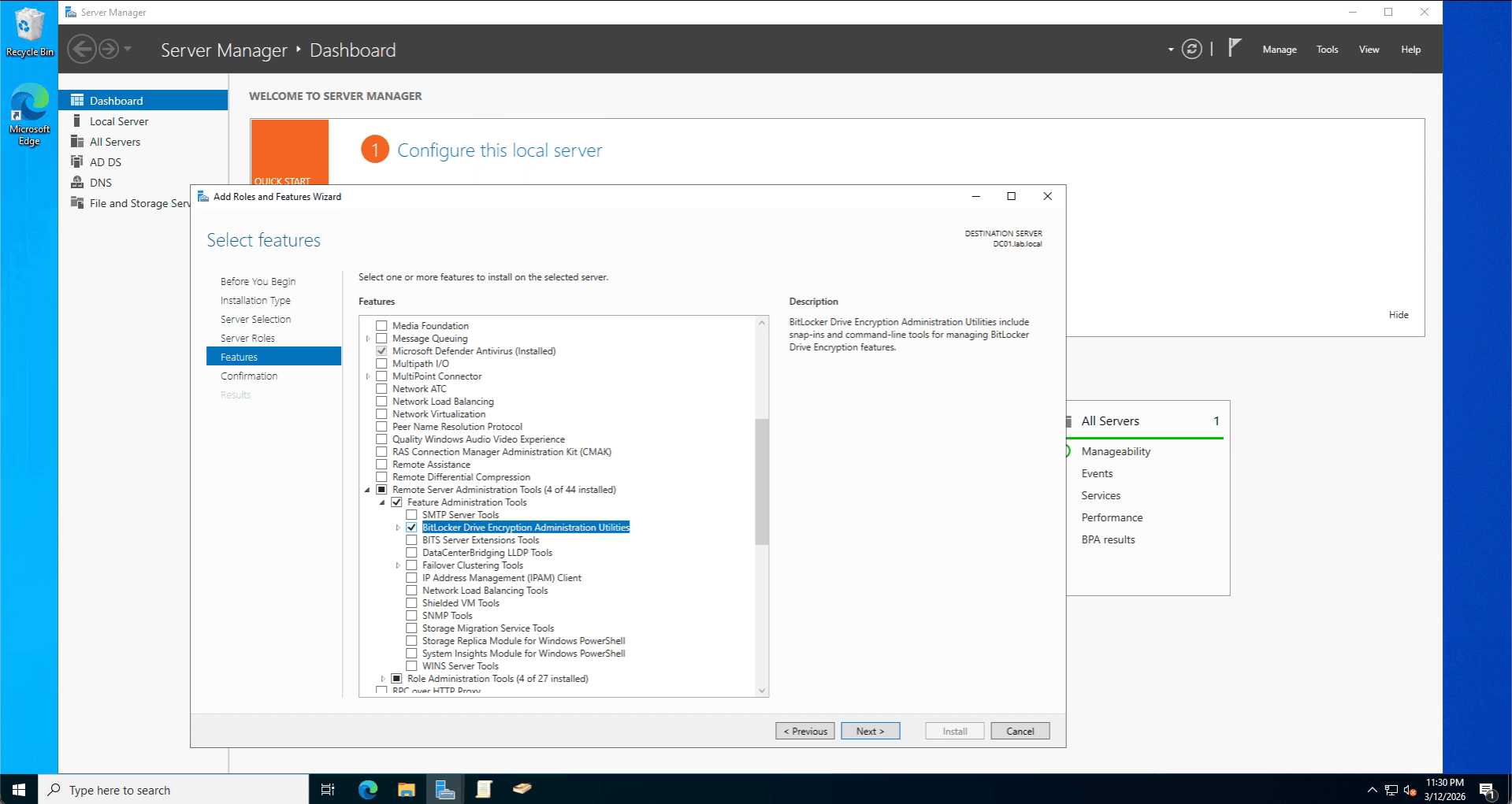
The Fix: I identified that the BitLocker Recovery Password Viewer RSAT feature was missing on the Domain Controller and installed it. To force the client to sync, I utilized the Get-BitLockerVolume and Backup-BitLockerKeyProtector PowerShell cmdlets to manually escrow the encryption key to Active Directory. I then verified the key's presence in the AD database via the Attribute Editor (msFVE-RecoveryPassword).