PROJECT OVERVIEW
This project simulates the deployment, configuration, and administration of a Mobile Device Management environment using IBM MaaS360. Designed to mirror a realistic enterprise BYOD (Bring Your Own Device) scenario, this lab demonstrates end-to-end MDM administration including tenant configuration, Apple push notification infrastructure, user provisioning, device enrollment, security policy deployment, app catalog management, and compliance enforcement. The lab was built to reflect the real-world responsibilities of a Technical Support Analyst managing mobile endpoints across a mid-size organization. All configurations were performed on a live IBM MaaS360 trial tenant and enrolled on a personal iPhone 17 Pro, with full unenrollment documented to demonstrate complete device lifecycle management.
STEP 1: MAAS360 TENANT PROVISIONING & APPLE PUSH NOTIFICATION SERVICE (APNs) CONFIGURATION
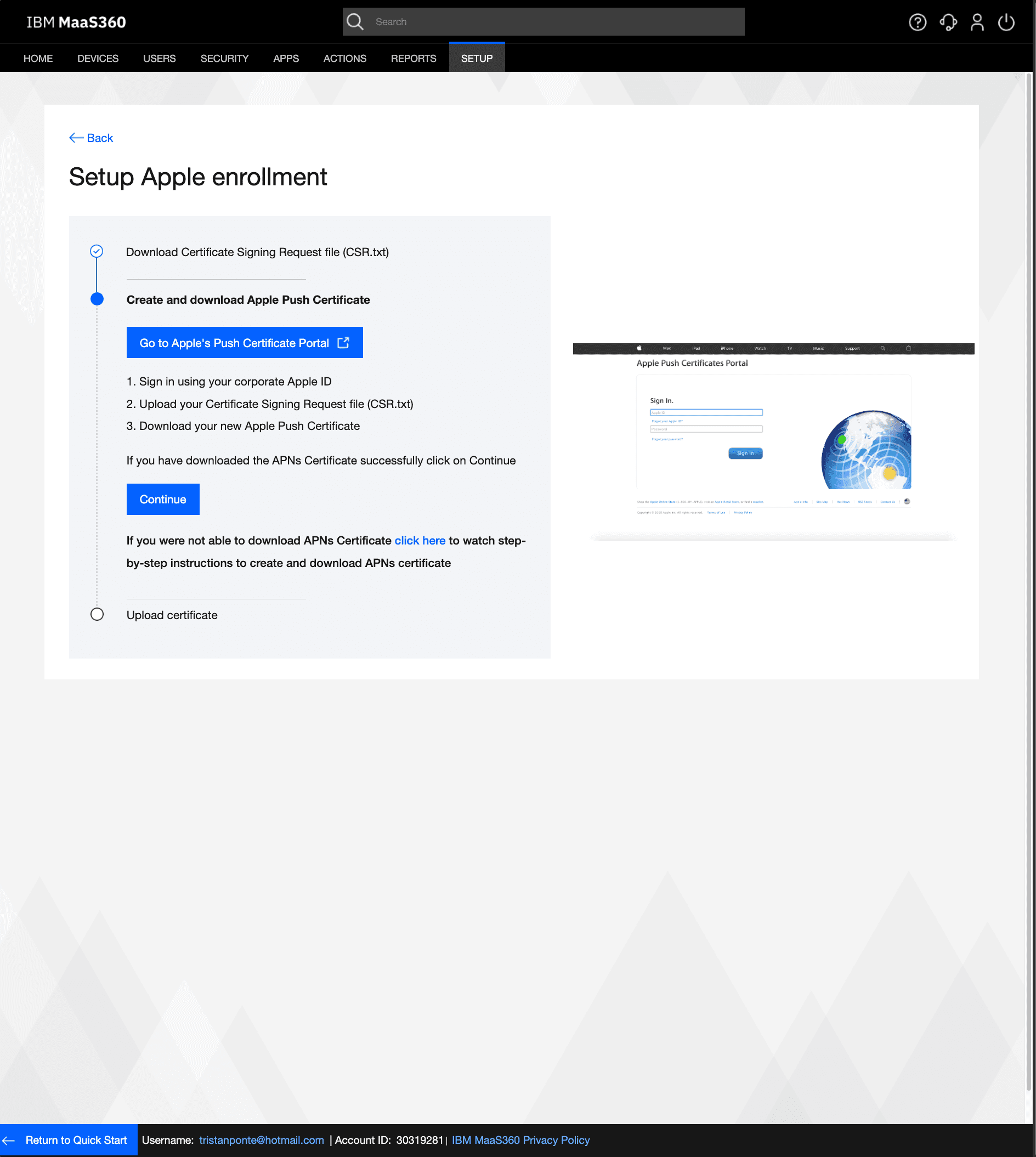
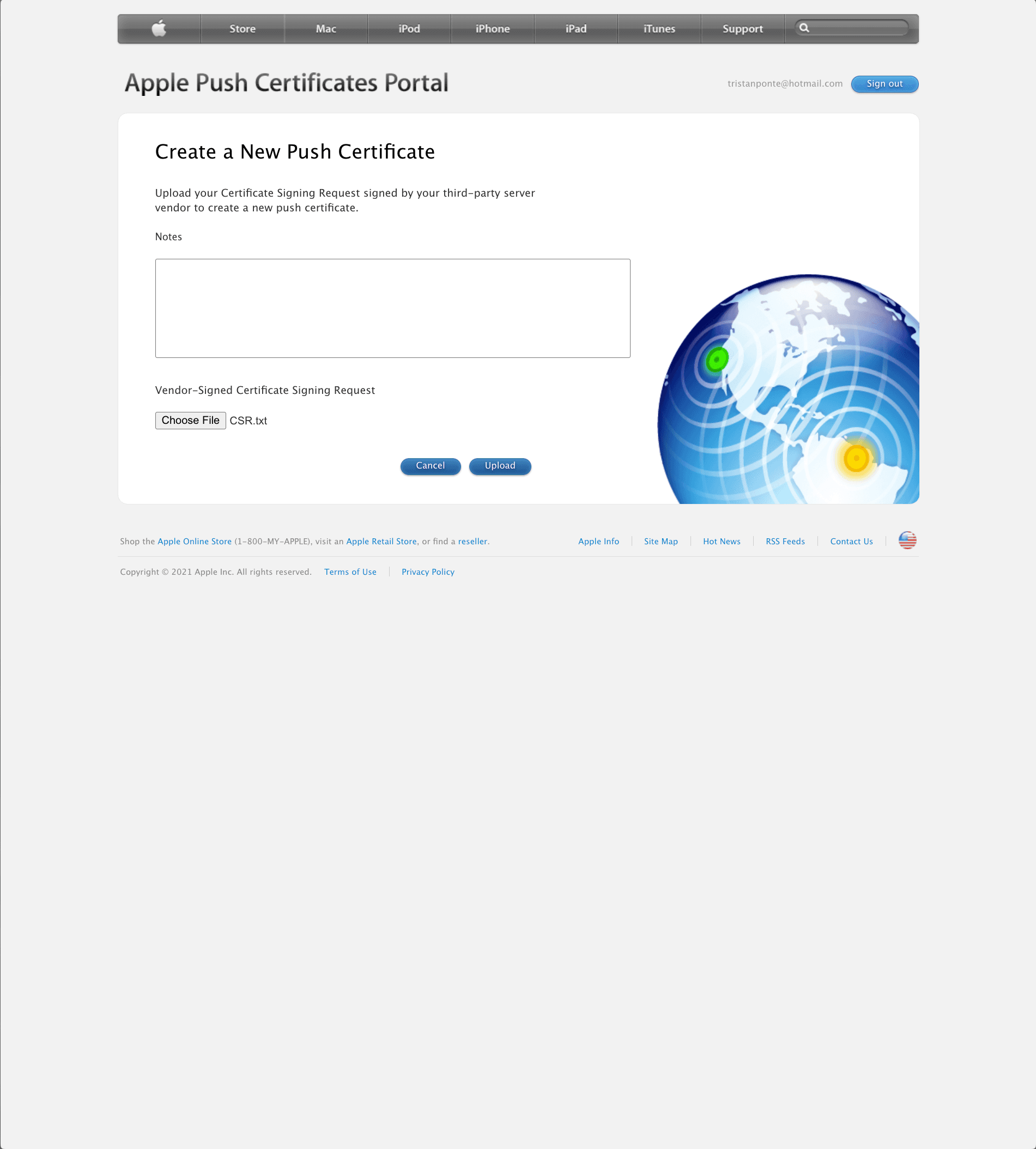
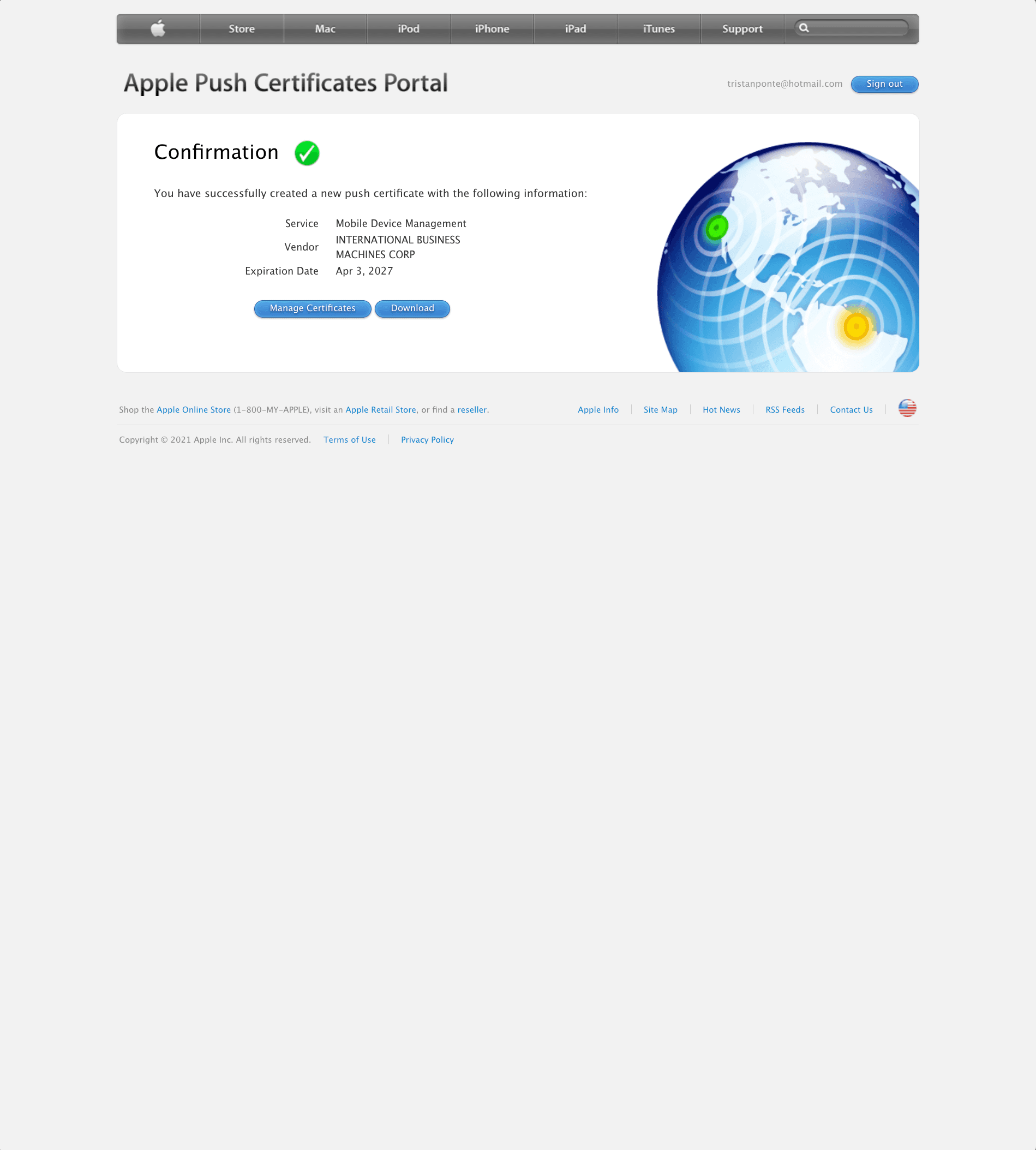
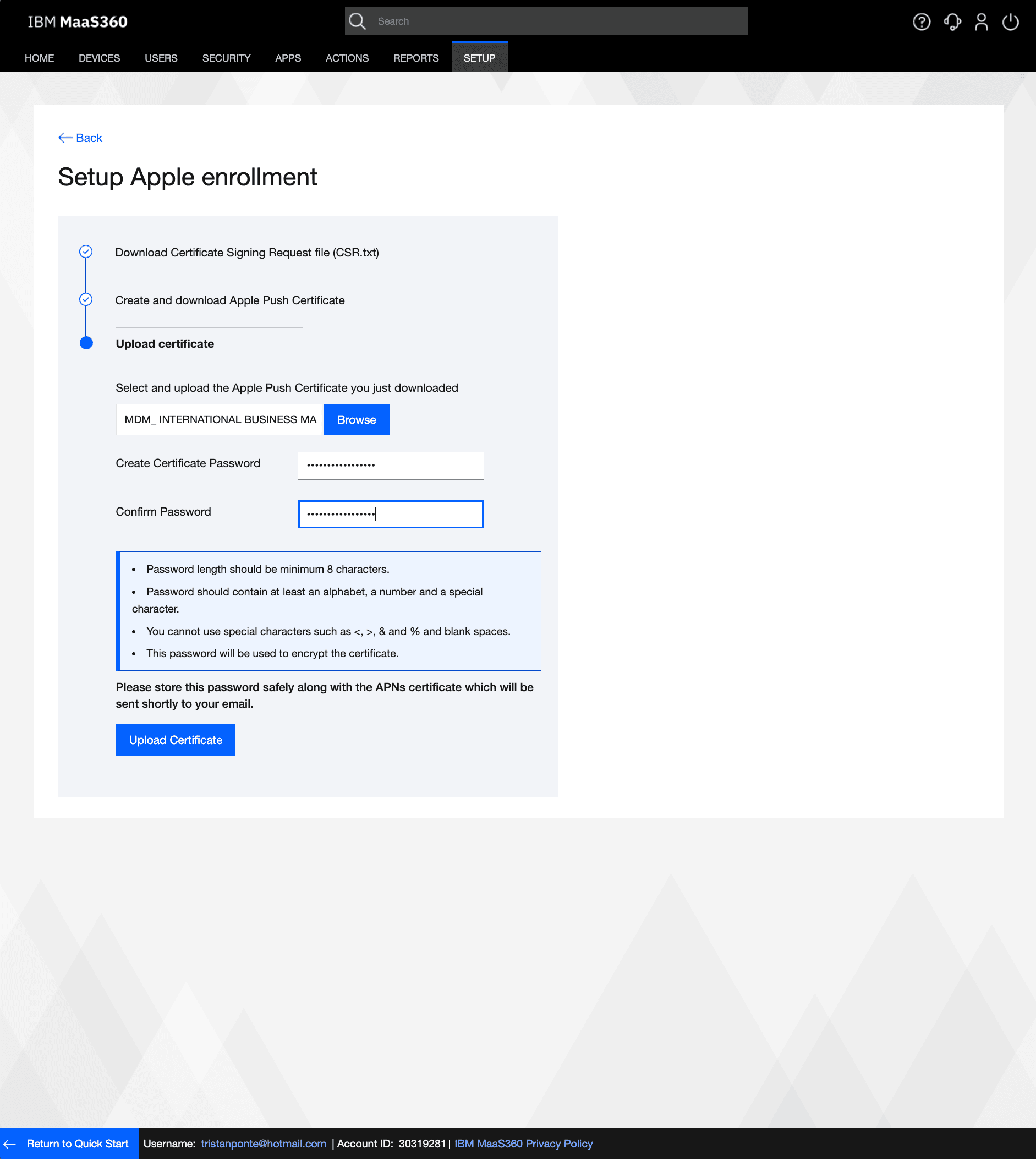
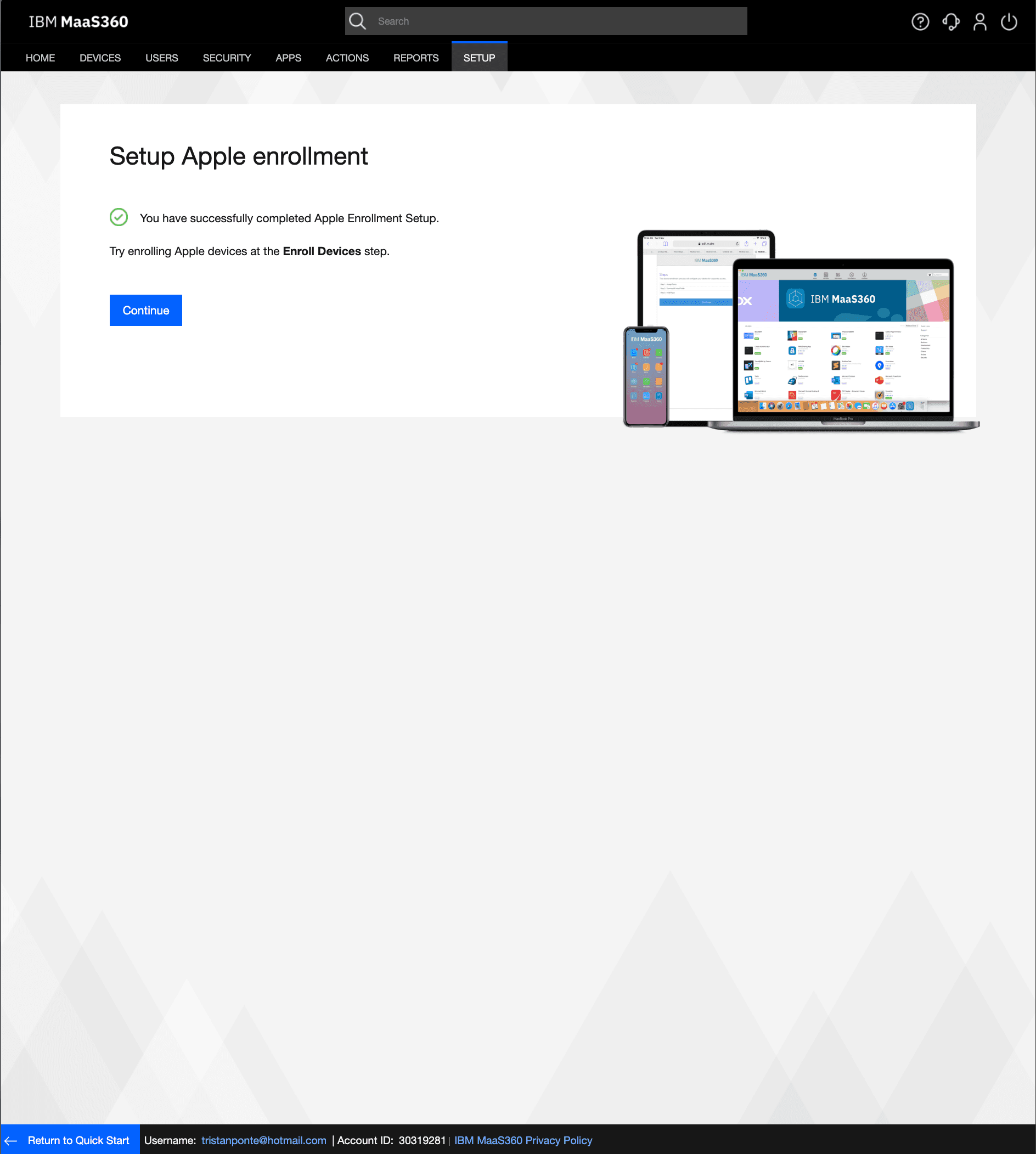
Before any iOS device can be enrolled into MaaS360, a trust relationship must be established between the MDM server and Apple's infrastructure. This is accomplished through Apple's Push Notification Service (APNs), which allows the MDM server to communicate policy changes and commands to managed devices. I navigated to Setup → Services → Mobile Device Management and initiated the Apple enrollment configuration. MaaS360 generated a Certificate Signing Request (CSR) file, which I submitted to Apple's Push Certificate Portal using my Apple ID. Apple returned a signed .pem certificate, which I uploaded back into MaaS360 to complete the handshake. Without this step, no iOS device enrollment is possible making it a foundational infrastructure requirement for any Apple device MDM deployment.
STEP 2: USER PROVISIONING IN THE MAAS360 DIRECTORY
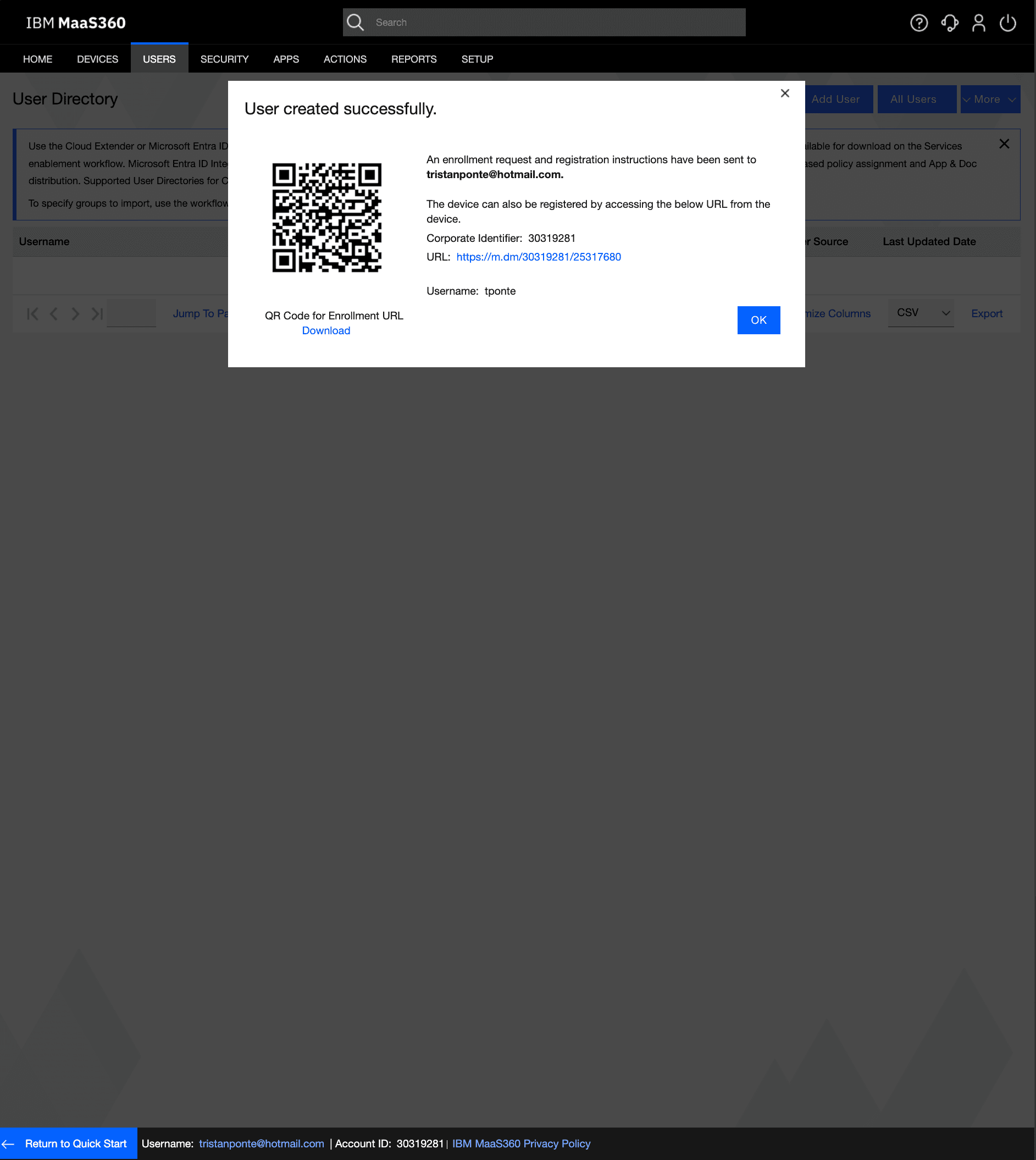
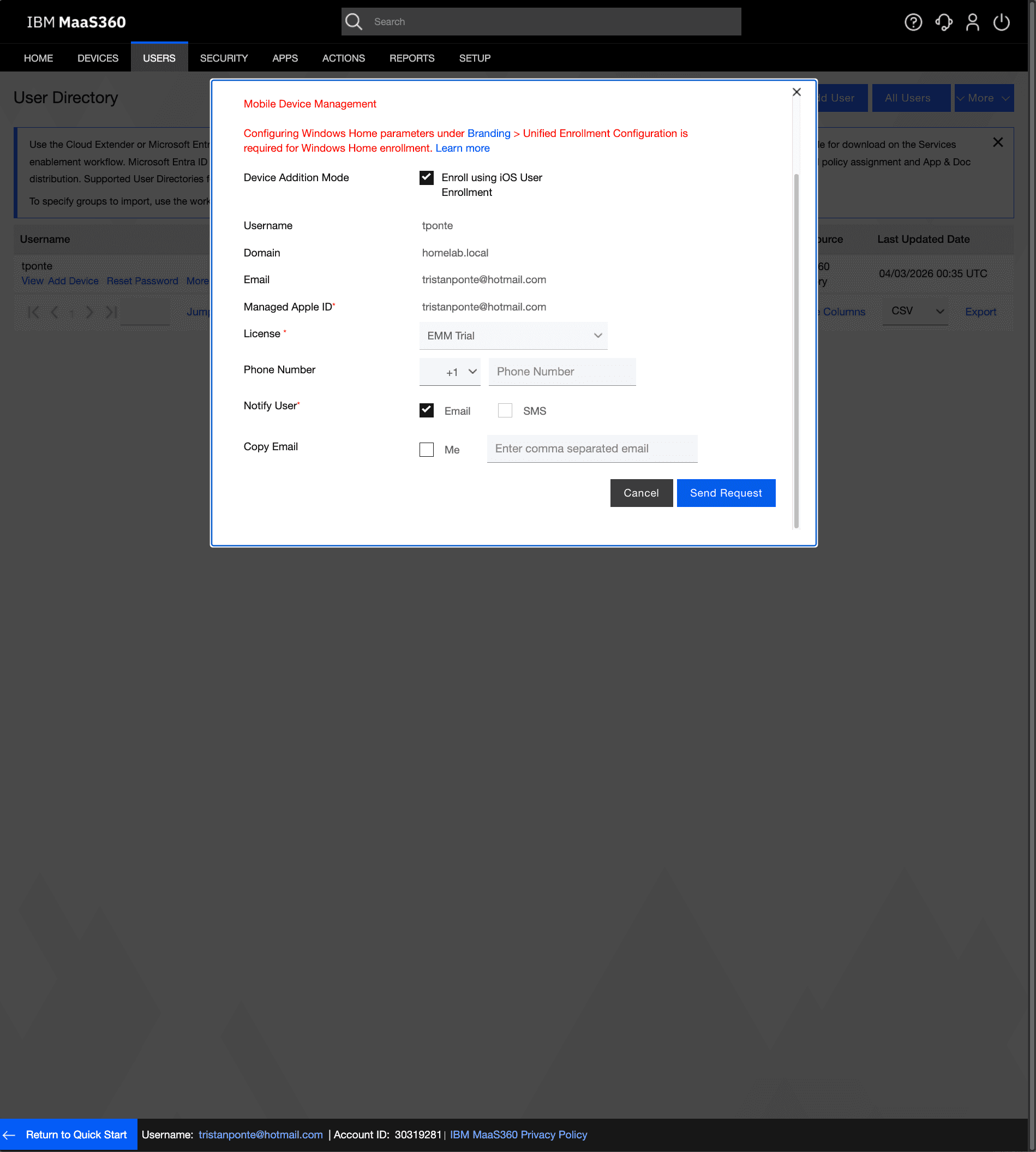
With the tenant infrastructure configured, I provisioned a managed user account within the MaaS360 User Directory. This simulates the onboarding workflow an IT administrator would follow when adding a new employee to the MDM system. I created a user with the username tponte under the domain homelab.local, assigned the EMM Trial license, and configured email-based enrollment notification. MaaS360 generated a unique enrollment URL and QR code tied to this user account, which serves as the authentication mechanism for device enrollment. This step reflects real-world identity management practices where each managed device is tied to a specific user account for accountability and policy targeting.
STEP 3: iOS DEVICE ENROLLMENT VIA BYOD MDM PROFILE
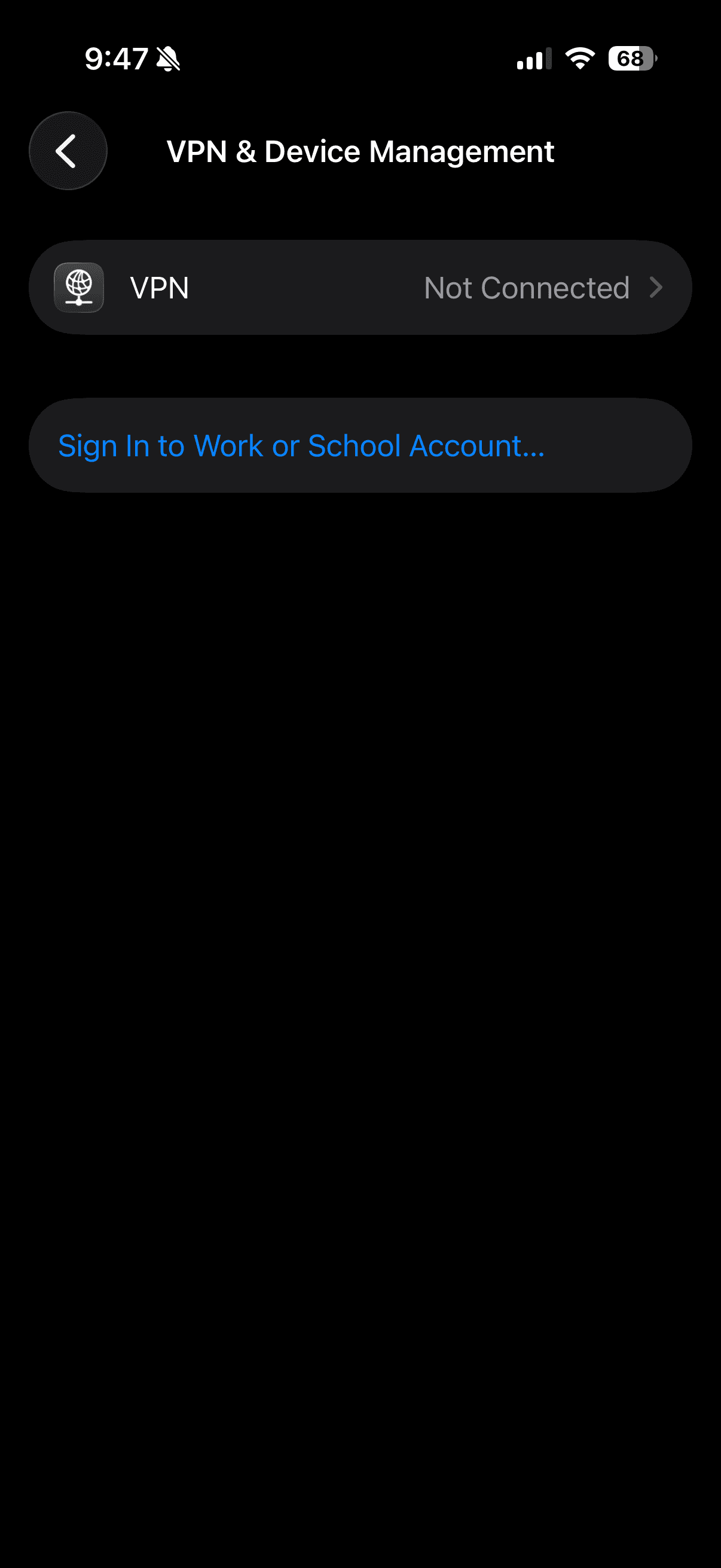
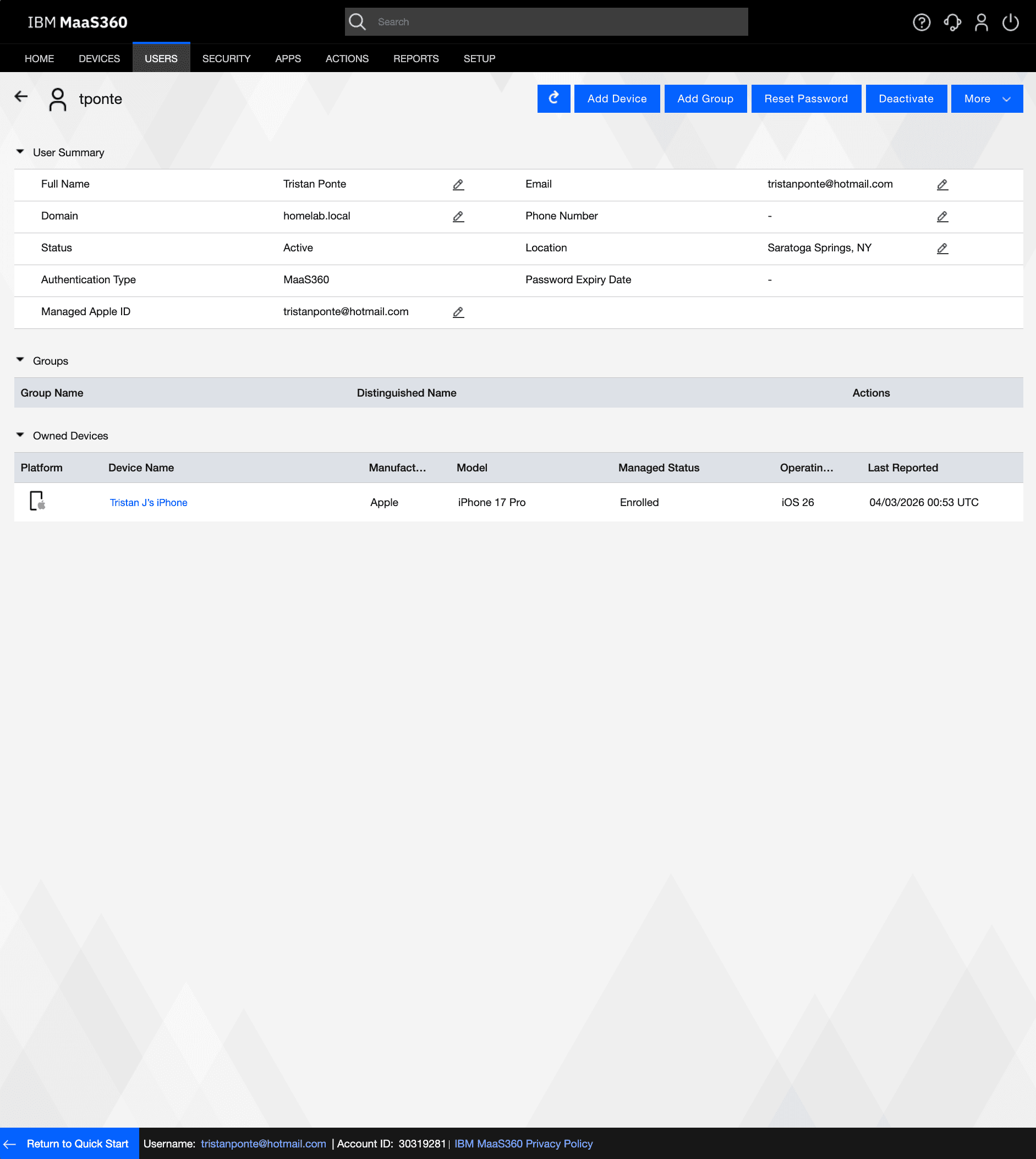
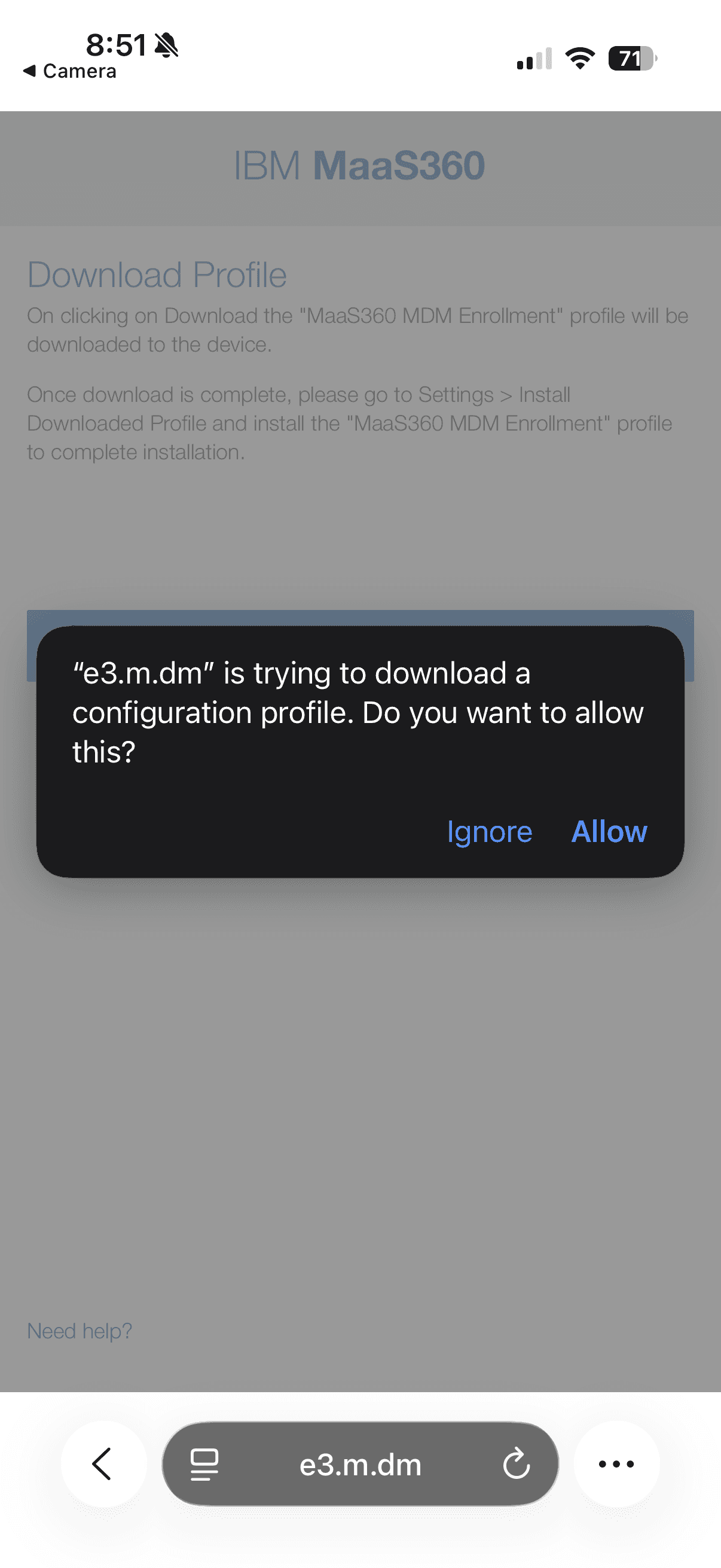
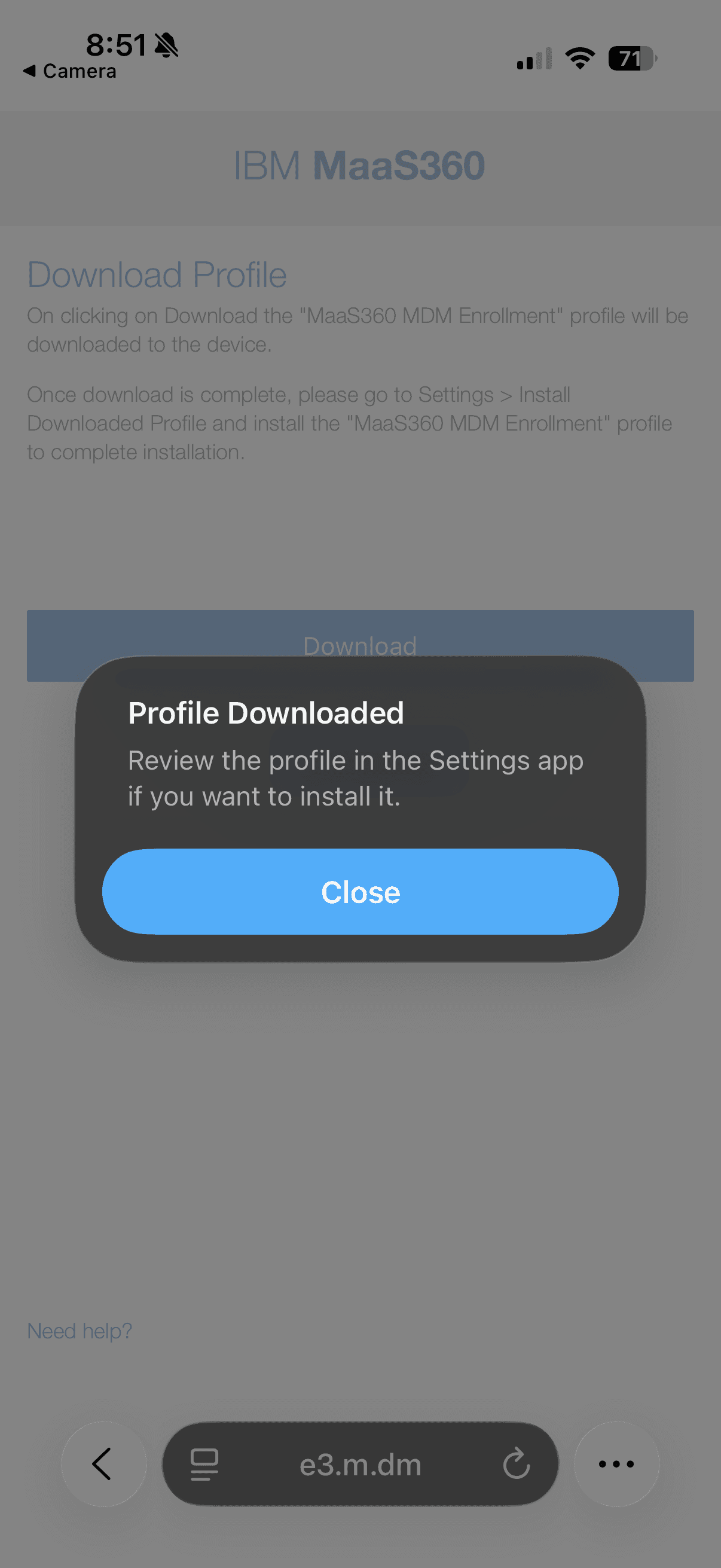
Using the enrollment URL generated in the previous step, I enrolled my personal iPhone 17 Pro into MaaS360 using the standard MDM enrollment method. On the device, Safari downloaded the MaaS360 MDM Enrollment configuration profile, which I installed via Settings → General → VPN & Device Management. This installed the MDM profile directly on the device, establishing the management channel between the iPhone and the MaaS360 tenant. Upon successful enrollment, the device immediately appeared in the MaaS360 Device Inventory with full hardware details auto-populated including model, OS version, IMEI, encryption level, and carrier information. The device reported a Managed Status of "Enrolled" and a Policy Compliance State of "In Compliance" confirming the enrollment was successful and the default MDM policy had been applied.
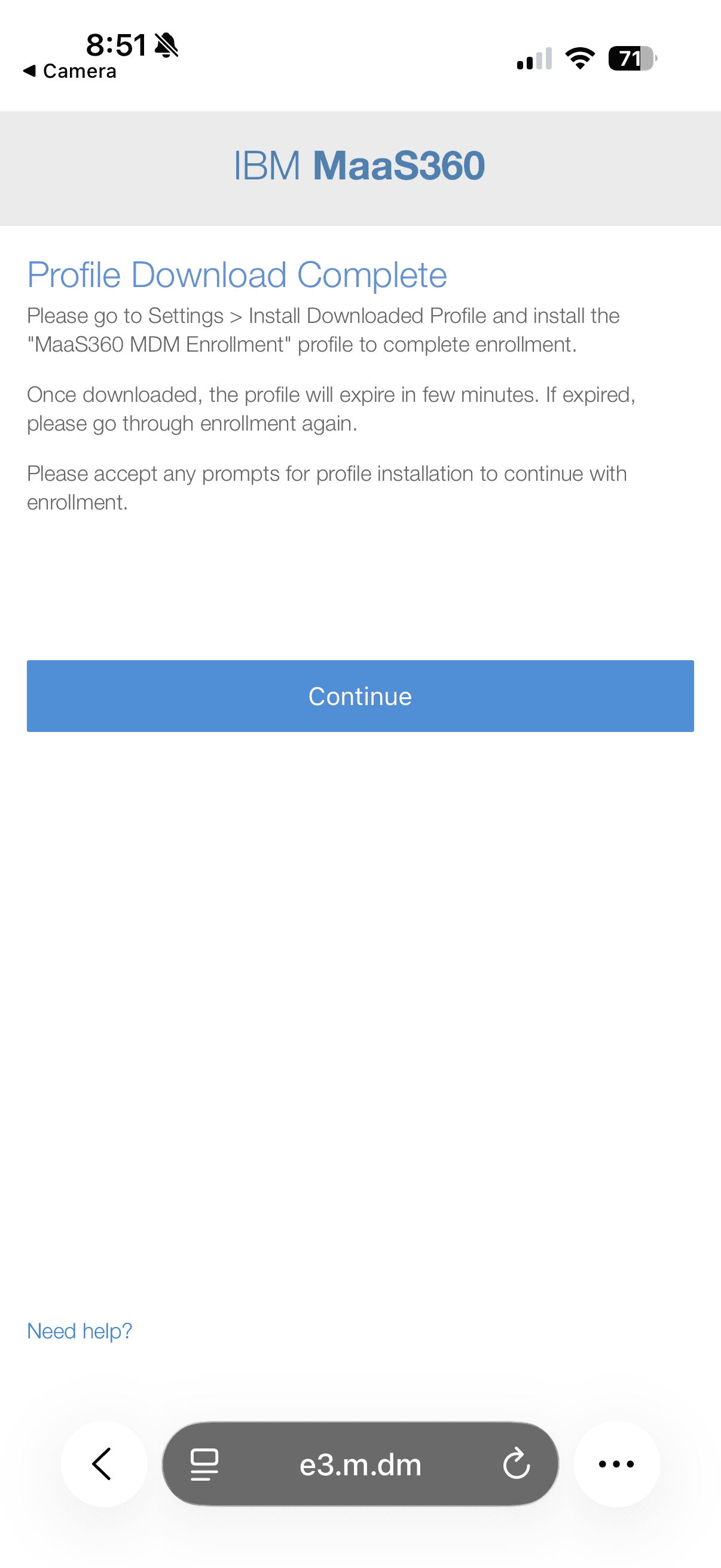
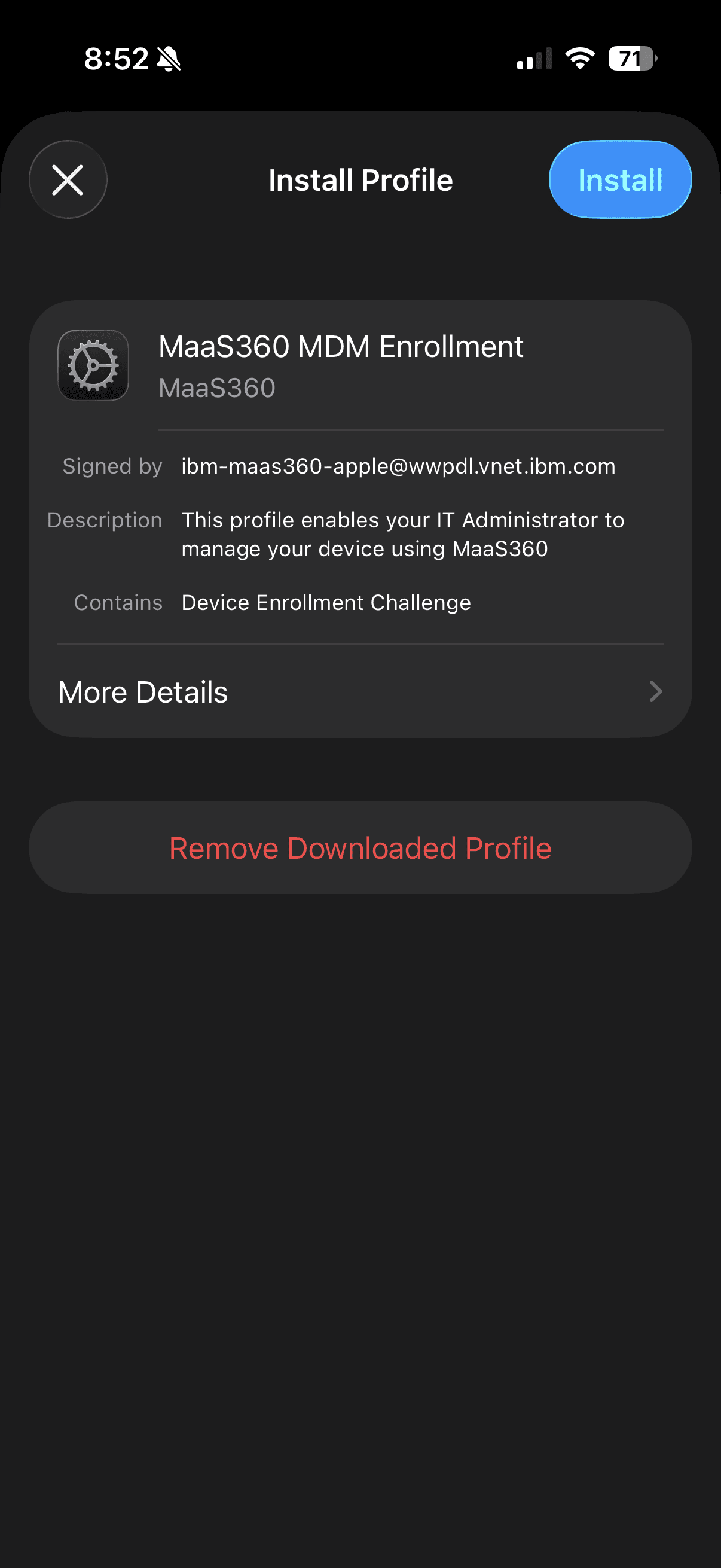
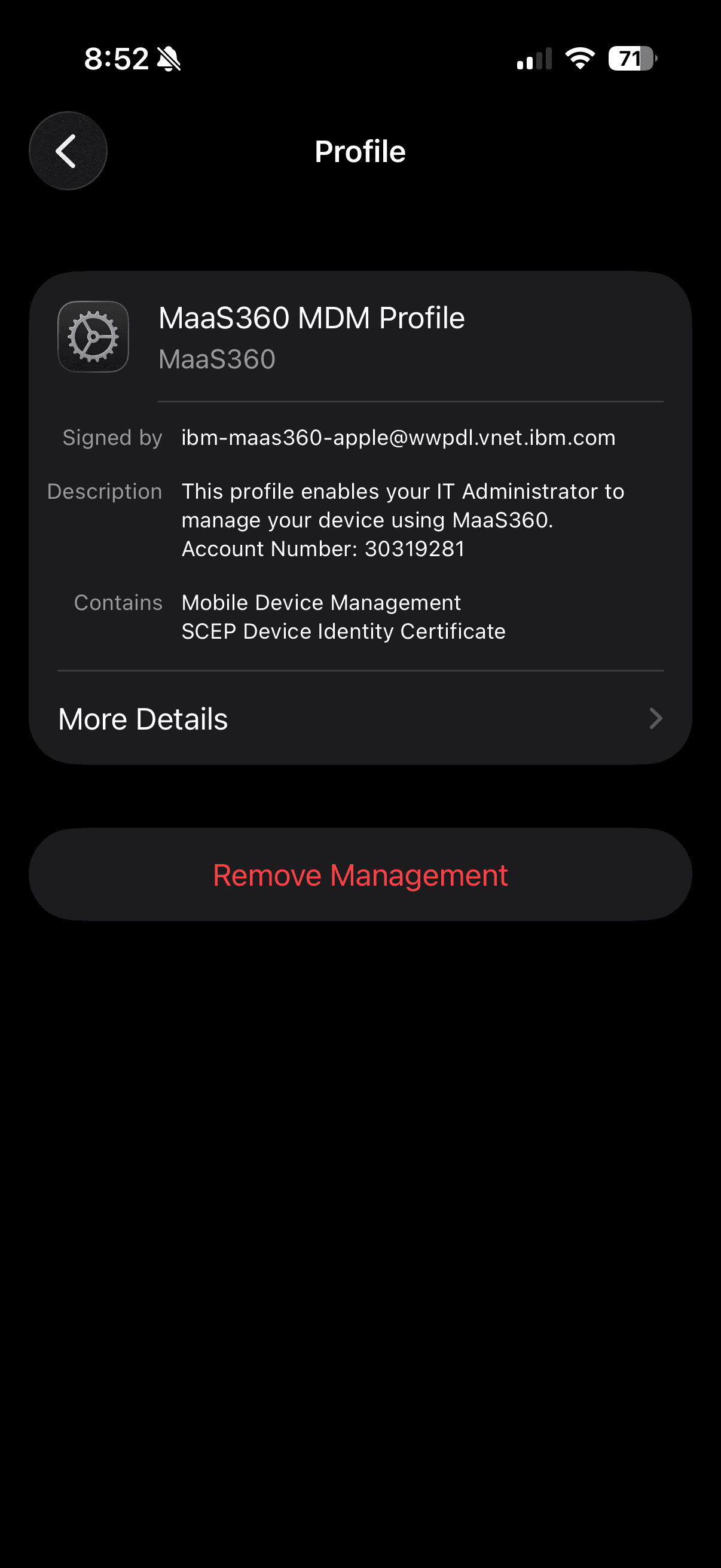
STEP 4: SECURITY POLICY CREATION & DEPLOYMENT (SESS-STANDARD-ENDPOINT-POLICY)
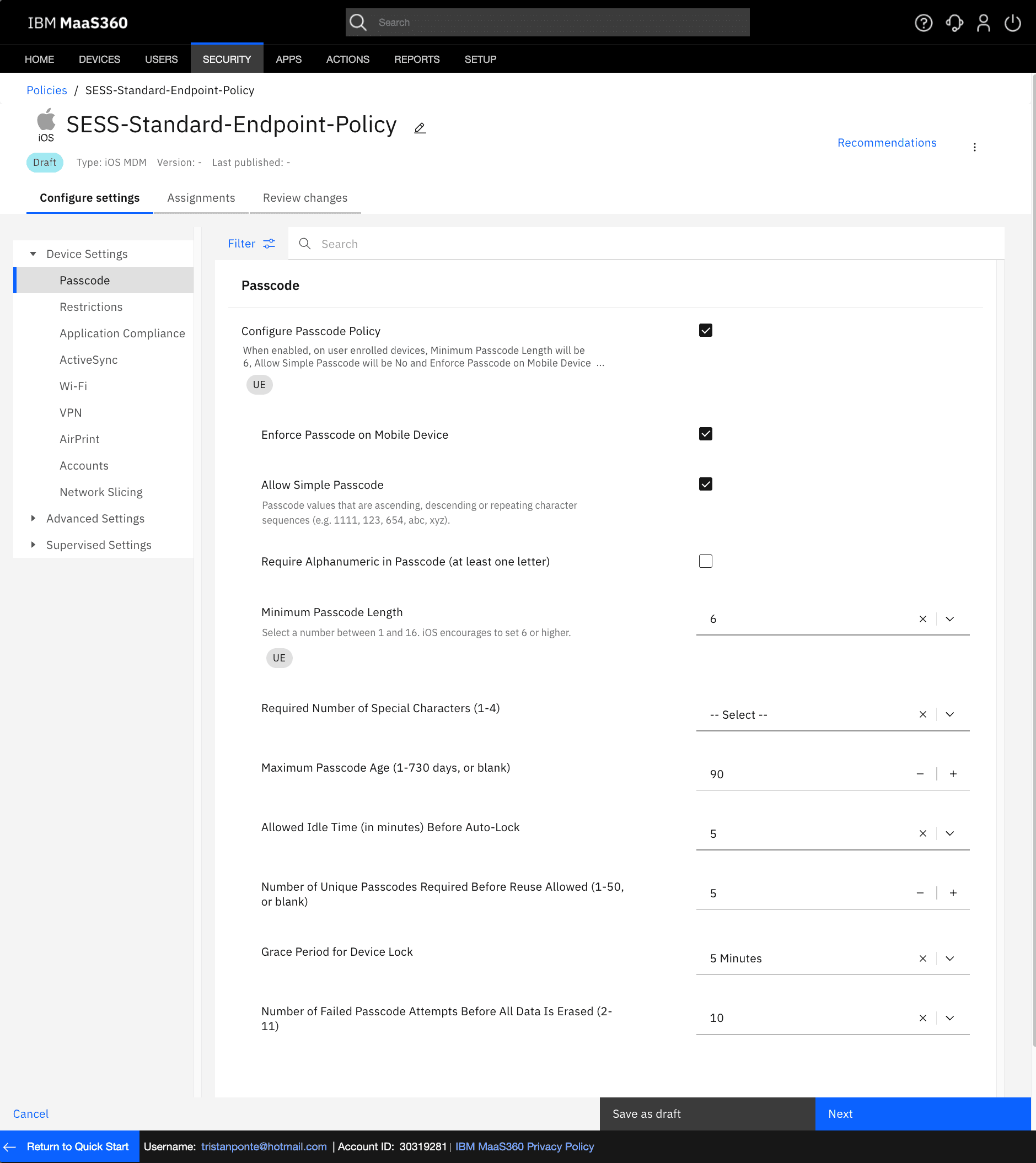
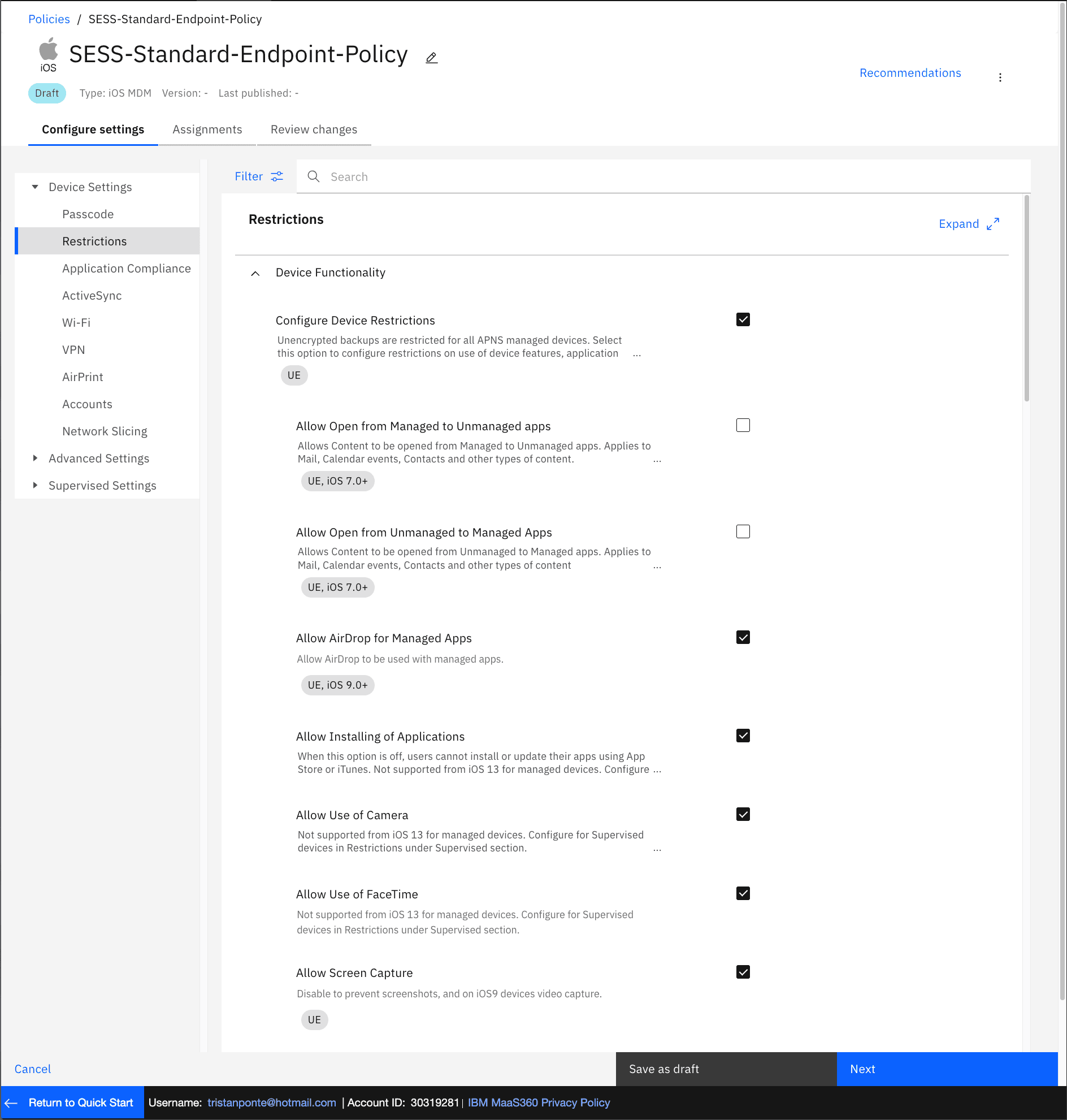
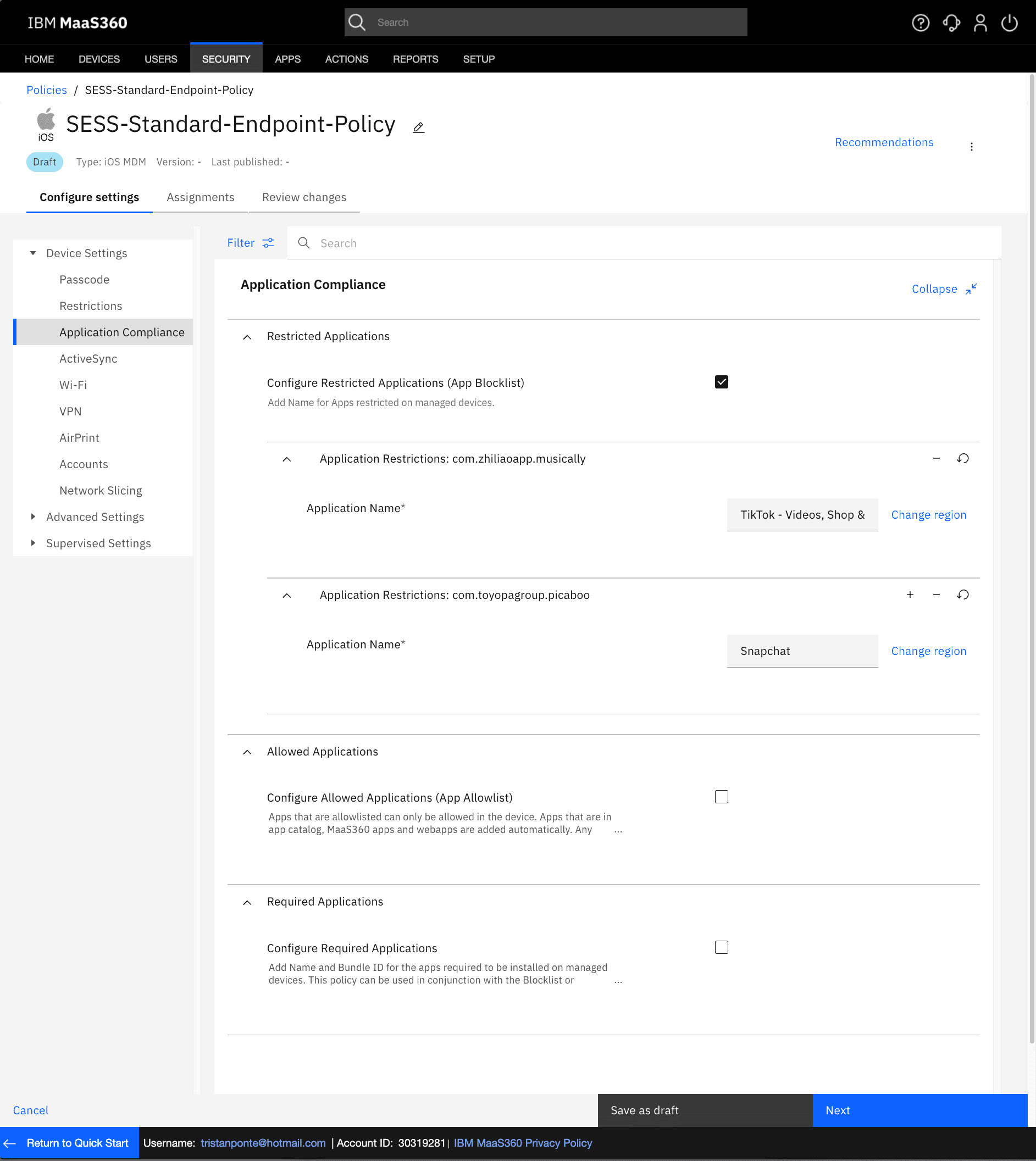
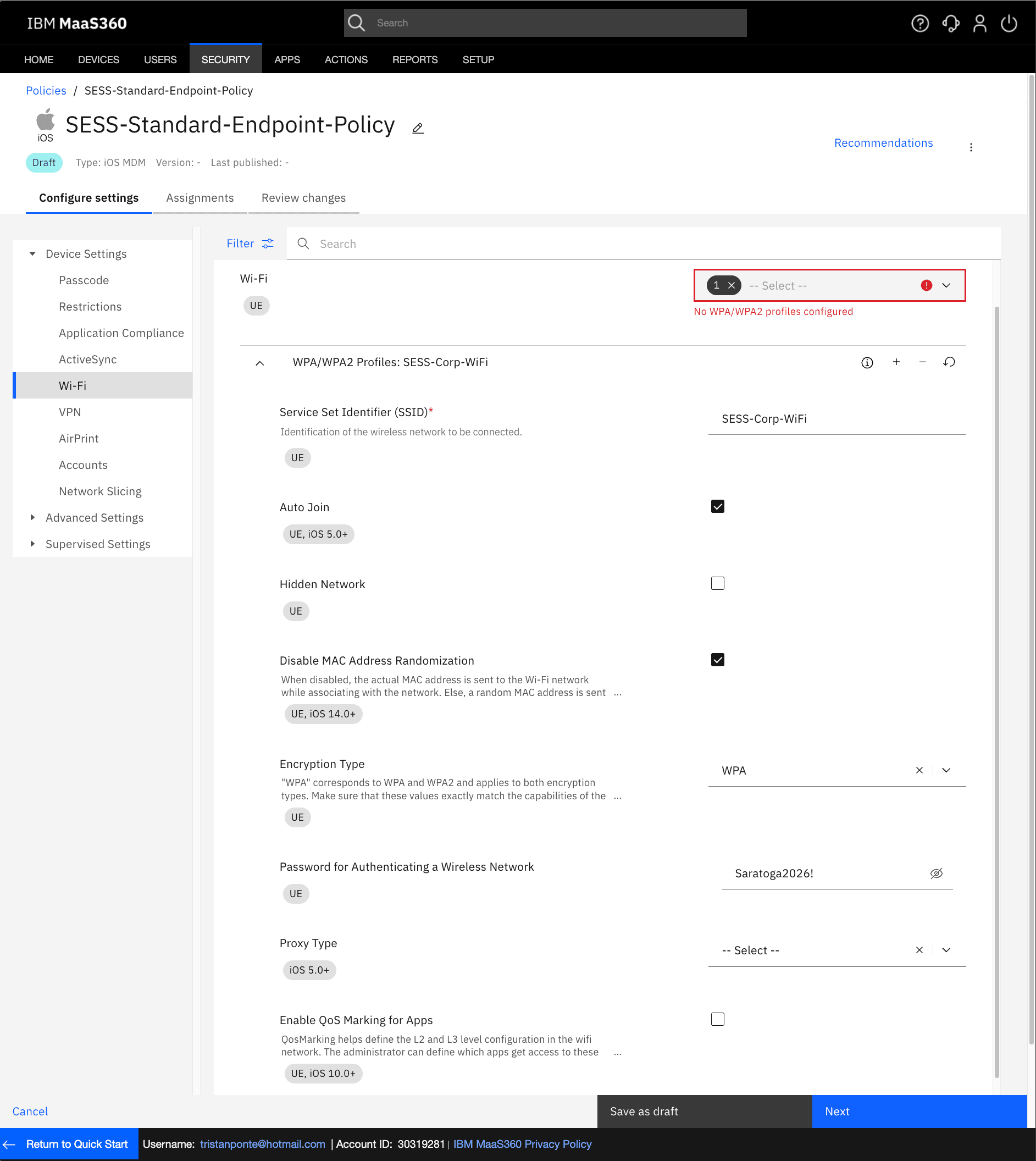
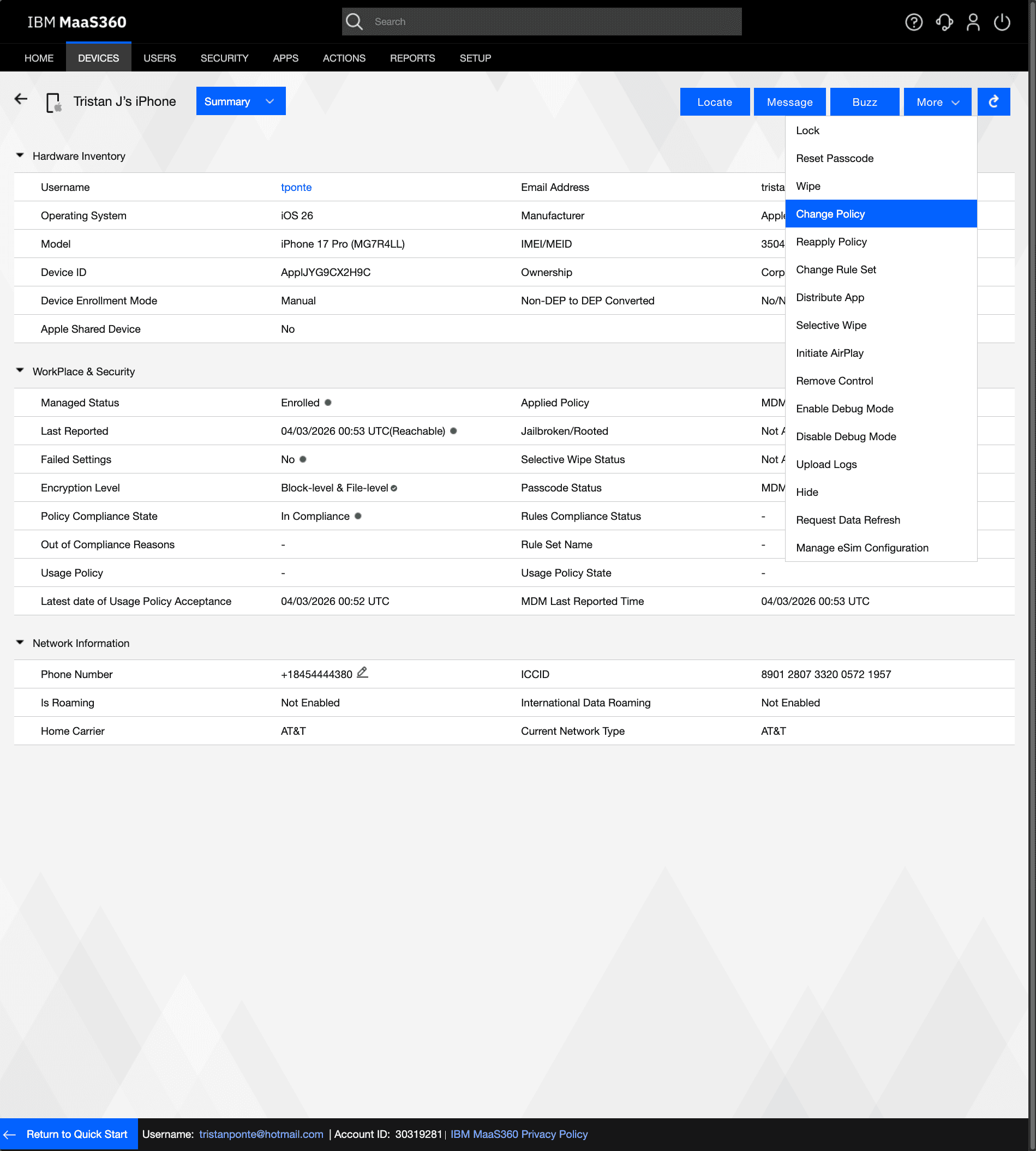
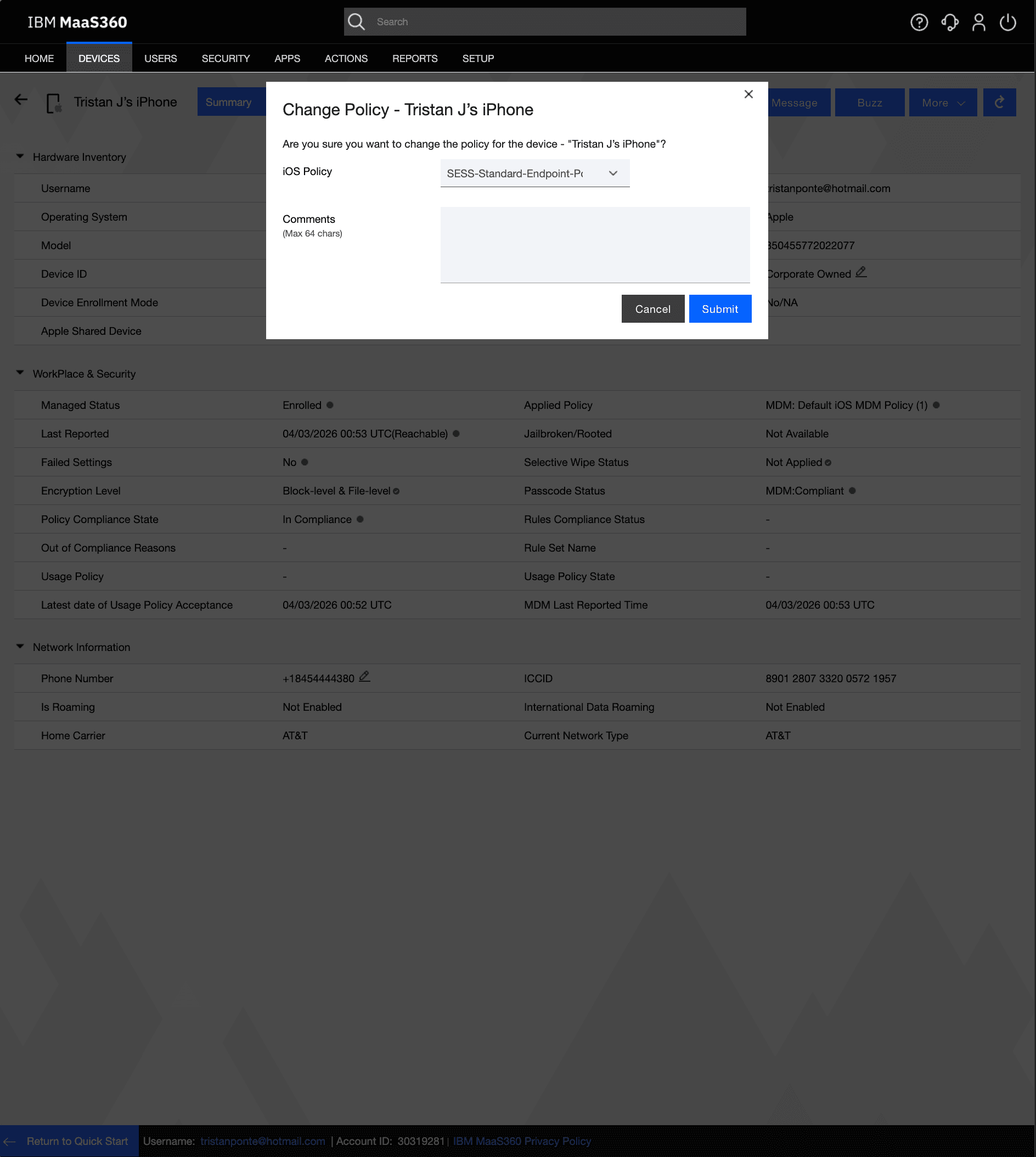
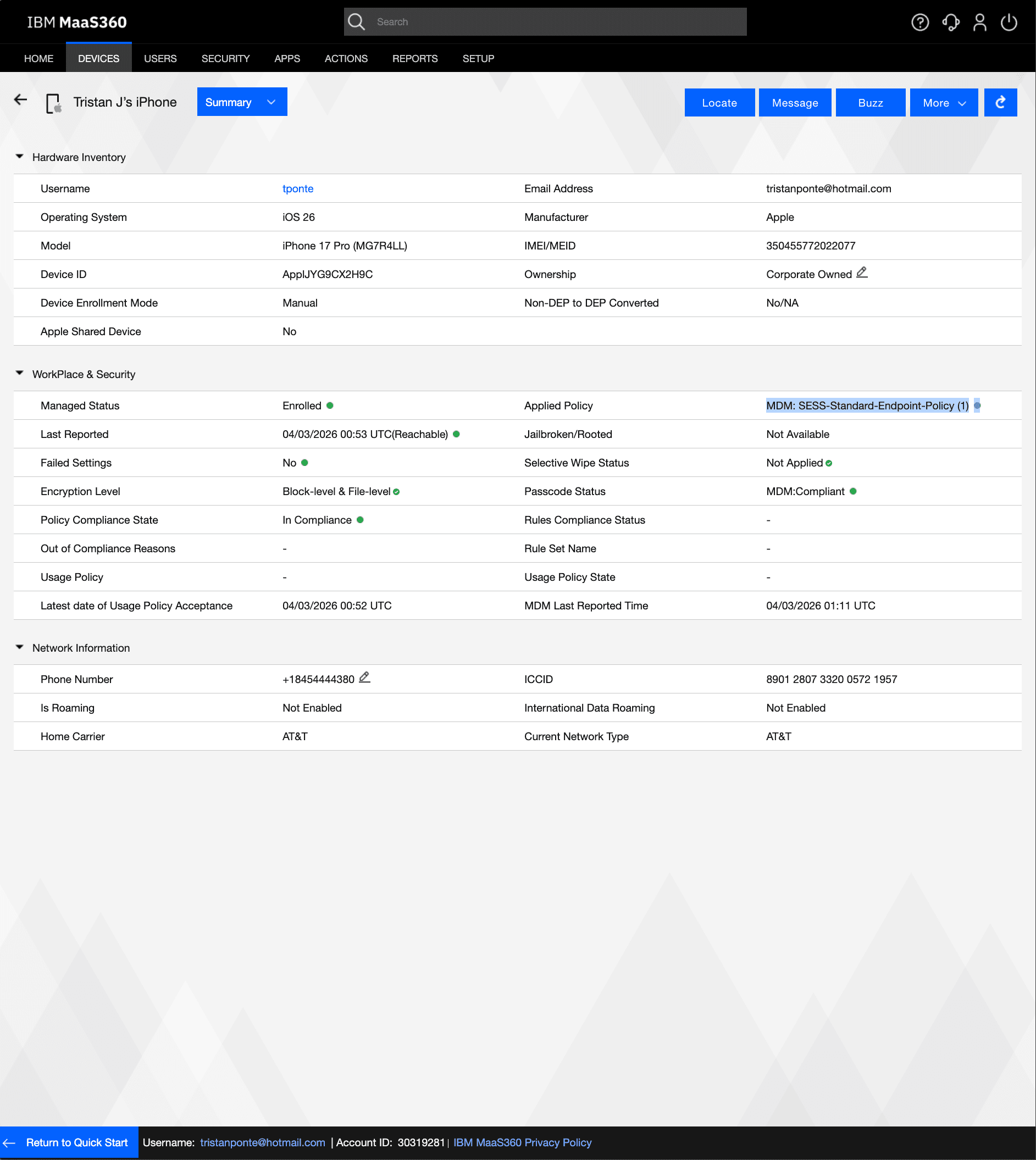
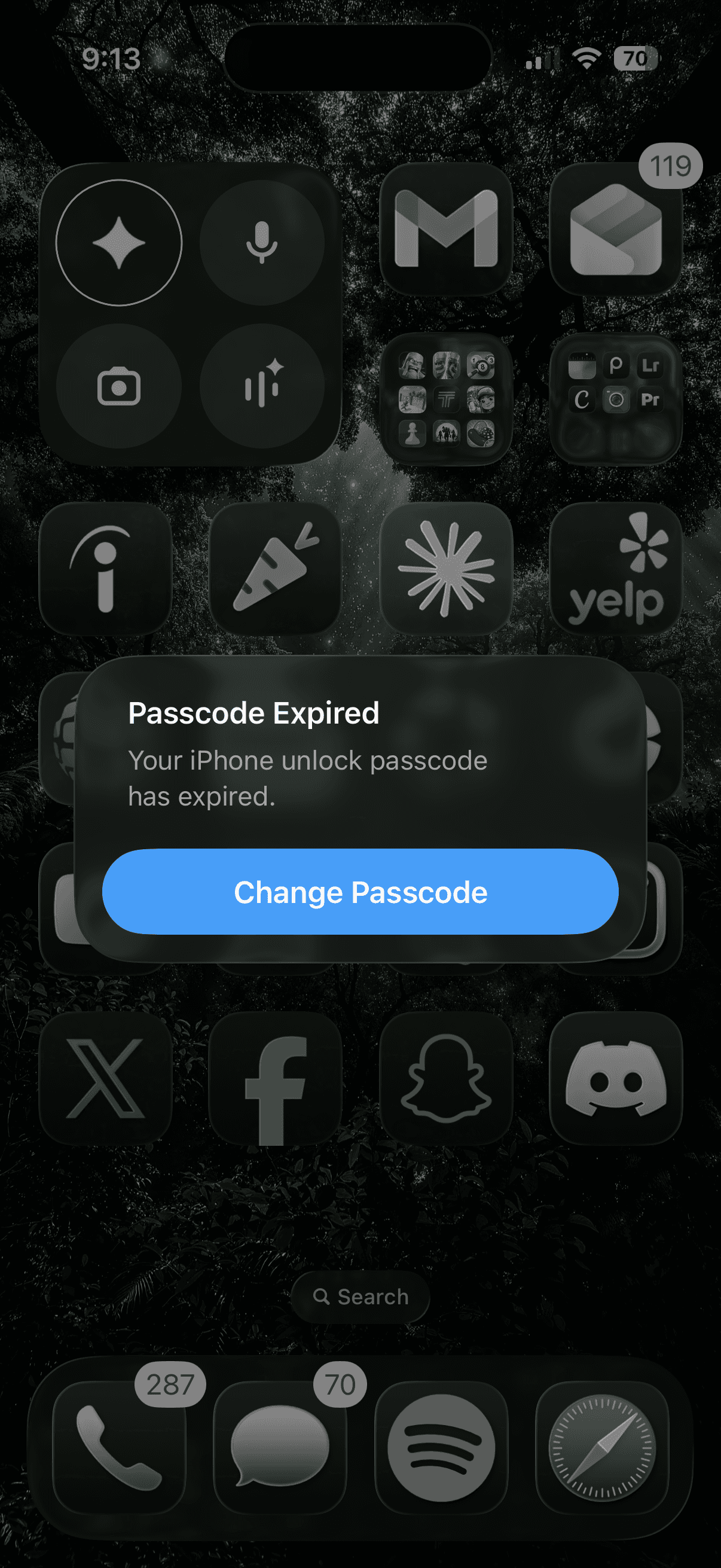
With the device enrolled, I created a custom iOS MDM security policy named SESS-Standard-Endpoint-Policy named to reflect the target organization's naming convention. Using the Business Templates baseline, I configured the policy across multiple sections. Under Passcode, I enabled passcode enforcement with a minimum length of 6 digits. Under Restrictions, I configured camera access, app installation permissions, and forced encrypted backups. Under Application Compliance, I configured a restricted app blocklist including TikTok (com.zhiliaoapp.musically) and Snapchat (com.toyopagroup.picaboo) two applications commonly blocked in corporate environments due to data privacy concerns. Under Wi-Fi, I created a corporate Wi-Fi profile for the SSID SESS-Corp-WiFi using WPA2 encryption, simulating the automatic distribution of corporate network credentials to managed devices. The policy was published and deployed to the enrolled device via the Device Summary page using the Change Policy action.
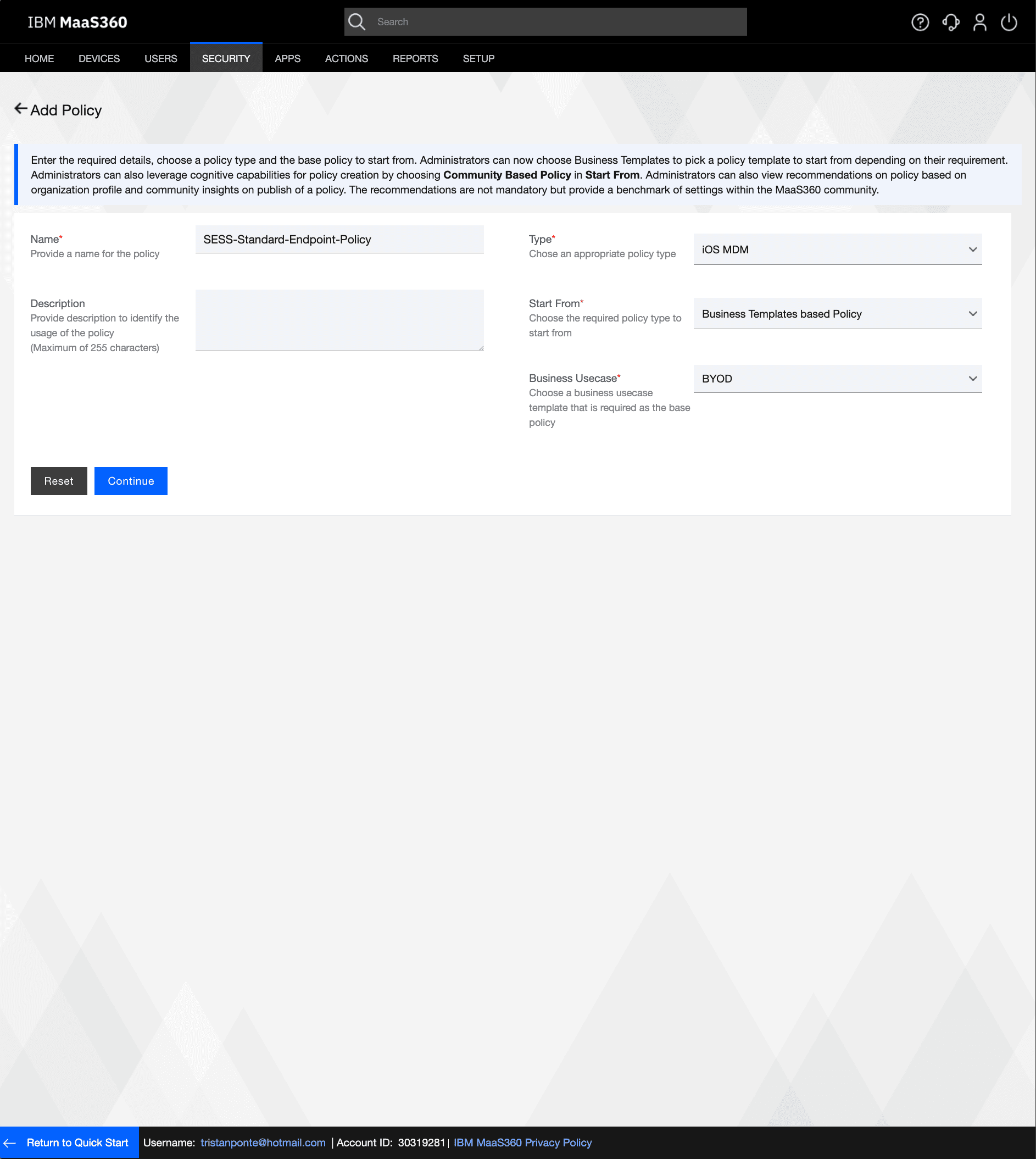
STEP 5: APP CATALOG MANAGEMENT & APPLICATION DISTRIBUTION
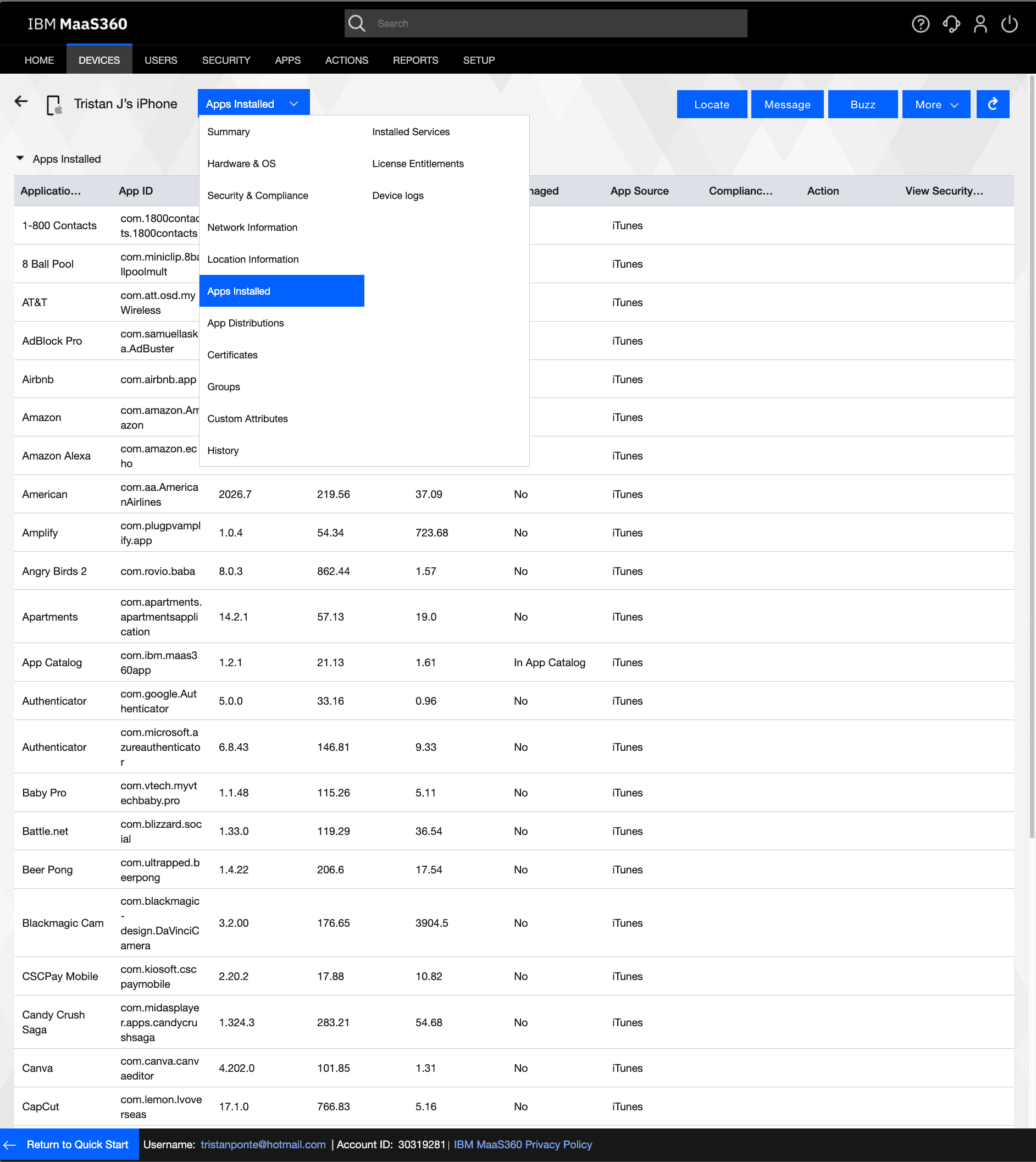
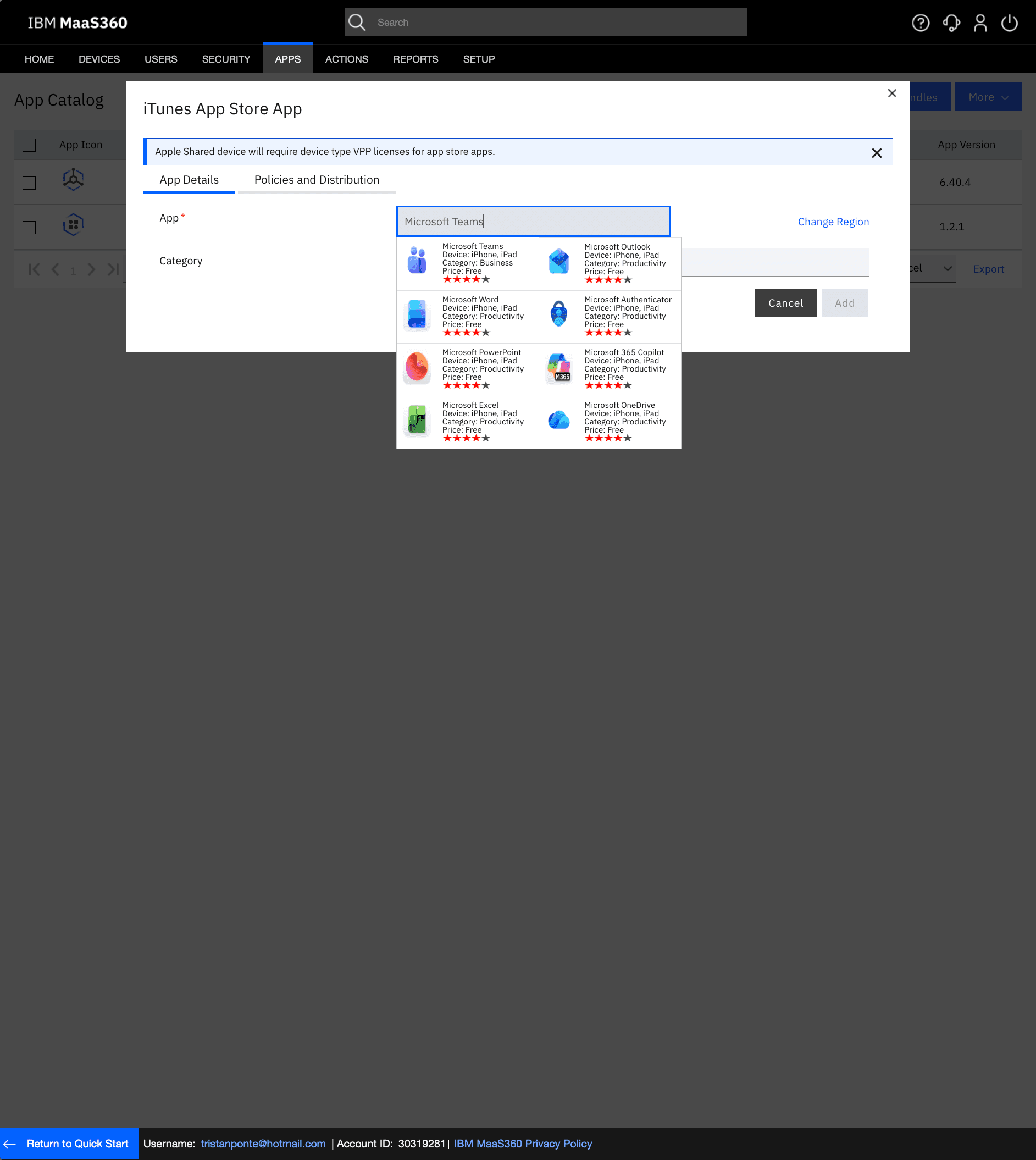
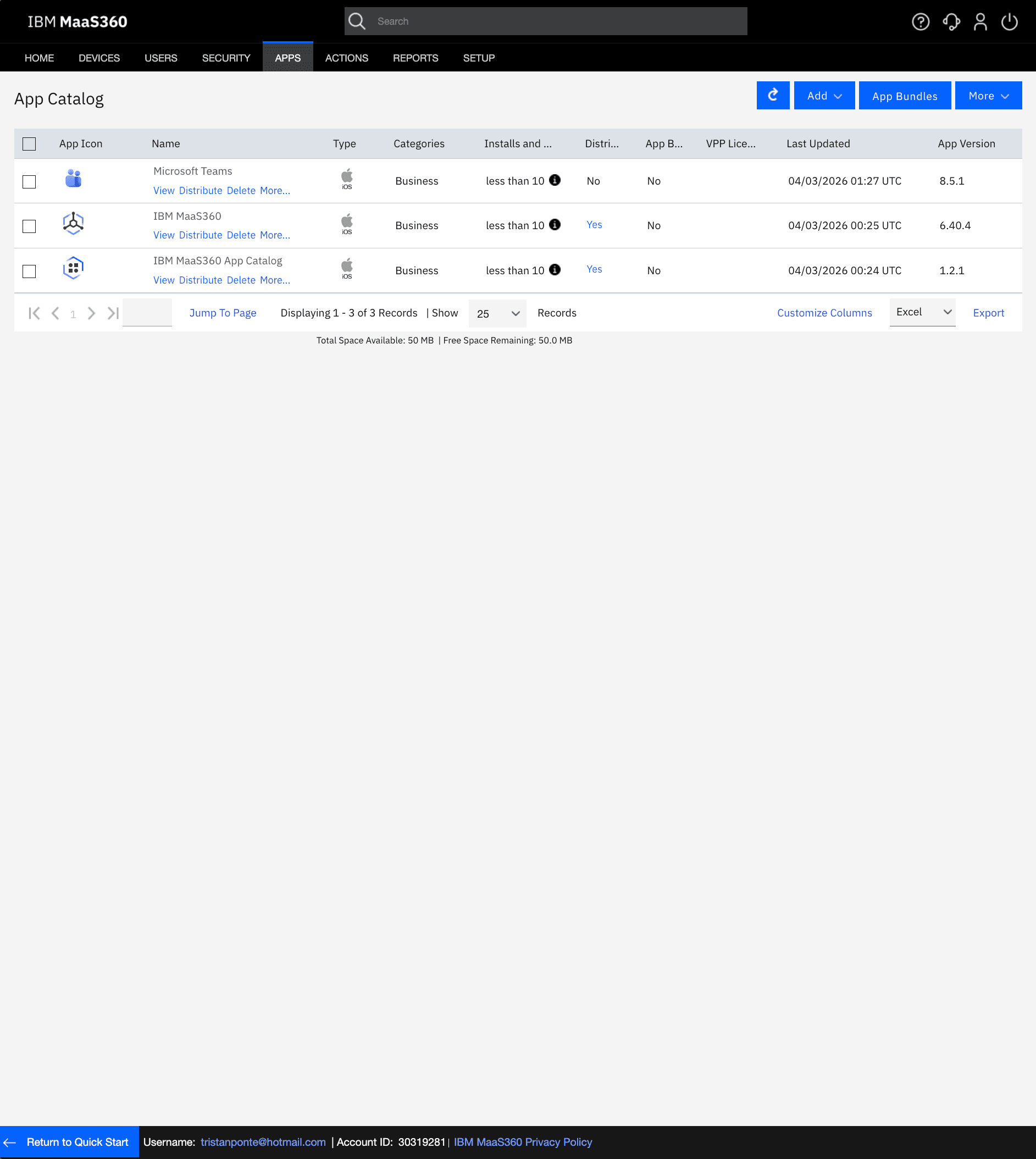
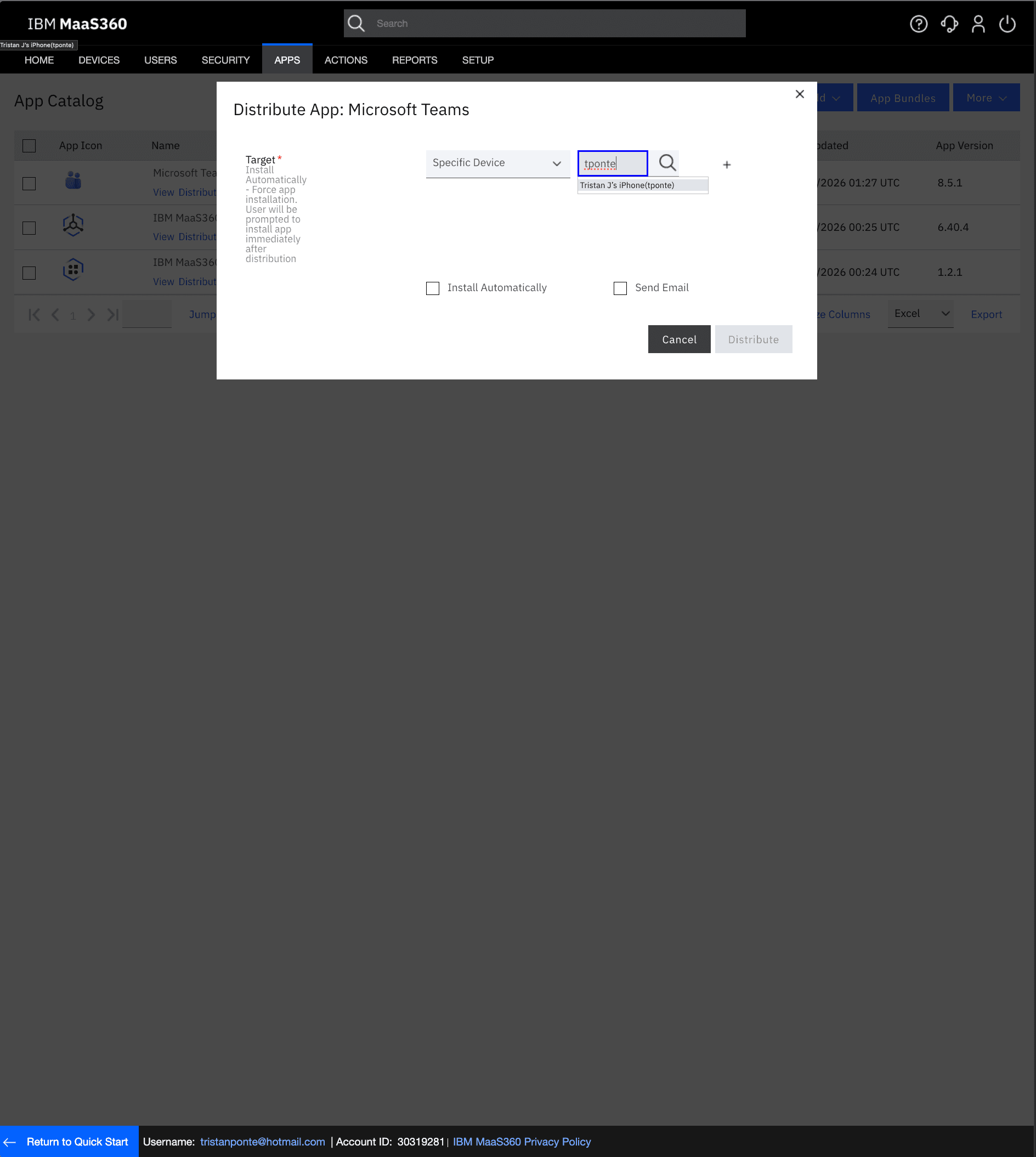
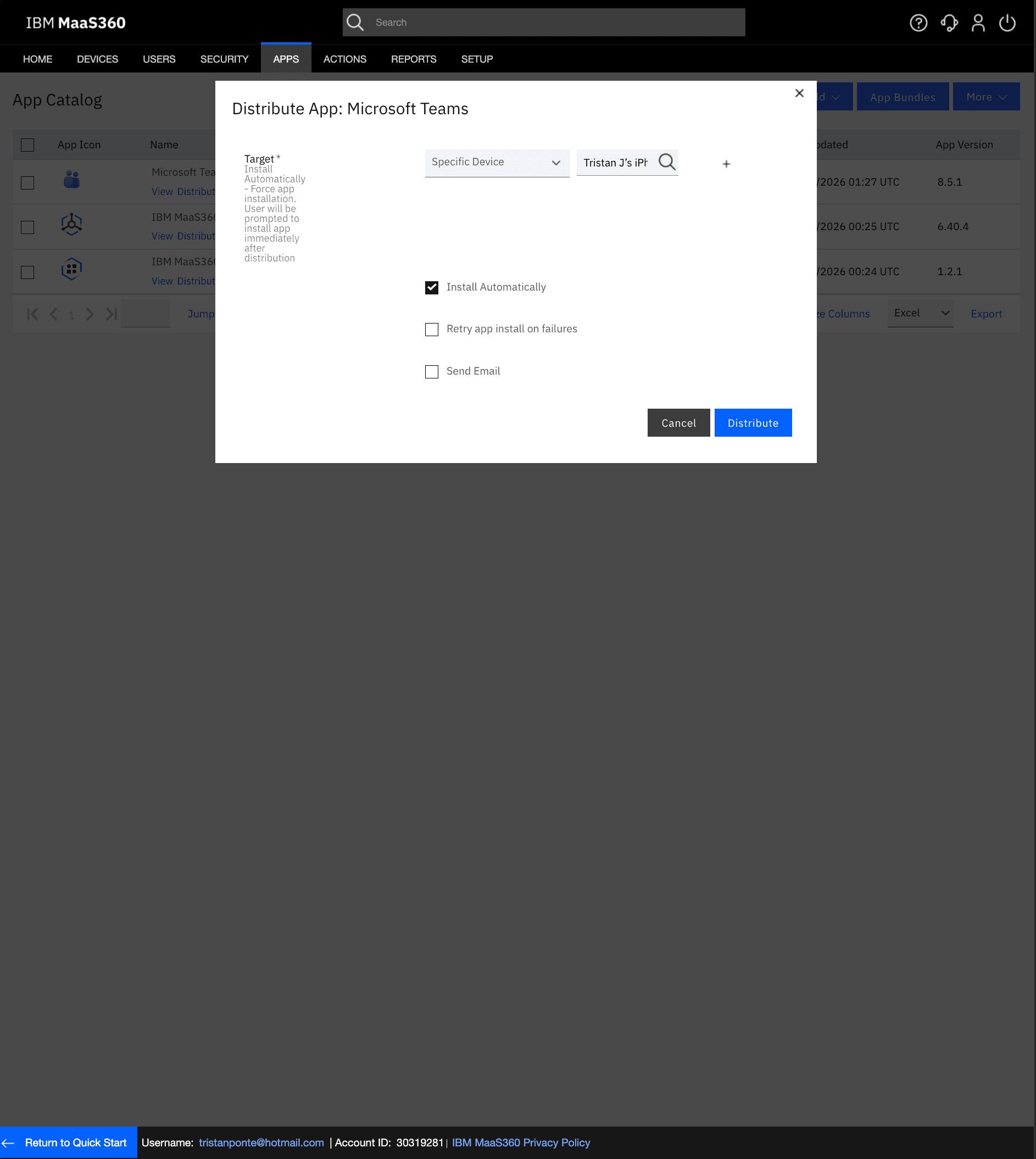
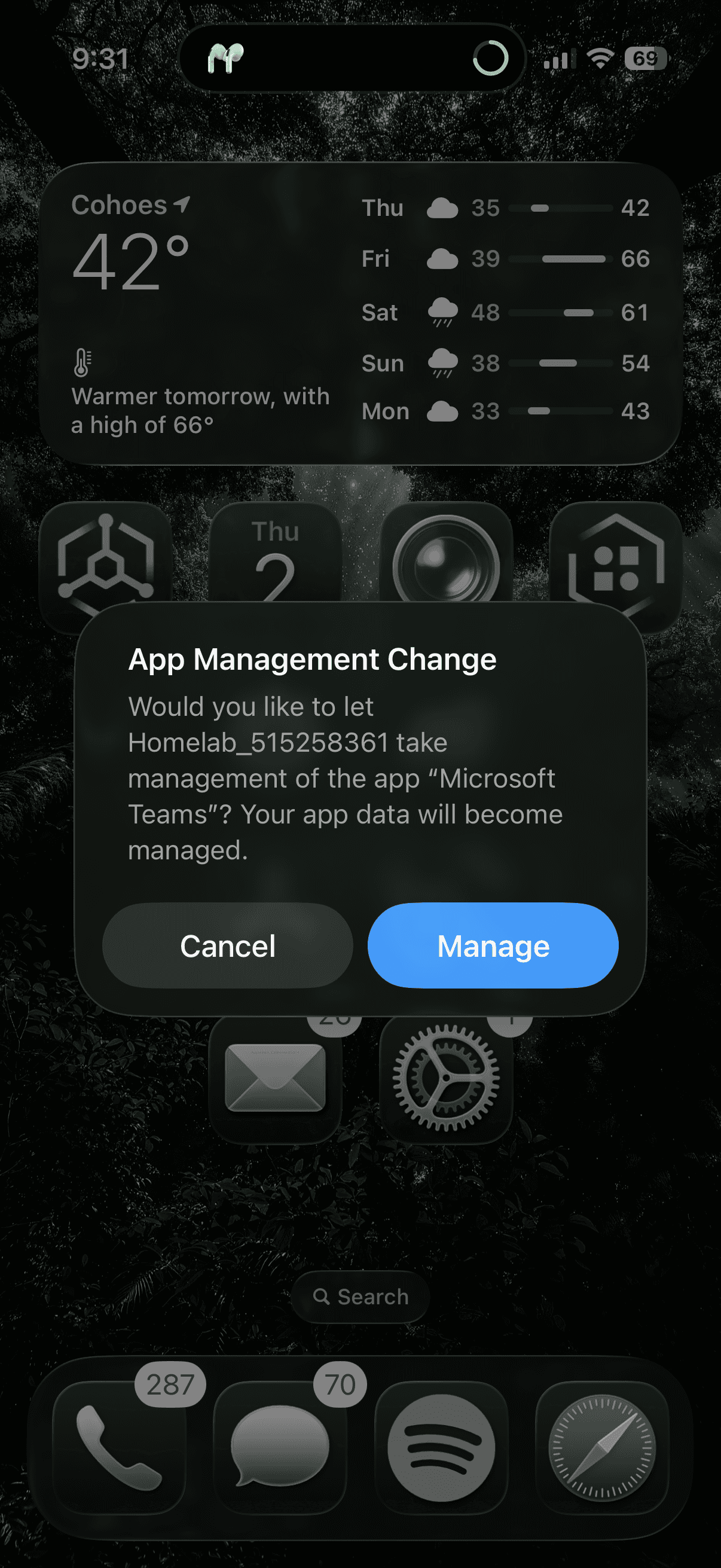
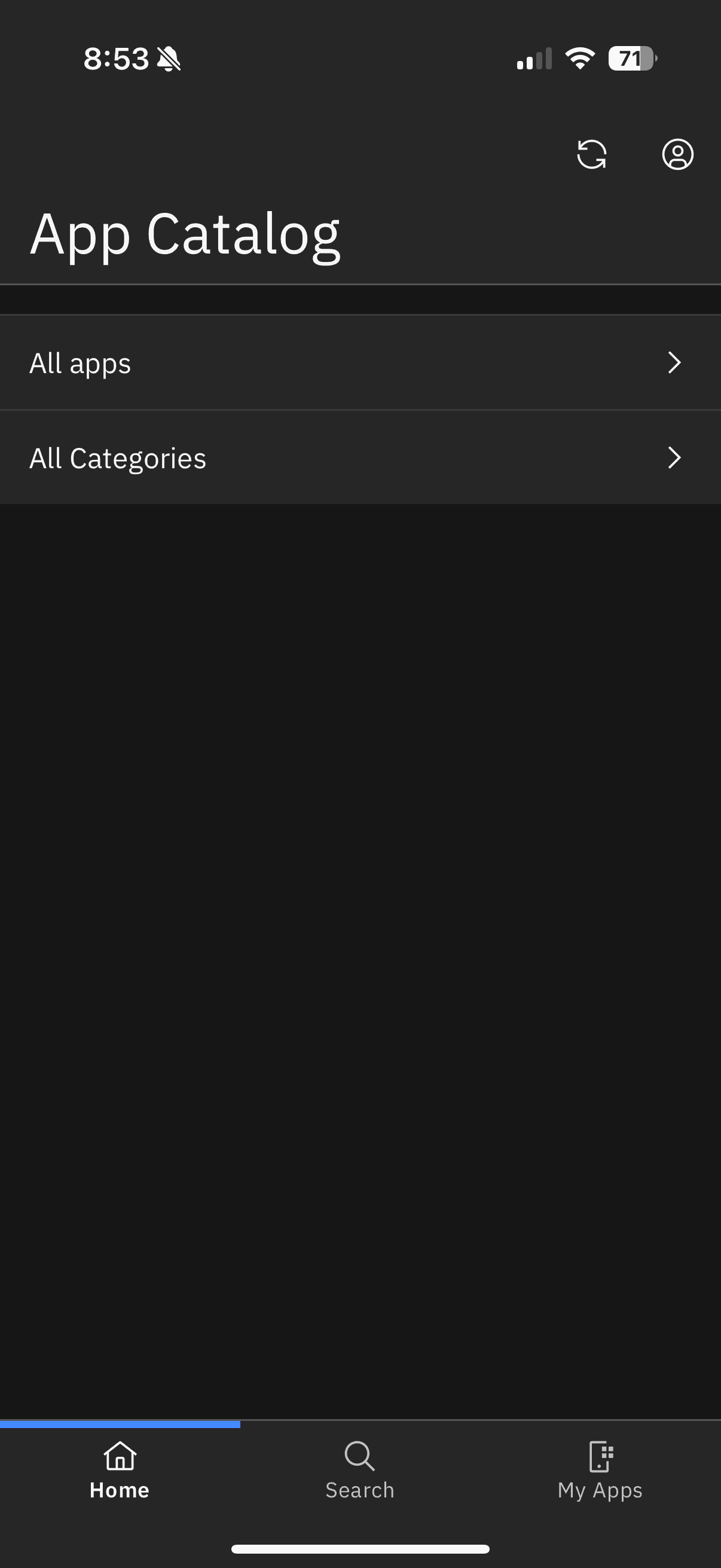
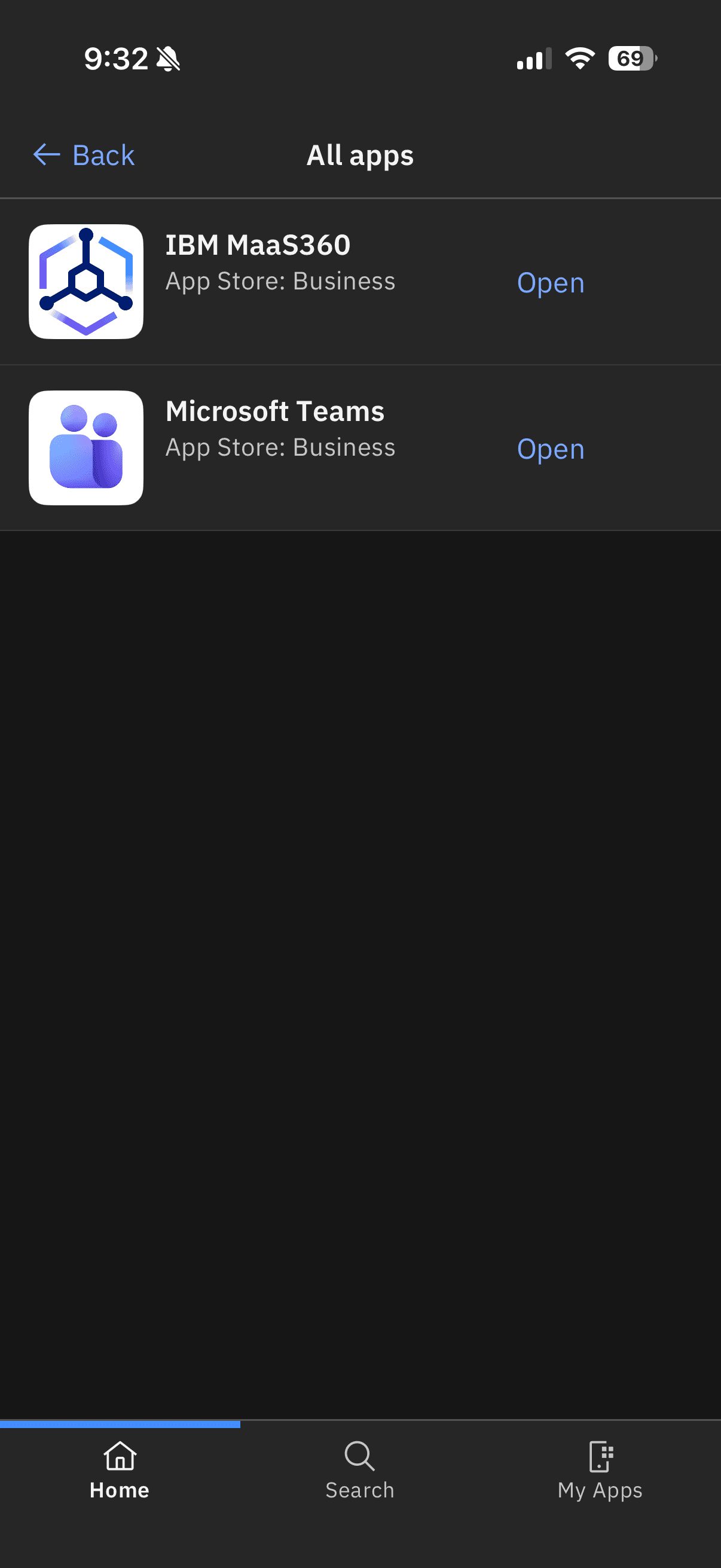
To demonstrate enterprise application management, I added Microsoft Teams to the MaaS360 App Catalog and distributed it to the enrolled user. Using the Apps → Add → Public App Store workflow, I located Microsoft Teams and added it to the organizational catalog. I configured the distribution type as Recommended, targeting the tponte user account. This simulates the real-world workflow where IT administrators maintain a curated catalog of approved corporate applications and push them to managed devices ensuring employees have the tools they need without requiring manual installation or App Store access. The App Catalog view confirmed three managed applications: Microsoft Teams, IBM MaaS360, and IBM MaaS360 App Catalog.
STEP 6: REMOTE DEVICE ACTIONS & MANAGEMENT
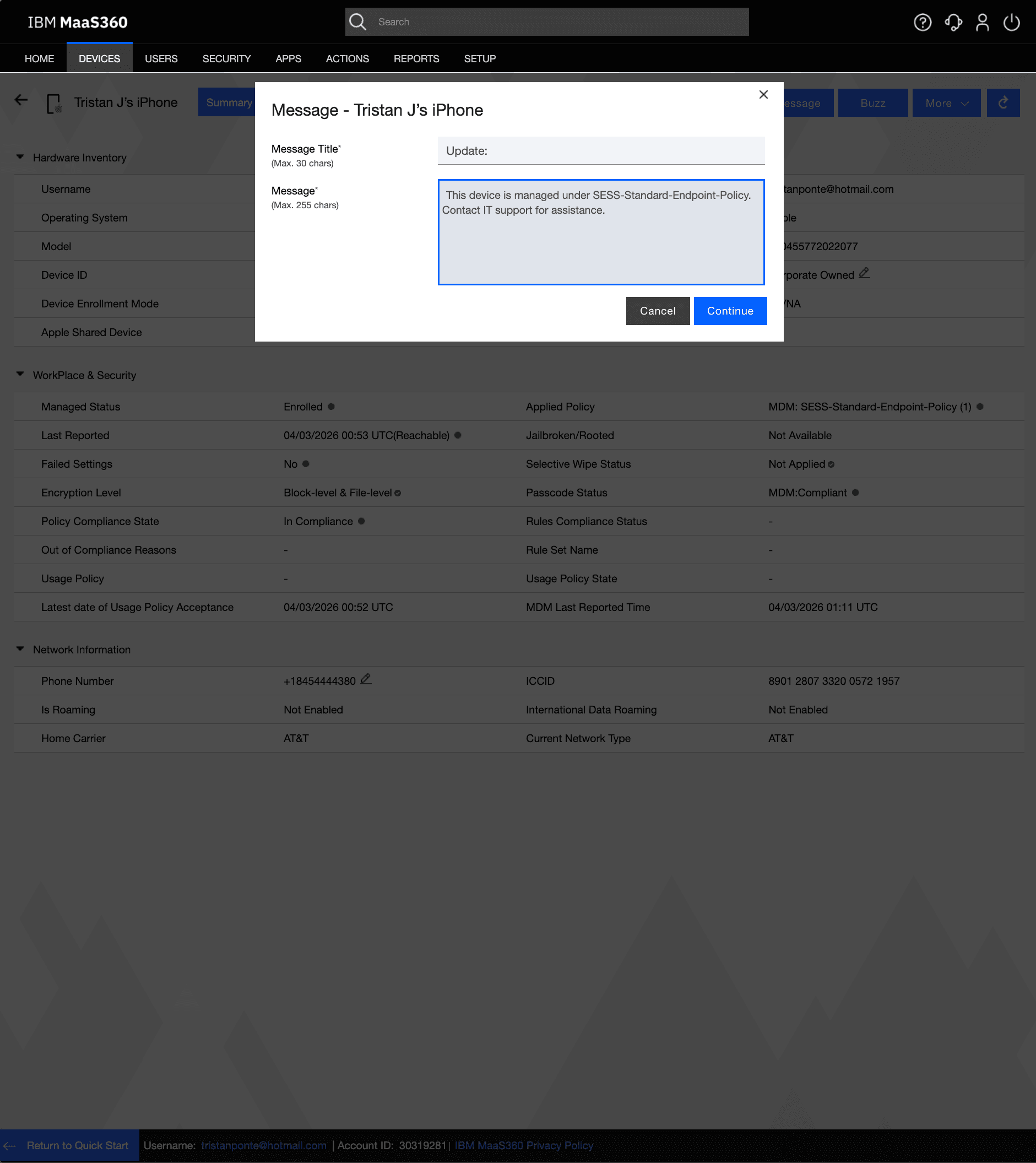
To demonstrate the remote management capabilities of MaaS360, I executed a remote message push to the enrolled device directly from the portal. Using the Message button on the Device Summary page, I sent a custom IT notification message to the device, which appeared as a push notification on the iPhone. I also documented the full suite of available remote actions available to an administrator including Lock, Reset Passcode, Wipe, Selective Wipe, Buzz, Locate, and Remove Control demonstrating awareness of the complete remote management toolkit available in an enterprise MDM deployment. These capabilities are critical in real-world scenarios such as lost or stolen devices, offboarding employees, or enforcing immediate security actions.
STEP 7: COMPLIANCE RULE CONFIGURATION & AUTOMATED ENFORCEMENT
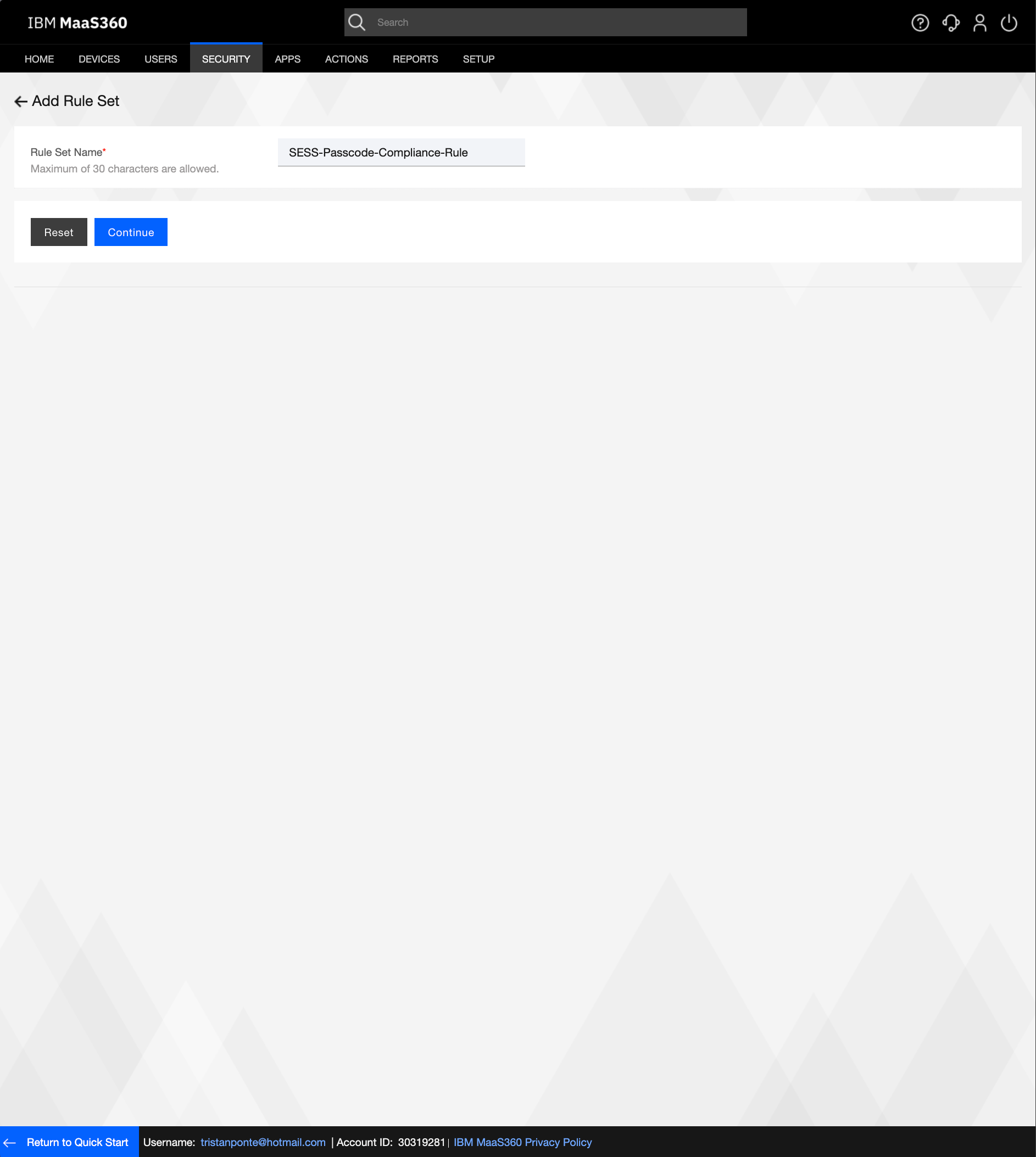
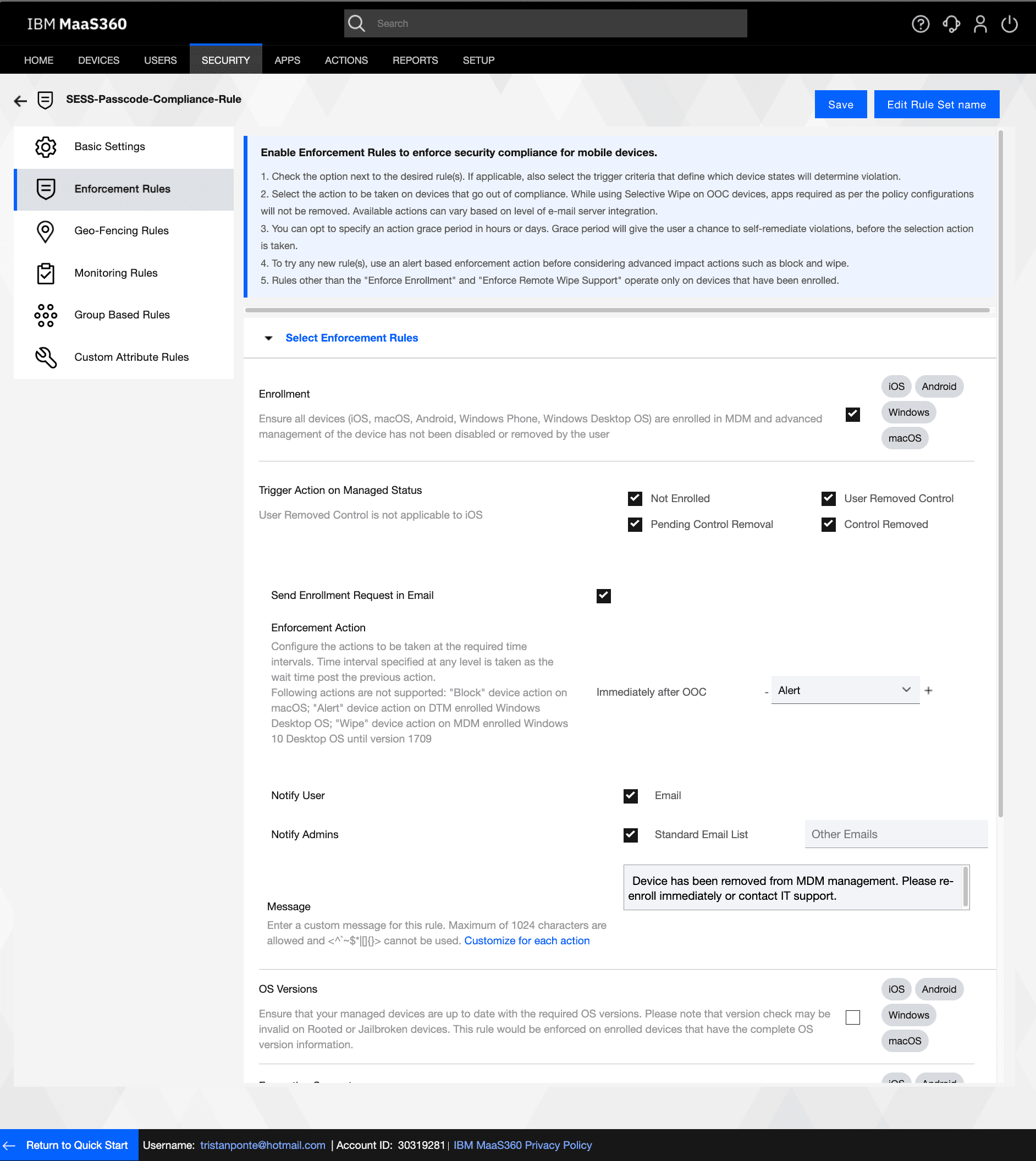
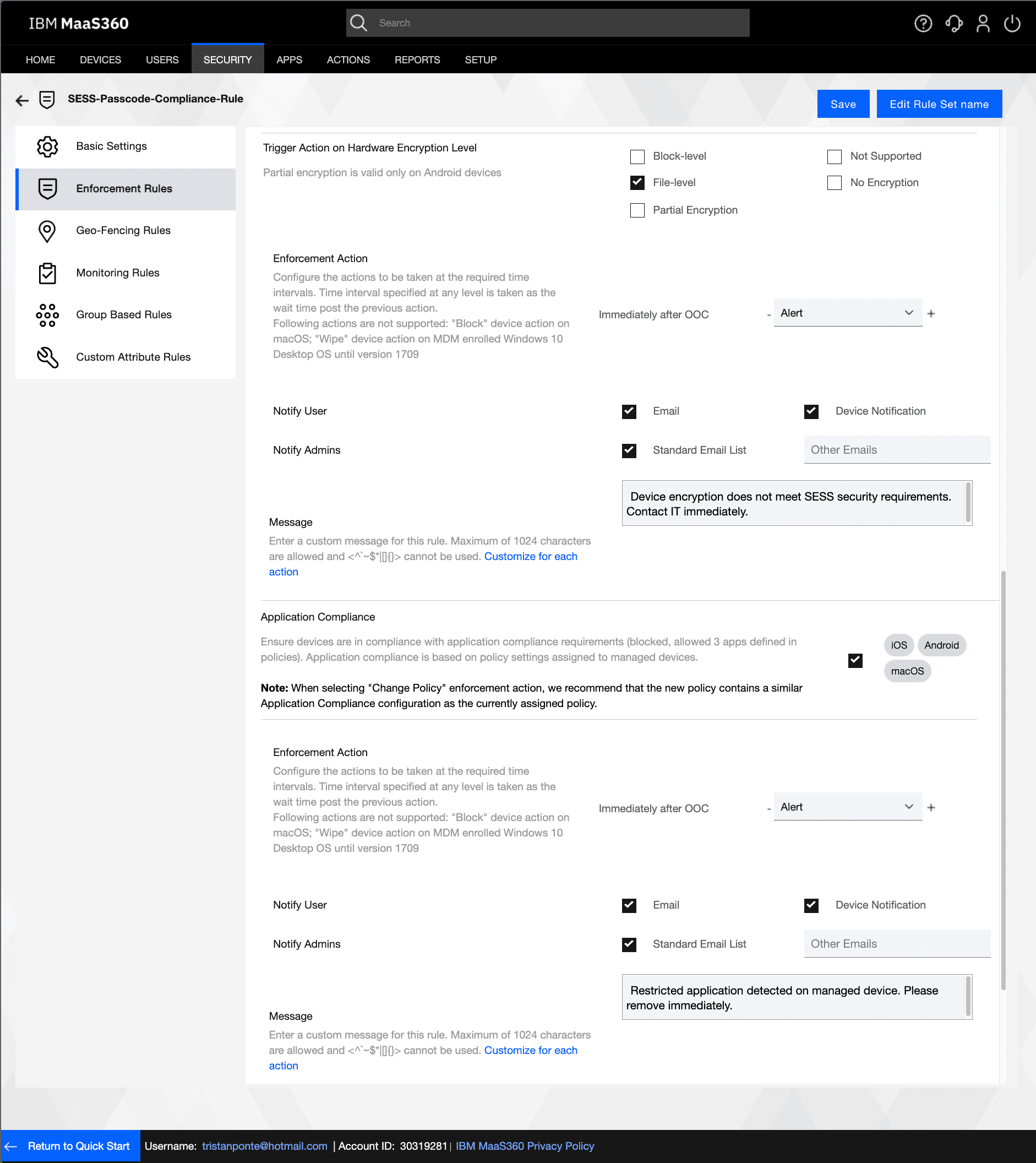
To complete the security framework, I created a compliance rule set named SESS-Passcode-Compliance-Rule under Security → Compliance Rules. I configured three enforcement rules: Enrollment (ensuring devices that remove MDM management are immediately flagged), Encryption Support (ensuring all devices maintain block-level and file-level encryption), and Application Compliance (automatically detecting restricted applications defined in the policy). For each rule, I configured the enforcement action to trigger an Alert immediately upon an out-of-compliance event, with email notifications sent to both the end user and the administrator. I also configured a custom message for the enrollment rule: "Device has been removed from MDM management. Please re-enroll immediately or contact IT support." This creates a fully automated compliance monitoring and notification workflow requiring no manual administrator intervention.
STEP 8: COMPLIANCE DETECTION IN ACTION & DEVICE UNENROLLMENT
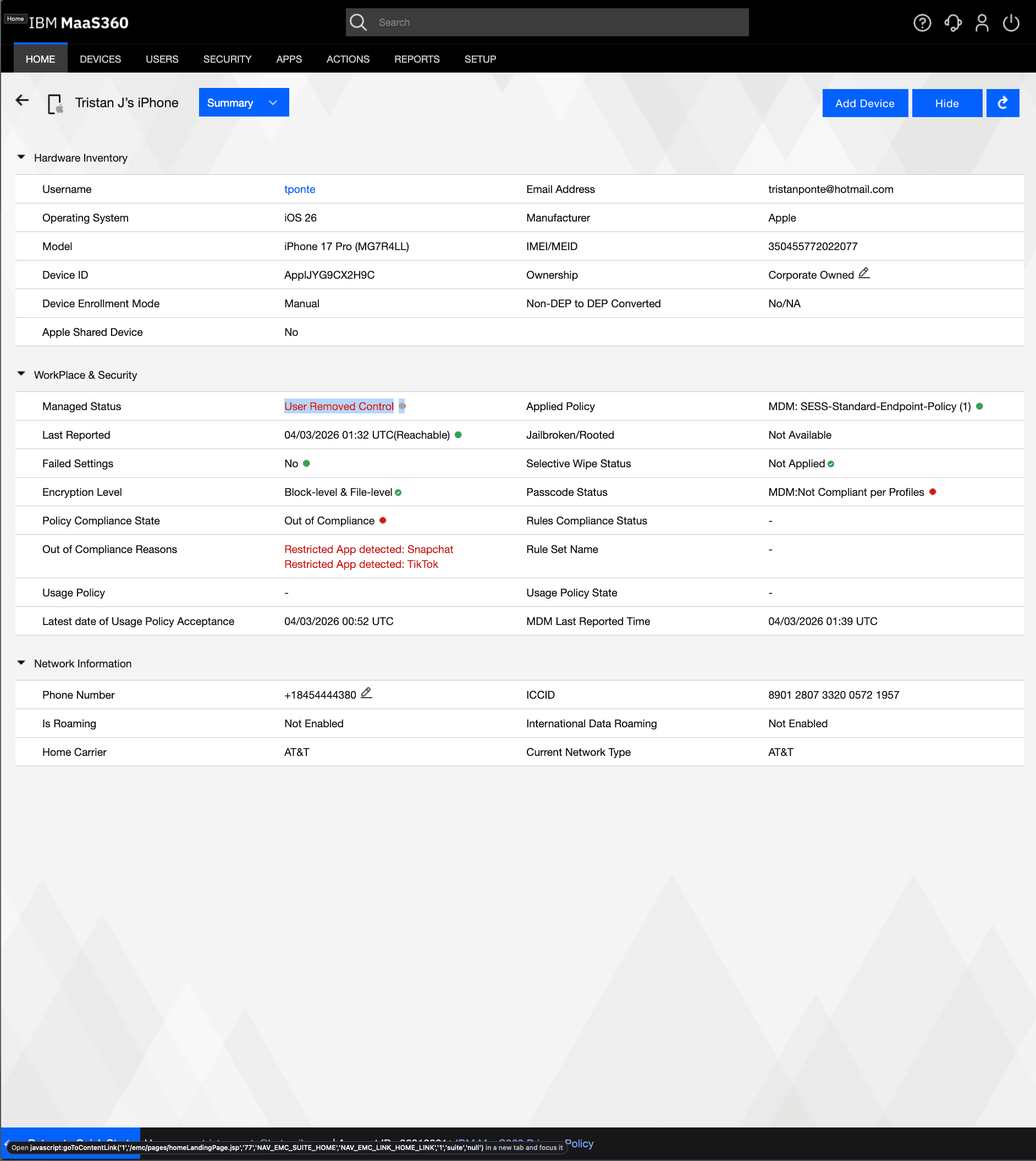
Upon removing the MDM profile from the device, MaaS360 immediately detected the change and updated the device record to reflect the new managed status and compliance state. The Device Summary page showed Managed Status updated to "User Removed Control" and Policy Compliance State changed to "Out of Compliance." Critically, the system automatically detected two restricted applications on the device and listed them explicitly under Out of Compliance Reasons: "Restricted App detected: Snapchat" and "Restricted App detected: TikTok." This demonstrates the Application Compliance blocklist functioning exactly as configured automatically identifying policy violations without any manual administrator review. The Applied Policy field continued to display SESS-Standard-Endpoint-Policy, confirming the policy remained associated with the device record for audit purposes. This final screenshot represents the complete MDM lifecycle: enrollment, policy enforcement, compliance monitoring, violation detection, and unenrollment.